
Analytics Logs
Analytics Logs give you direct access to the underlying data behind SearchBlox's Top Clicked and AutoSuggest tracking. This page covers how the data is stored in Elasticsearch, how to access it, how click counts are updated via API, and how to delete log data when needed.
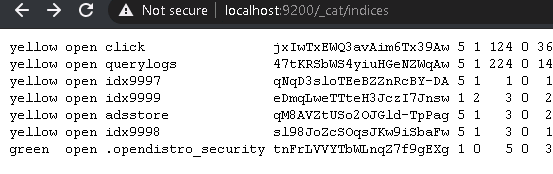
Top Clicked or Viewed data is stored in Elasticsearch under the index name idx9998. This index will appear in the list shown at:https://localhost:9200/_cat/indices.
Starting from version 9.2, there is an additional index called click, which stores individual URLs and their corresponding click counts.
Index Access
Top Clicked data is stored in Elasticsearch under the idx9998 index. Starting from SearchBlox version 9.2, an additional index named click stores individual URLs along with their corresponding click counts.
To access the data directly, use the following URLs:
| Index | URL |
|---|---|
| idx9998 | https://localhost:9200/idx9998/_search?pretty=true |
| click | https://localhost:9200/click/_search?pretty=true |
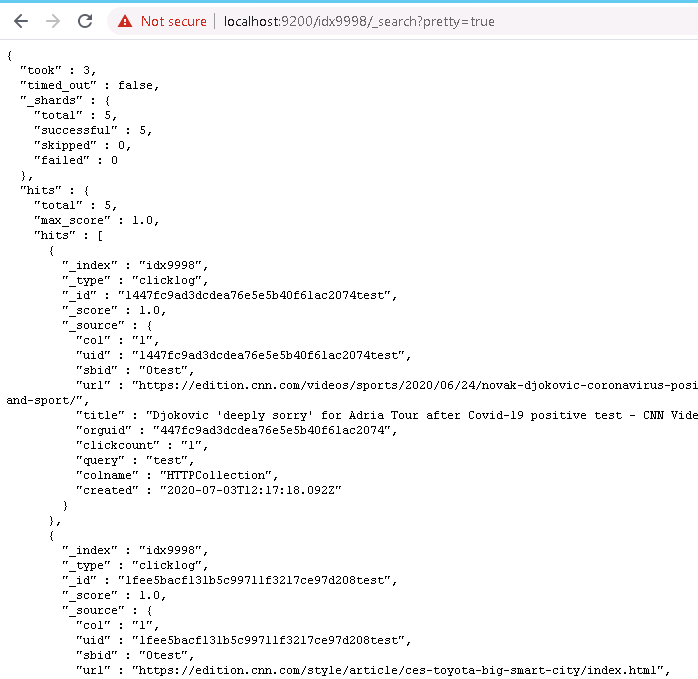
idx9998 index output
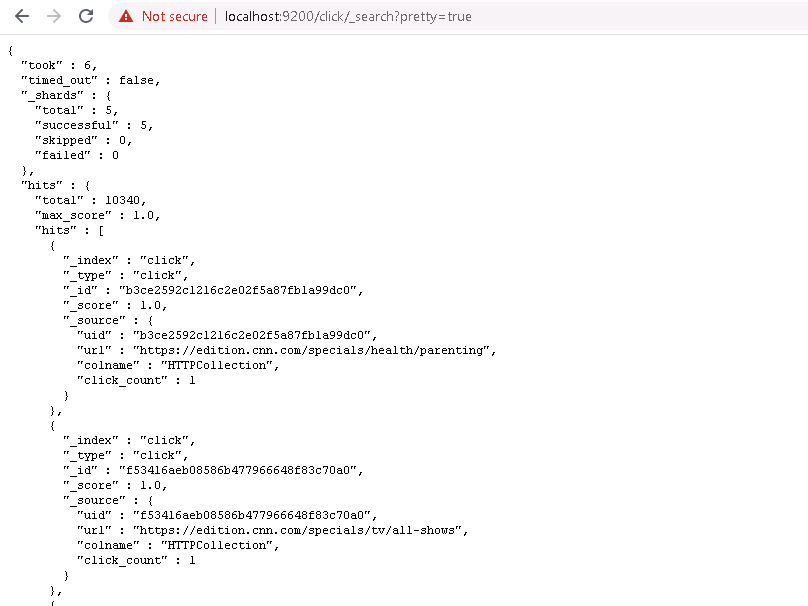
click index output
Important Note:
- Only documents or URLs clicked from Faceted Search can be recorded in Top Clicked index.
- This does not apply to clicks from regular search results..
Viewing Top Viewed/Clicked Results in Kibana
- The Top Clicked Results are stored in a separate Elasticsearch index called idx9998 in SearchBlox.
- You can use Kibana to view these results, search through them, and create reports based on this data.
- In Kibana, add the index name idx9998 to access the Top Clicked Results.
- If needed, you can also add the click index by including its index name using the same steps.
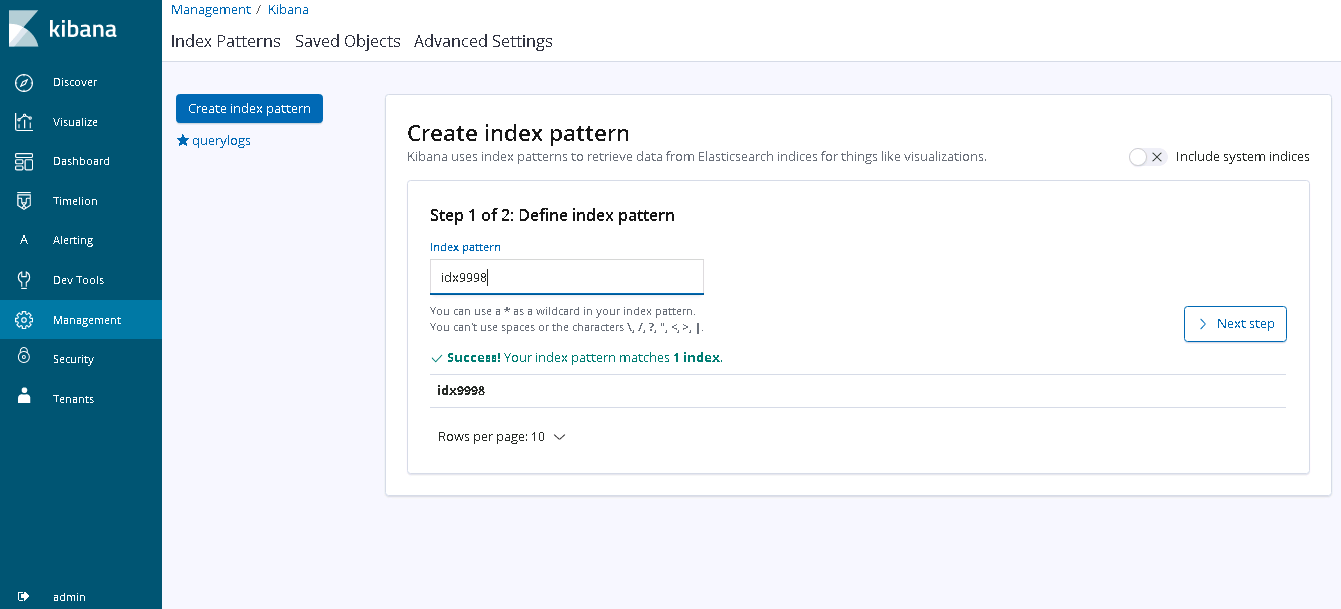
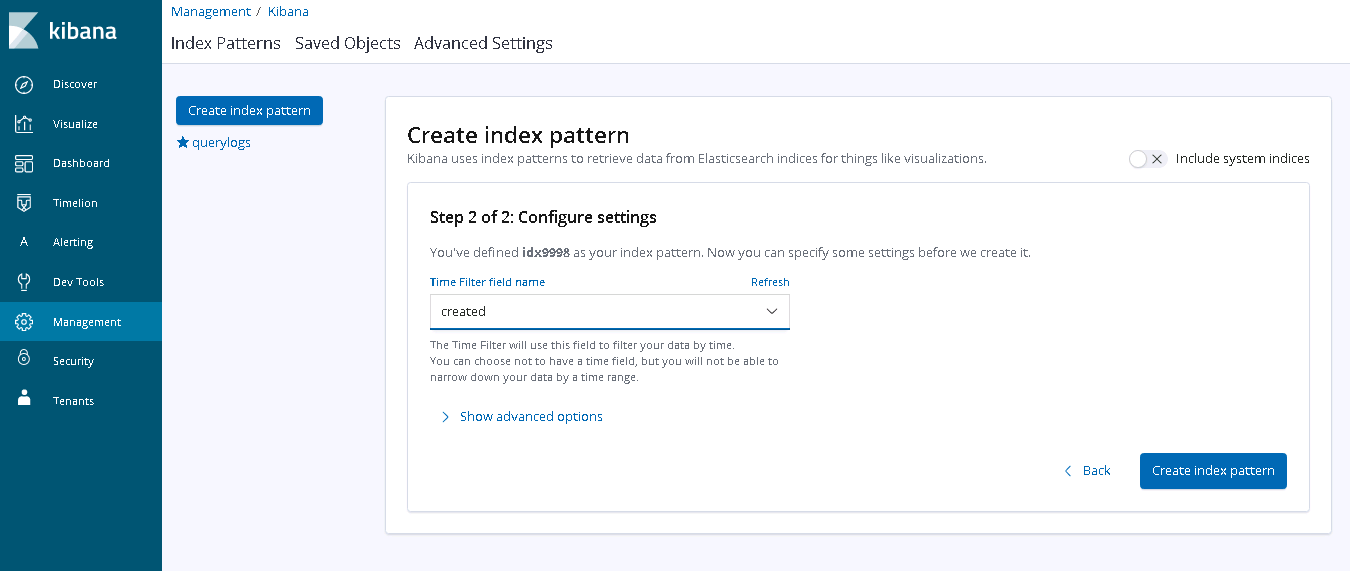
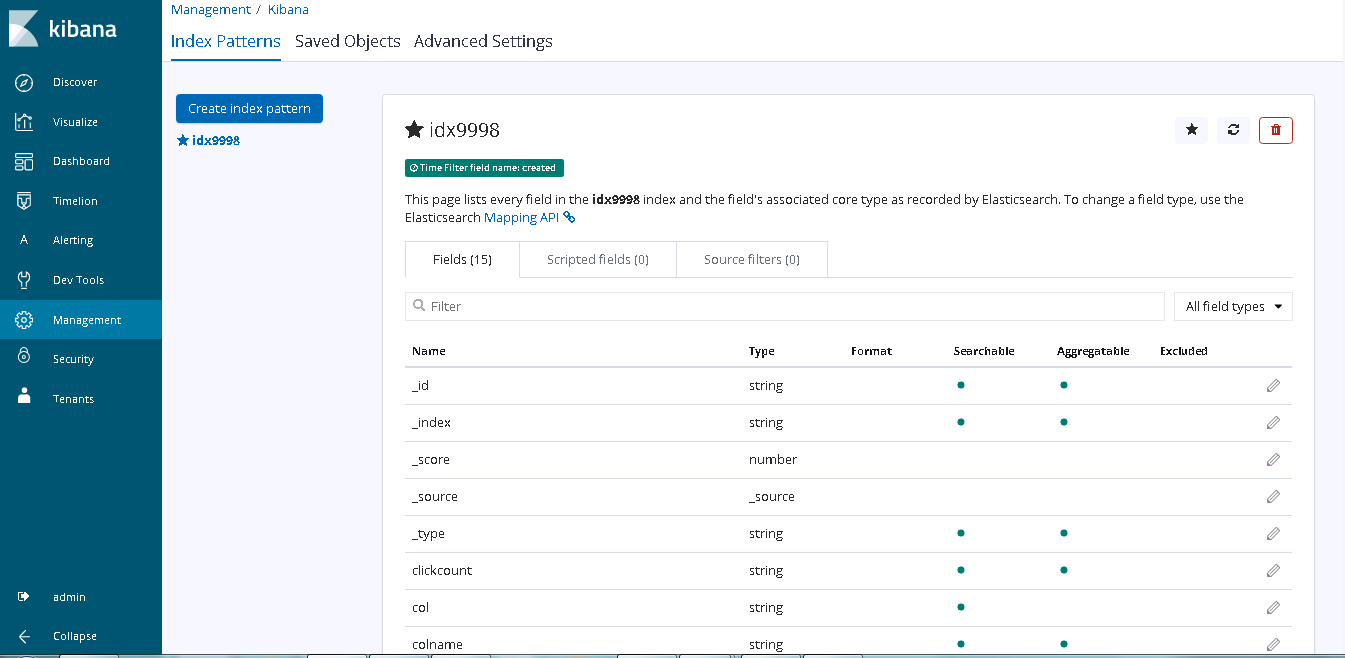
- Top Clicked results can be viewed and searched after adding index idx9998 in Kibana.
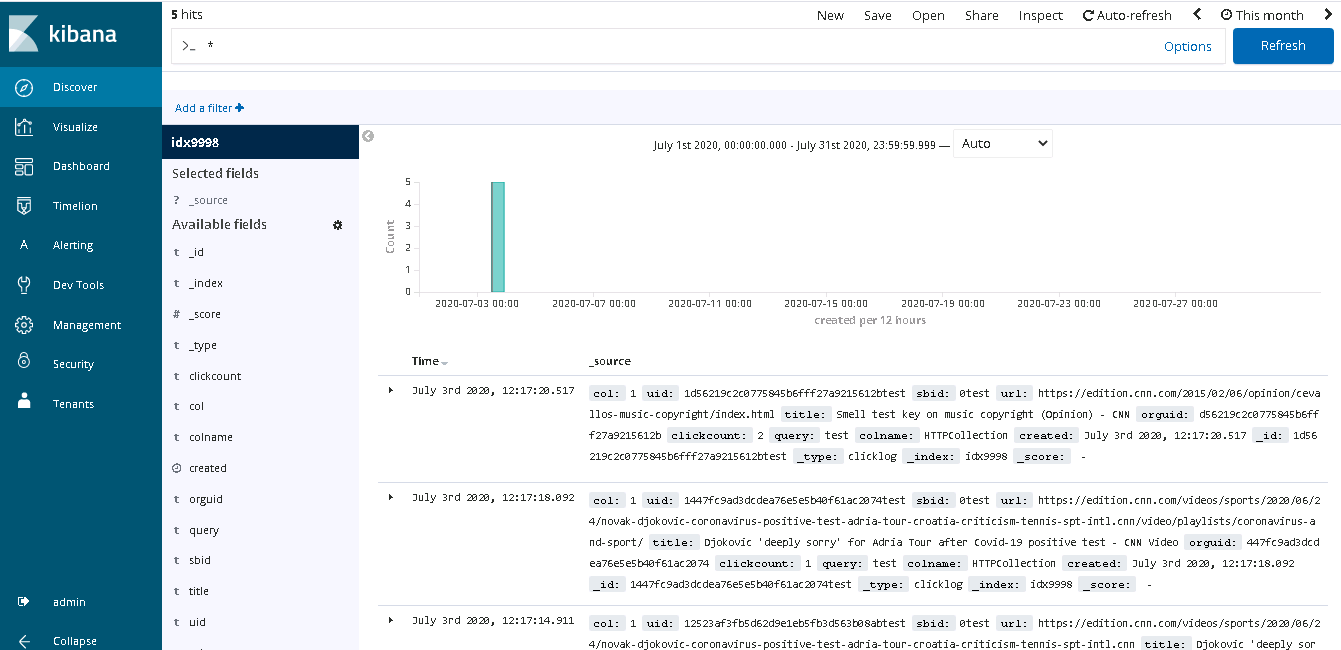
To get to know more about Kibana in SearchBlox please check the following link:
Kibana Visualizations and Explore
Top Clicked Data Analysis
API to Increment Click Count from Search
- SearchBlox uses the ReportServlet API URL to increment the click count.
- When a click occurs, the count is updated both in the indexed document and in the click log index (idx9998).
- From version 9.2 and above, SearchBlox also updates the click information in another index called click.
https://localhost:8443/searchblox/servlet/ReportServlet?addclick=yes&col=10&query=test&title=title&uid=11b77586c75556e161a6a71a451d6744&url=https://www.searchblox.com
| parameters | Description |
|---|---|
| addclick | yes The value for this field should be yes |
| col | collection number |
| query | Search query |
| title | title of the document from JSON results |
| uid | uid of the document from JSON results |
| url | url of the document from JSON results |
Integration of the Search Click Count API in Faceted Search
We use Axios to call these APIs insideplugin\src\sb\Common\SbCore.js
We are sharing the sample code so you can use a similar approach for your own custom search implementation.
export const getDocumentClickCount = (parameters) => {
  let urlParameters = Object.assign({}, qs.parse(window.location.search));
  if(Object.keys(parameters).length !== 0){
    parameters.query = urlParameters.query;
    // console.log(parameters,"params")
    return axios.get(defaults.pluginDomain + "/searchblox/servlet/ReportServlet?addclick=yes&col="+parameters.col+"&query="+parameters.query+"&title="+parameters.title+"&uid="+parameters.uid+"&url="+parameters.url)
    .then((response)=>{
      return response;
    })
    .catch((error)=>{
      return error;
    });
  }
};
API for Capturing AutoSuggest Click Count
- SearchBlox uses the following API URL in the ReportServlet to update the autosuggest click count:
https://localhost:8443/searchblox/servlet/ReportServlet?addsuggest=yes&query=test&suggestion=test - If you need to include the collection number, you can add it using the col parameter, like this: https://localhost:8443/searchblox/servlet/ReportServlet?addsuggest=yes&query=test&suggestion=test&col=1
| Parameter | Description |
|---|---|
| addsuggest | yes The value for this field should be yes |
| query | search query |
| suggestion | search suggestion |
| col | collection number |
Integration of the Autosuggest click API in Faceted Search
We use Axios to call these APIs inside the fileplugin\src\sb\Common\SbCore.js
We are sharing the sample code so you can use a similar method for your own custom search setup.
export const getSuggestClickCount = (parameters) => {
  let urlParameters = Object.assign({}, qs.parse(window.location.search));
  if(Object.keys(parameters).length !== 0){
    if(urlParameters.query === undefined) {
      parameters.query = parameters.suggest;
    }
    else {
      parameters.query = urlParameters.query;
    }
    if(parameters.query.indexOf('"') >= 0) {
      parameters.query = parameters.query.replace(/['"]+/g, '');
    }
    let colArray = [];
    let colString = "";
    if(defaults.defaultCollections.length > 0){
      colArray = defaults.defaultCollections.slice();
    }
    else if(urlParameters.col && urlParameters.col.constructor === Array) {
      colArray = urlParameters.col.slice();
    }
    else if(urlParameters.col && urlParameters.col.constructor === String) {
      colArray.push(urlParameters.col);
    }
    if(colArray !== null && colArray !== undefined && colArray !== "" && colArray.length > 0) {
      colArray.map((value,key) => {
        colString = colString + "&col=" + value;
      });
    }
    return axios.get(defaults.pluginDomain + "/searchblox/servlet/ReportServlet?addsuggest=yes&query="+parameters.query+"&suggestion="+parameters.suggest+colString)
    .then((response)=>{
      return response;
    })
    .catch((error)=>{
      return error;
    });
  }
};
Deleting or Clearing Data for Top Clicked Documents
Data in the Top Clicked index (idx9998) can be deleted from Kibana using Dev Tools. Three deletion options are available:
- Clear all data from the idx9998 index
- Clear all data from the click index
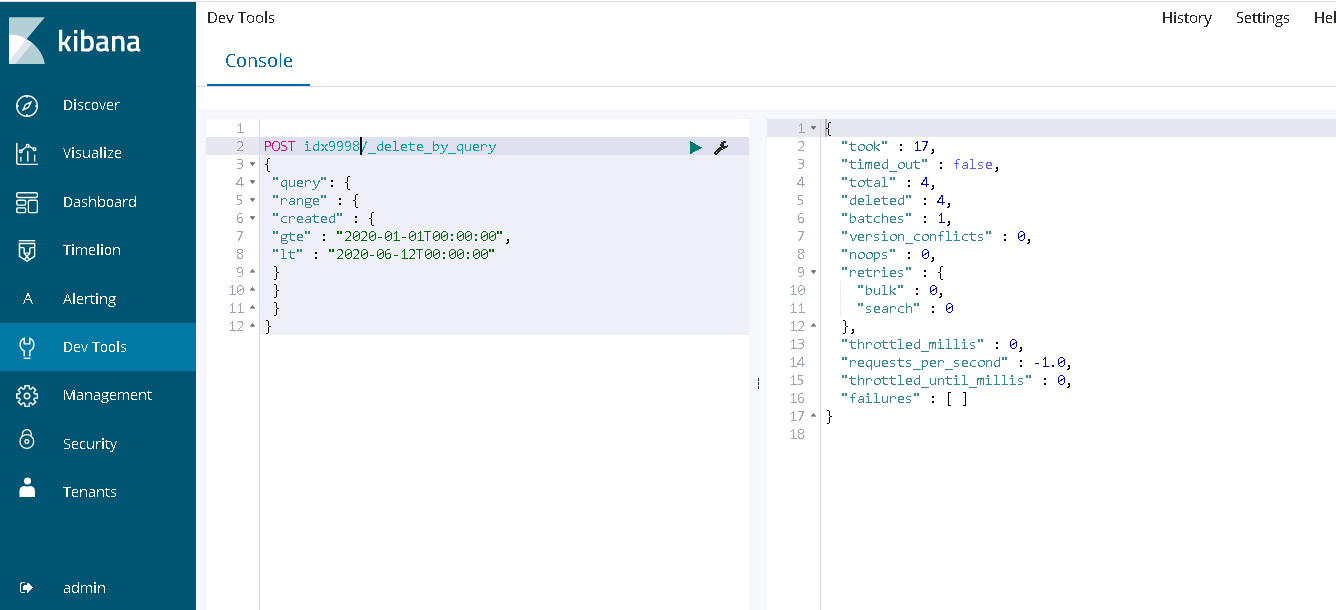
- Delete data by date range using a range filter on the created field
Open Kibana, navigate to Dev Tools, and run the appropriate request shown below.
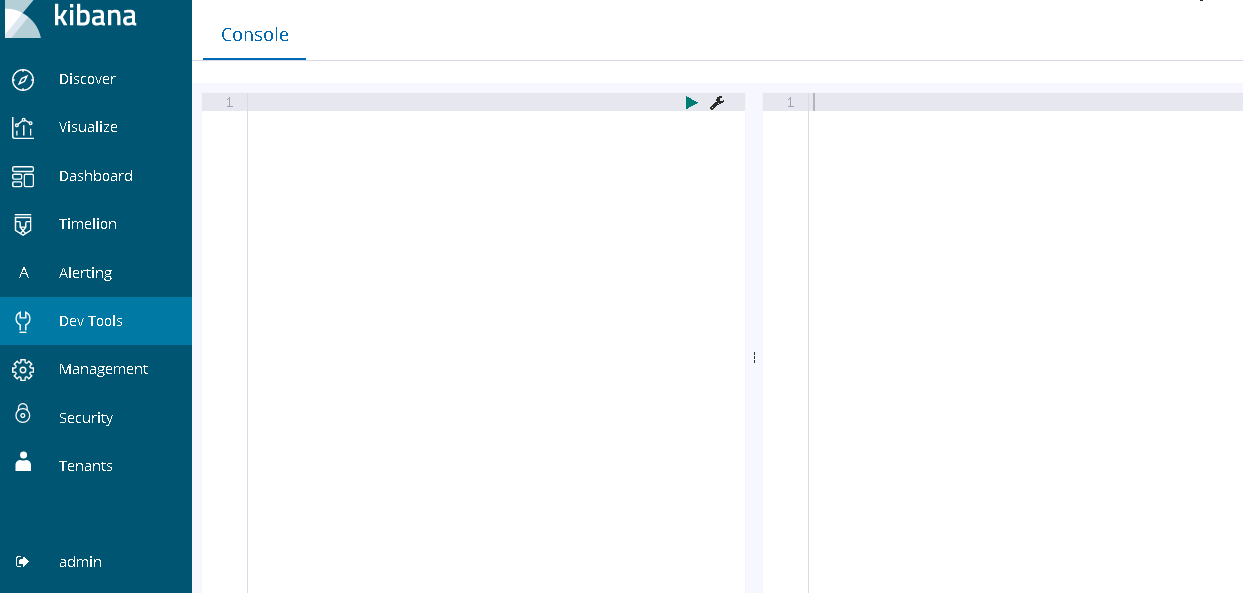
- Give the following POST request to clear all the data from topclicked index
idx9998
POST idx9998/_delete_by_query
{
  "query": {
    "match_all": {}
  }
}- If you want to remove entries from the click index instead, replace idx9998 with click:
POST click/_delete_by_query
{
  "query": {
    "match_all": {}
  }
}- If you want to delete data based on a date range, you can send a POST request that includes a date range filter.
POST idx9998/_delete_by_query
{
 "query": {
 "range" : {
 "created" : {
 "gte" : "2020-01-01T00:00:00",
 "lt" : "2020-06-12T00:00:00"
 }
 }
 }
}
The response would be:
Updated 12 days ago