
CSV Collection
CSV Collections allow SearchBlox to index records from CSV files and make them fully searchable. This is useful for indexing structured data such as product catalogues, customer records, or any tabular data exported from other systems.
Creating CSV Collection
Follow these steps to create a CSV Collection:
-
Log in to the Admin Console
-
Go to the Collections tab
-
Click "Create a New Collection" or the "+" button
-
Choose "CSV Collection" as the collection type
-
Enter a unique name for your collection (e.g., "CSV")
-
Set the Access (Private or Public)
-
Choose Encryption based on your security needs
-
Pick the content language (if not English)
-
Click Save to create the collection
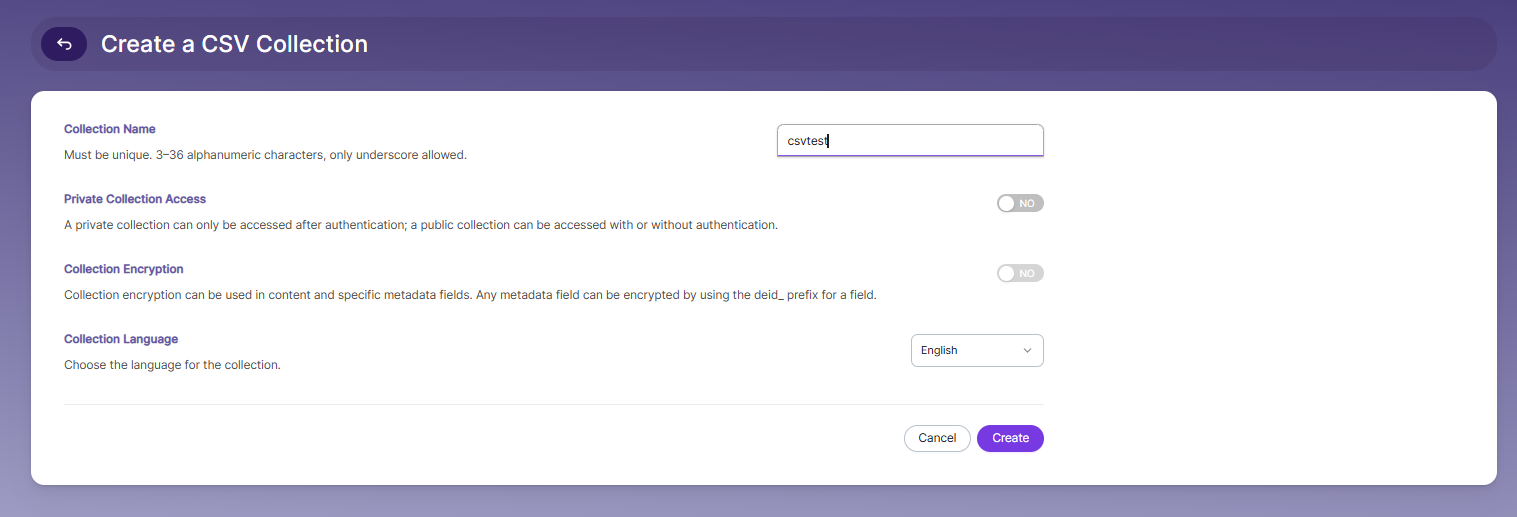
-
After creating the CSV collection, you will be automatically redirected to the CSV Settings tab.
CSV Collection Settings
-
CSV collection settings must be configured manually.
-
The required settings for a CSV collection are:
- Folder Path
- Unique Field
-
You must map a unique field from your CSV file. Only when the selected field has unique values, all records in the CSV file will be indexed.
-
SearchBlox also provides some default settings when a new CSV collection is created. These settings can be changed as needed.
-
The table contains all the available CSV collection settings.
| Field | Descriptioin |
|---|---|
| Folder Path | Location of your CSV files. You can upload files or provide the direct folder path. |
| Field Separator | The character that separates values in the CSV. Default is a comma (,). |
| Escape Character | Character used to escape special characters. Default is ;. |
| Quote Character | Character used to wrap text values. Default is a single quote ('). |
| Use first record as header | Enable this if the first row of your CSV contains column names. |
| Unique Field | The column name in the CSV that has unique values for every row. This is required for correct indexing and searching. |
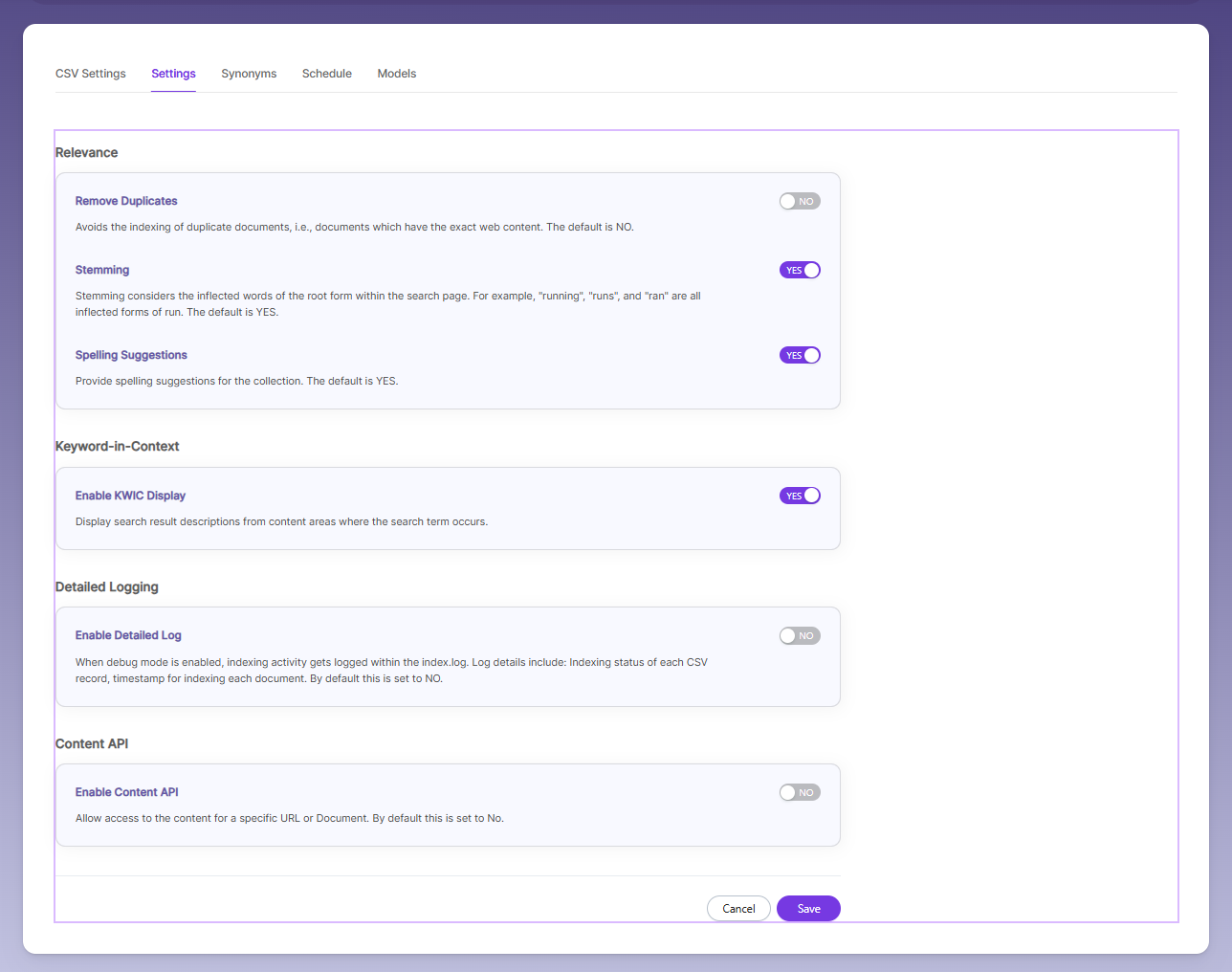
| Relevance - Remove Duplicate | Prevents indexing of duplicate rows that have the same content. Default is NO. |
| Relevance - Stemming | Matches different forms of a word (run, running, ran). Default is YES |
| Relevance - Spelling Suggestions | Gives spelling correction suggestions for searches. Default is YES. |
| Keyword-in-Context Display | Shows search results with a short description taken from the part of the content where the searched word appears. |
| Enable Detailed Log Settings | When enabled, detailed indexing logs are saved (timestamps, status, time taken). Default is NO. |
| Enable Content API | Allows indexing of document content that includes special characters. |
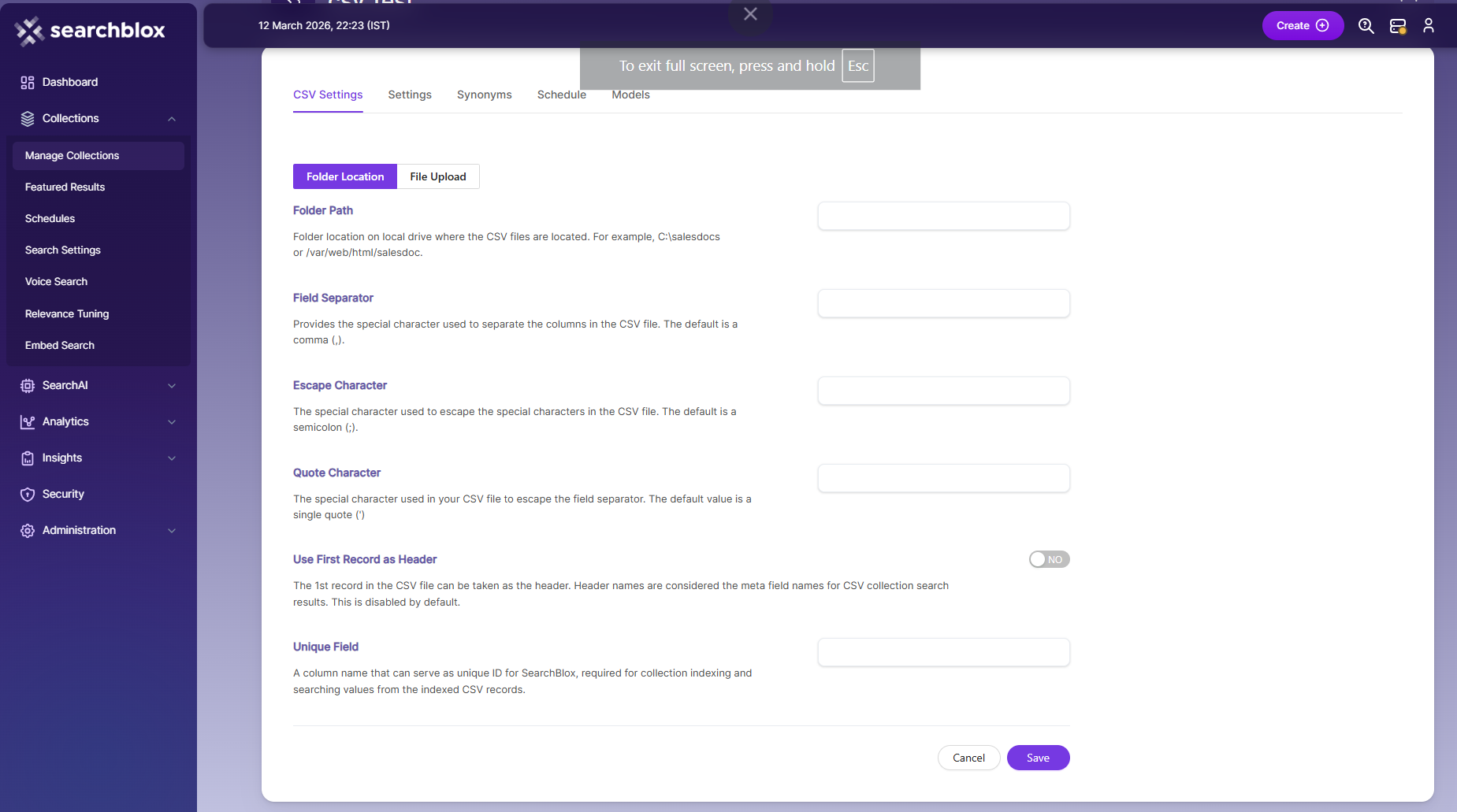
- After entering the Folder Path and other fields, or after uploading the CSV file, click the Save button.
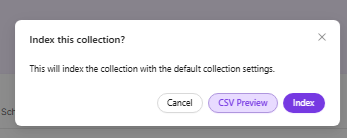
- Once you click Save, a pop-up will appear. In this pop-up, you can either view the saved file using CSV Preview or start indexing by clicking Index.
-
- Search-related settings can be found under the Settings tab.
Important Note:Note: If the Unique Field values are not unique, the CSV collection results will match the number of records in the CSV file.
Synonyms
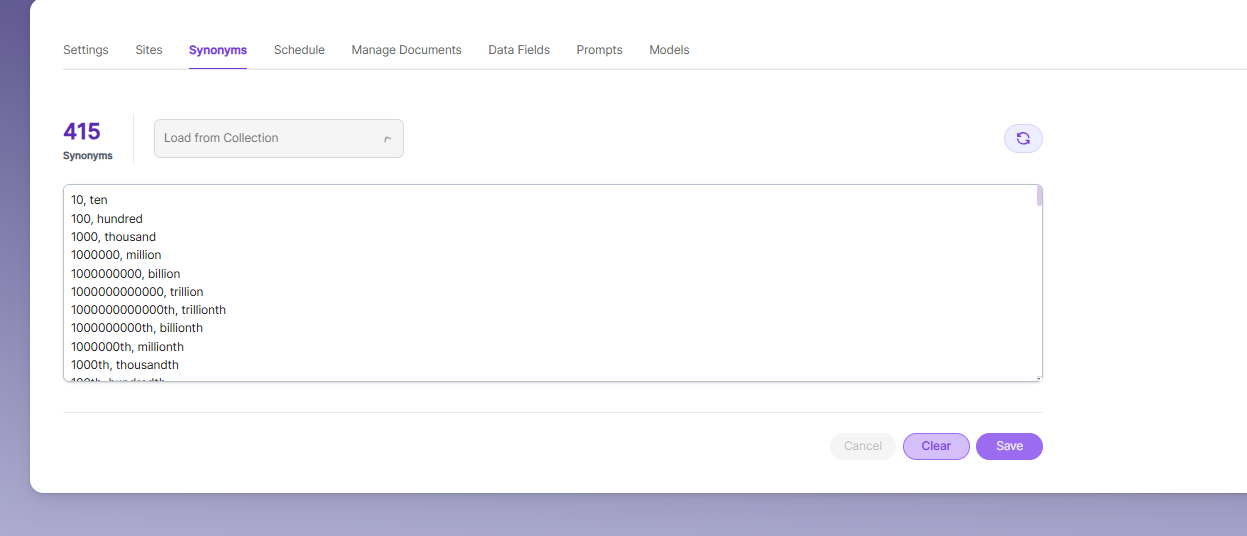
Synonyms help the search show relevant documents even when the exact search word is not used.
For example, if someone searches for “global,” the results can also include documents that use “world” or “international.”
We have an option to load Synonyms from the existing documents.
Stopwords
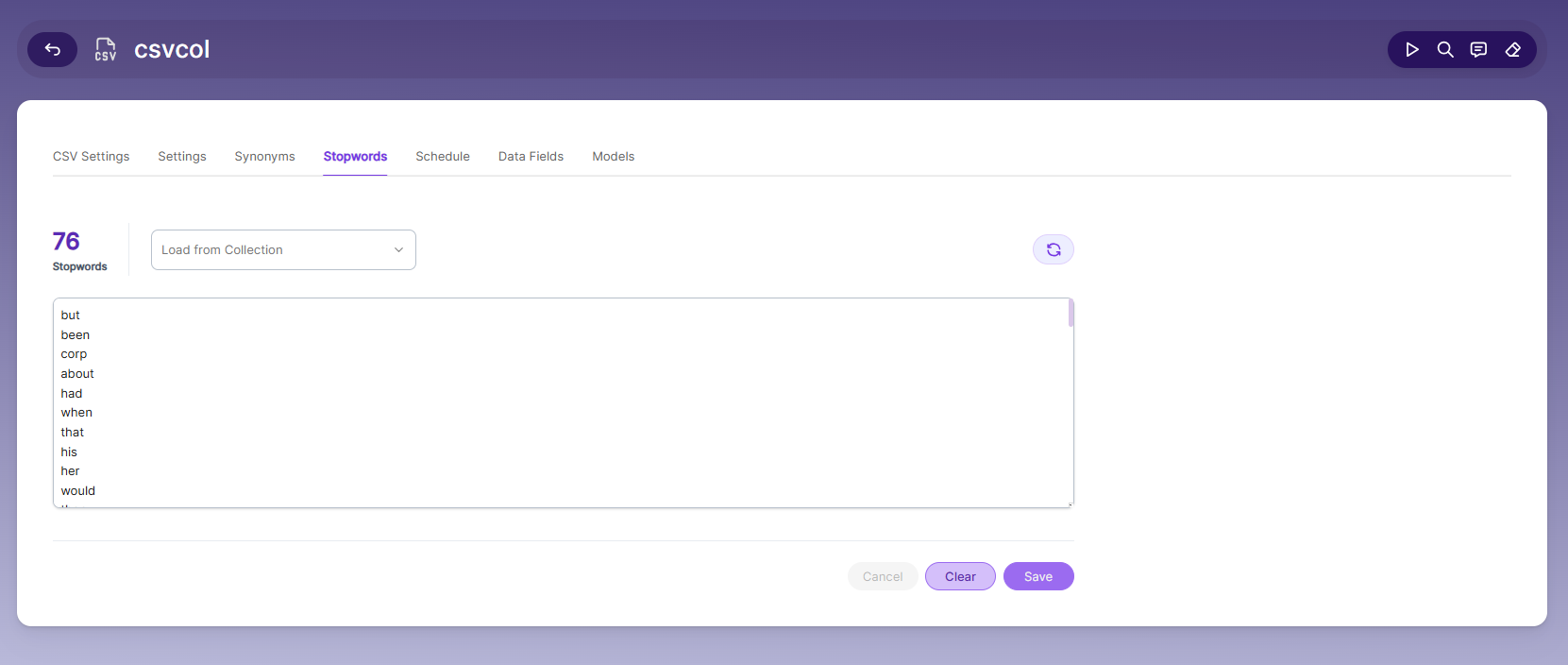
Stopwords are common, high-frequency words that carry minimal semantic value and are typically excluded during text processing, indexing, or search operations. Examples include articles (a, an, the), conjunctions (and, but, or), prepositions (in, on, about), and auxiliary verbs (is, was, would, had).
Purpose:
Reduce noise in search indexing and text analysis
Improve processing efficiency by excluding low-value tokens
Enhance search relevance by prioritizing meaningful keywords
Schedule and Index
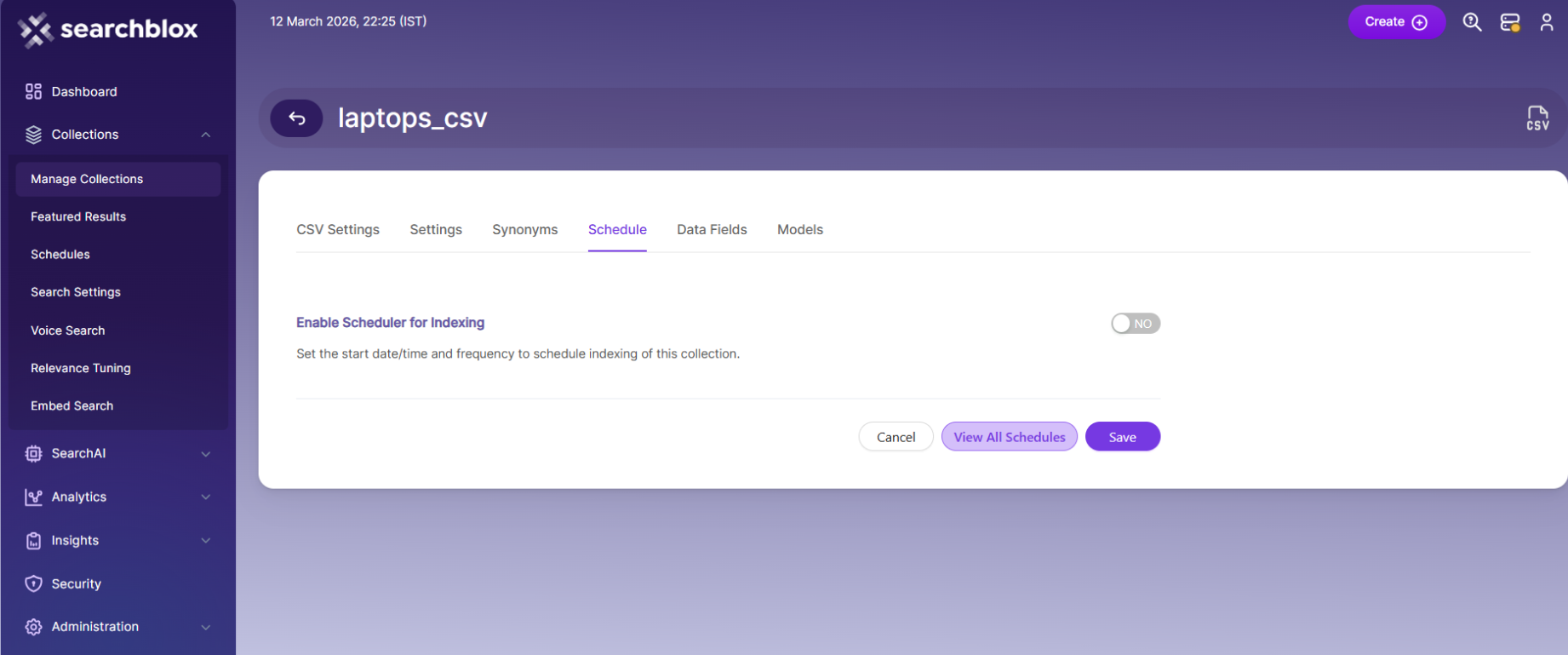
Sets how often and when indexing should start for the CSV collection based on the folder path. The supported schedule options in SearchBlox are:
- Once
- Hourly
- Daily
- Every 48 Hours
- Every 96 Hours
- Weekly
- Monthly
The following actions can be performed in a CSV collection.
| Activity | Description |
|---|---|
| Enable Scheduler for Indexing | Turn scheduling and choose the Start Date and Frequency. |
| Save | Saves the schedule settings for the collection. |
| View all Schedules | Opens the Schedules page to see all collection schedules. |
Viewing Search Results for CSV Collections
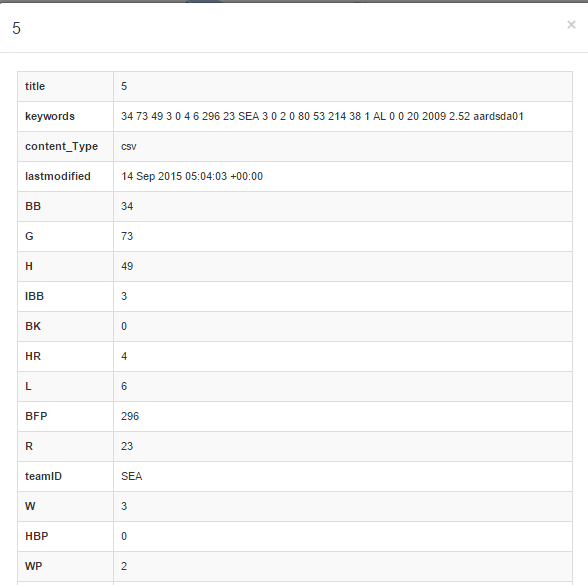
- You can view search results by searching at: https://localhost:8443/search/index.html
- When you click a search result, the record details will be shown in a simple grid view:.
Models
The Models page allows you to configure and override AI models used for embeddings, reranking, and LLM-based features within the collection.
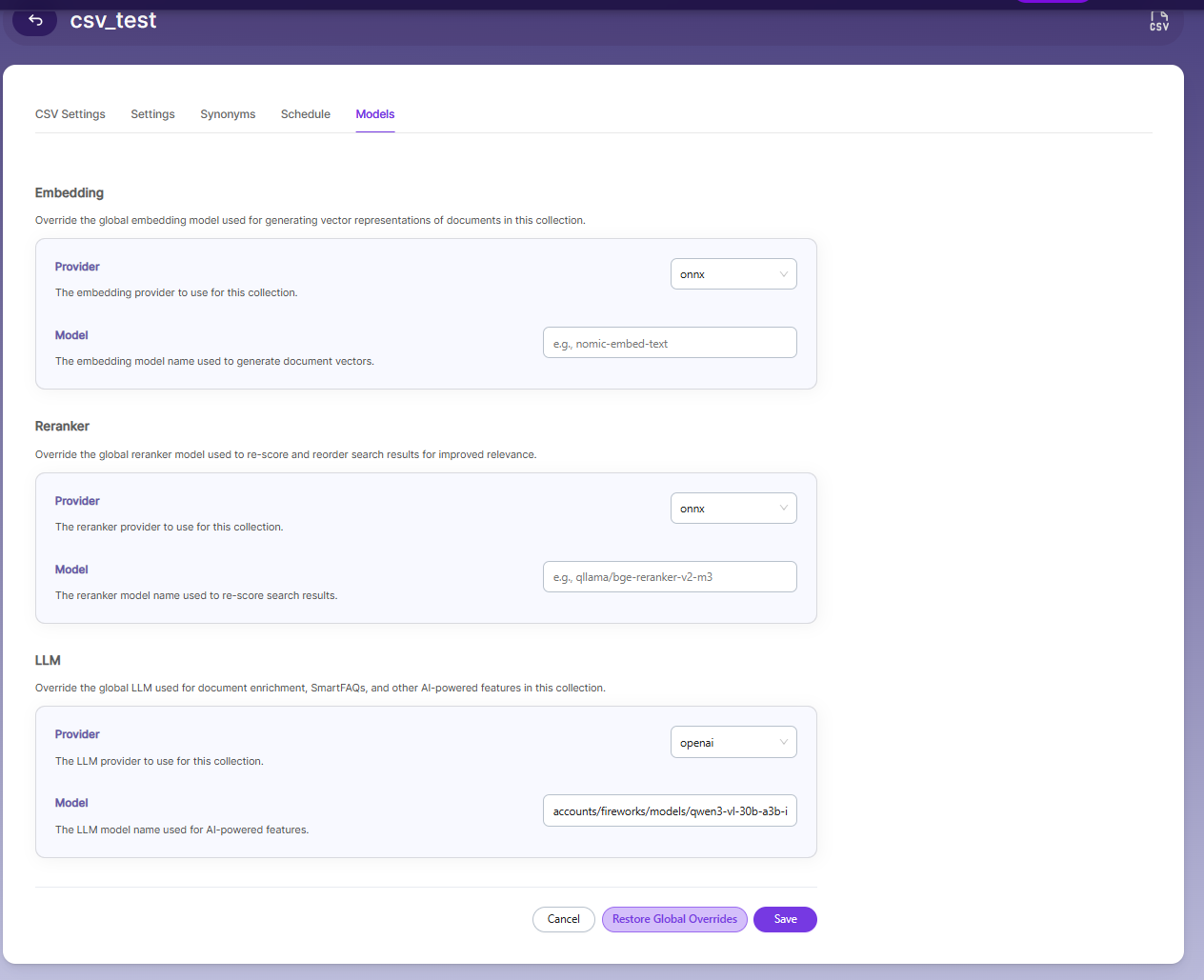
Embedding
- Provider specifies the embedding provider used to generate vector representations of documents.
- Model defines the embedding model used to convert document content into vectors for semantic search.
Reranker
- Provider specifies the reranker provider used for improving search result relevance.
- Model defines the reranker model used to re-score and reorder search results based on relevance.
LLM
-
Provider specifies the Large Language Model provider used for AI-powered features.
-
Model defines the LLM used for tasks such as document enrichment, summaries, and SmartFAQs.
-
These settings override global configurations and apply only to the current collection.
Best Practices
- Make sure the CSV file has a unique field, so it can be mapped correctly for indexing all records.
- If the folder has multiple CSV files, keep the same column structure in all files.
- Check that quotes are properly opened and closed, and ensure the quote character is correctly set in the settings.
- If a quote is opened but not closed, remove the quote character from that field.
- If you have multiple collections, always schedule indexing so only 2–3 collections index at the same time.
Updated 29 days ago