
Integrating Sharepoint and SearchBlox
You can integrate SearchBlox search with SharePoint 2013 by following the steps below:
Prerequisites:
SearchBlox must be installed and running before starting the integration — it can be on the same server as SharePoint or a separate server. Make sure you have the correct SearchBlox search URL ready, as it will be needed in Step 5.
The steps to integrate SharePoint 2013 with SearchBlox are as follows:
Step 1:
Log in to SharePoint.
Step 2:
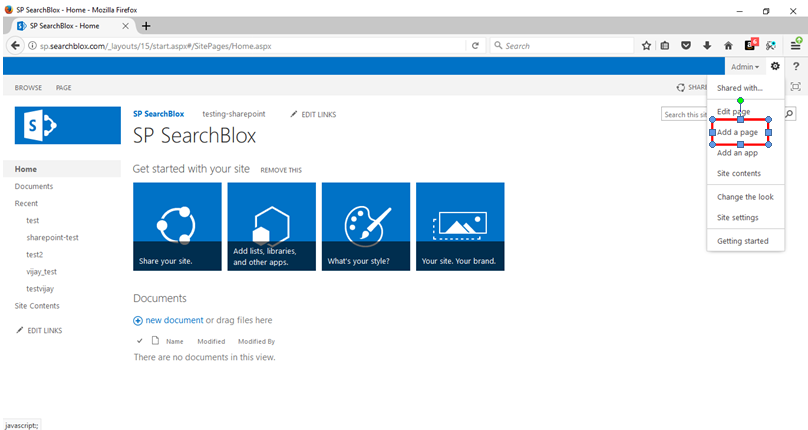
Click Add Page, as shown in the screenshot below.
Step 3:
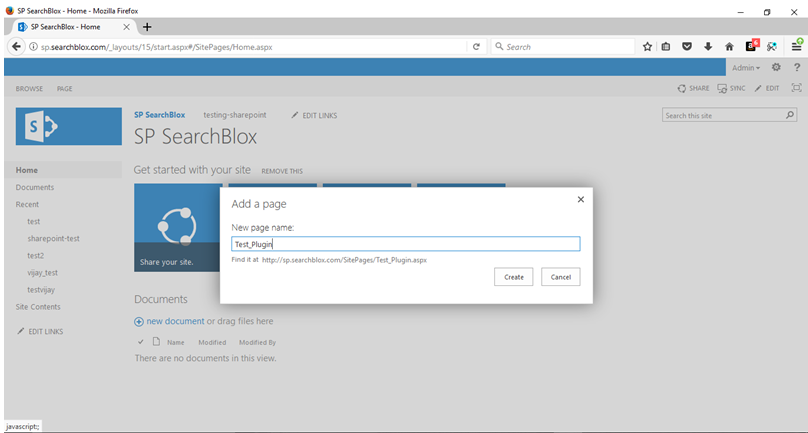
Enter a page name and click Create.
Step 4:
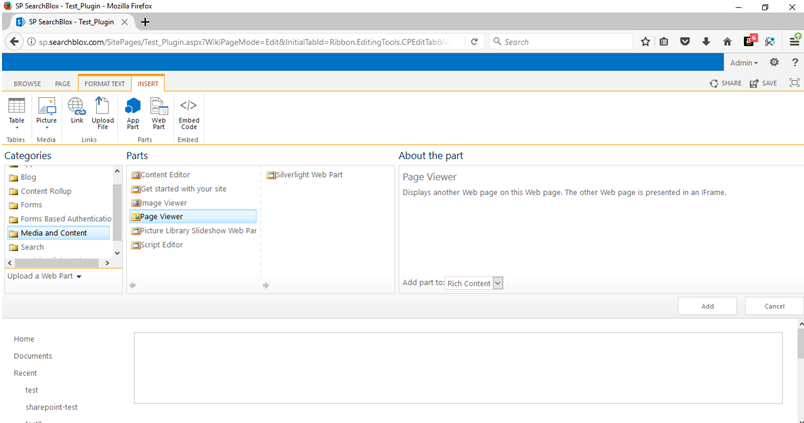
On the landing page, click Insert, then select Web Part. Under Categories, choose Media and Content, and under Parts, select Page Viewer. Click Add.
Step 5:
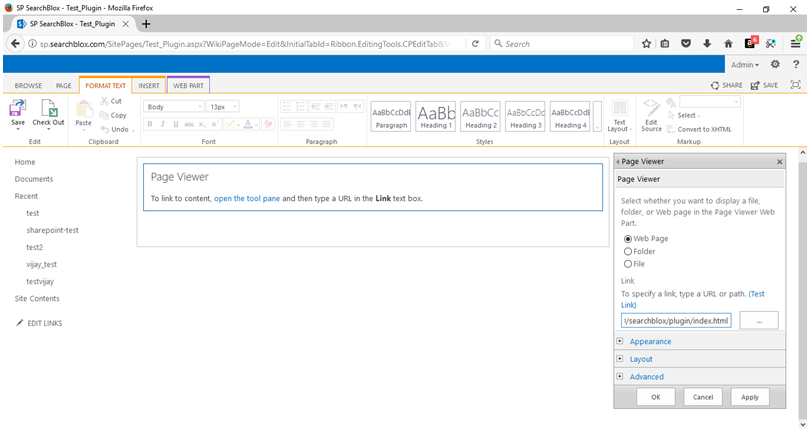
On the landing page, click Open the Tool Pane. The options will appear on the right side of the page.
In the Page Viewer, select Web Page, then enter the URL of the SearchBlox search page.
example: https://localhost:8443/search/index.html
Step 6:
You can adjust the iframe height under Appearance. Select Yes for height, then enter the required value and click OK.
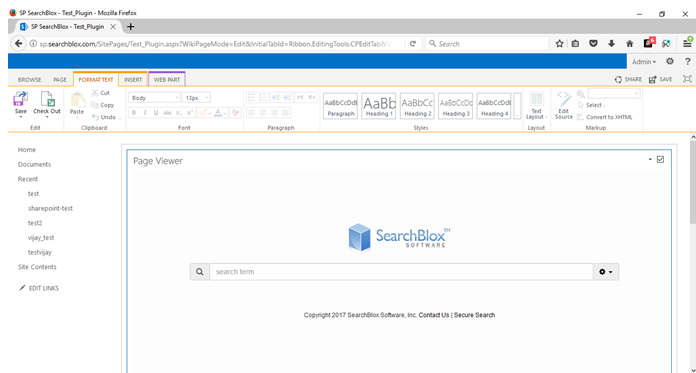
Close the options pane on the right, and click Save in the top-right corner. The plugin will then be displayed as shown below.
Updated 27 days ago