
Salesforce DB Connector
Set-Up Instructions
Task 1 – Create a Database Collection in SearchBlox
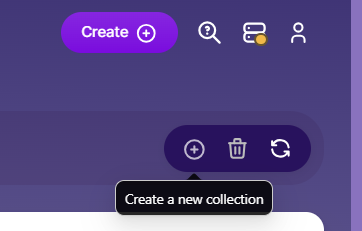
After logging in to the Admin Console, go to the Collections tab and click Create New Collection or the “+” icon.
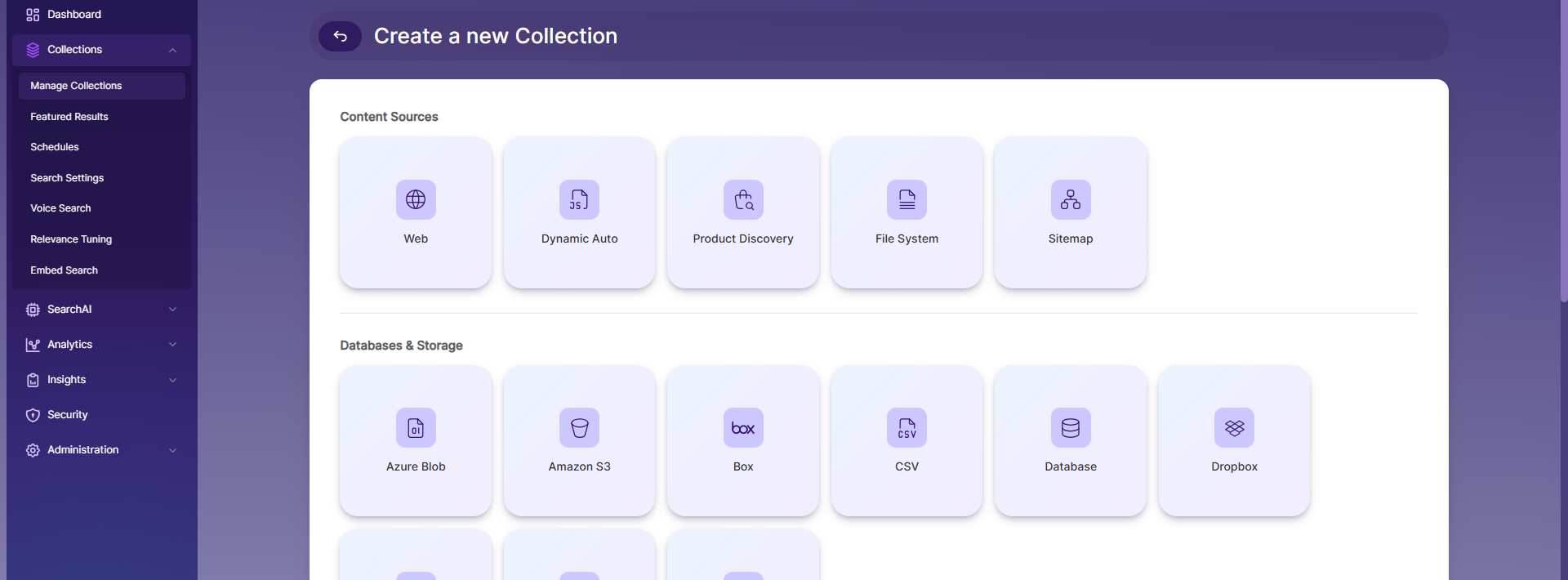
Next, select Database Collection as the collection type.
Enter a unique name, select the access type and language, then click Save to create the collection. This will add the database collection to the SearchBlox server.
Task 2 – Getting a Security Token from Salesforce
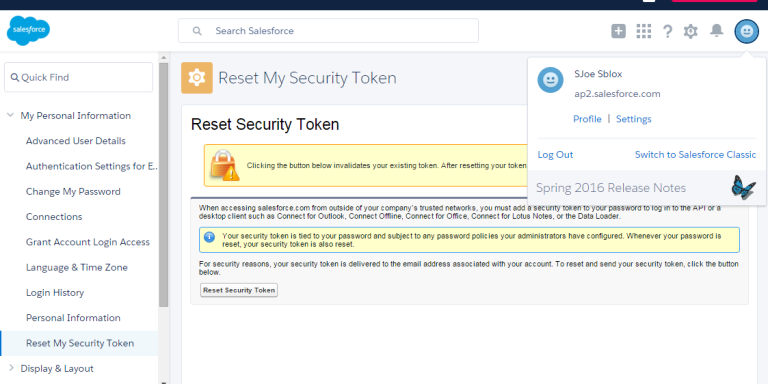
Go to Salesforce and log in to your account. Click View Profile in the top right corner, then go to Settings and select Reset My Security Token from the left-hand menu, as shown in the screenshot.
You will receive an email with the security token, which must be used in the Database URL String in the Database Collection settings.
Task 3 – Database Collection Settings
Select Salesforce as the database type from the dropdown menu and enter the database URL string in the format shown below:
jdbc:salesforce:User=example@examplecom;Password=password;Security Token=ak8dfsdklfoll949MU2DTEp9dEGSjdfsdfsdfdsI683U;If your login URL is different from the standard one, add an extra parameter in the format Other=LoginUrl.
jdbc:salesforce:User=example@examplecom;Password=password;Security Token=ak8dfsdklfoll949MU2DTEp9dEGSjdfsdfsdfdsI683U;Other=LoginUrl=https://myurl.salesforce.com/services/Soap/c/33.0;You will receive an email containing the username, password, and security token, which must be entered into the database URL string.
Then, provide an SQL query to fetch data from Salesforce. The query format is:
SELECT
Configure SQL QuerySome of the commonly used tables and queries in Salesforce are:
SELECT * FROM Account
SELECT * FROM Lead
SELECT * FROM Cases
For more data tables that can be indexed from Salesforce, use the following link:
https://cdn.cdata.com/help/RFG/jdbc/pg_overview.htm
If you have more than 100 entries in a table, specify the number of documents to be indexed by giving LIMIT value in the query. For example:
SELECT * FROM Account LIMIT 300Otherwise, a minimum of 100 rows will be indexed.
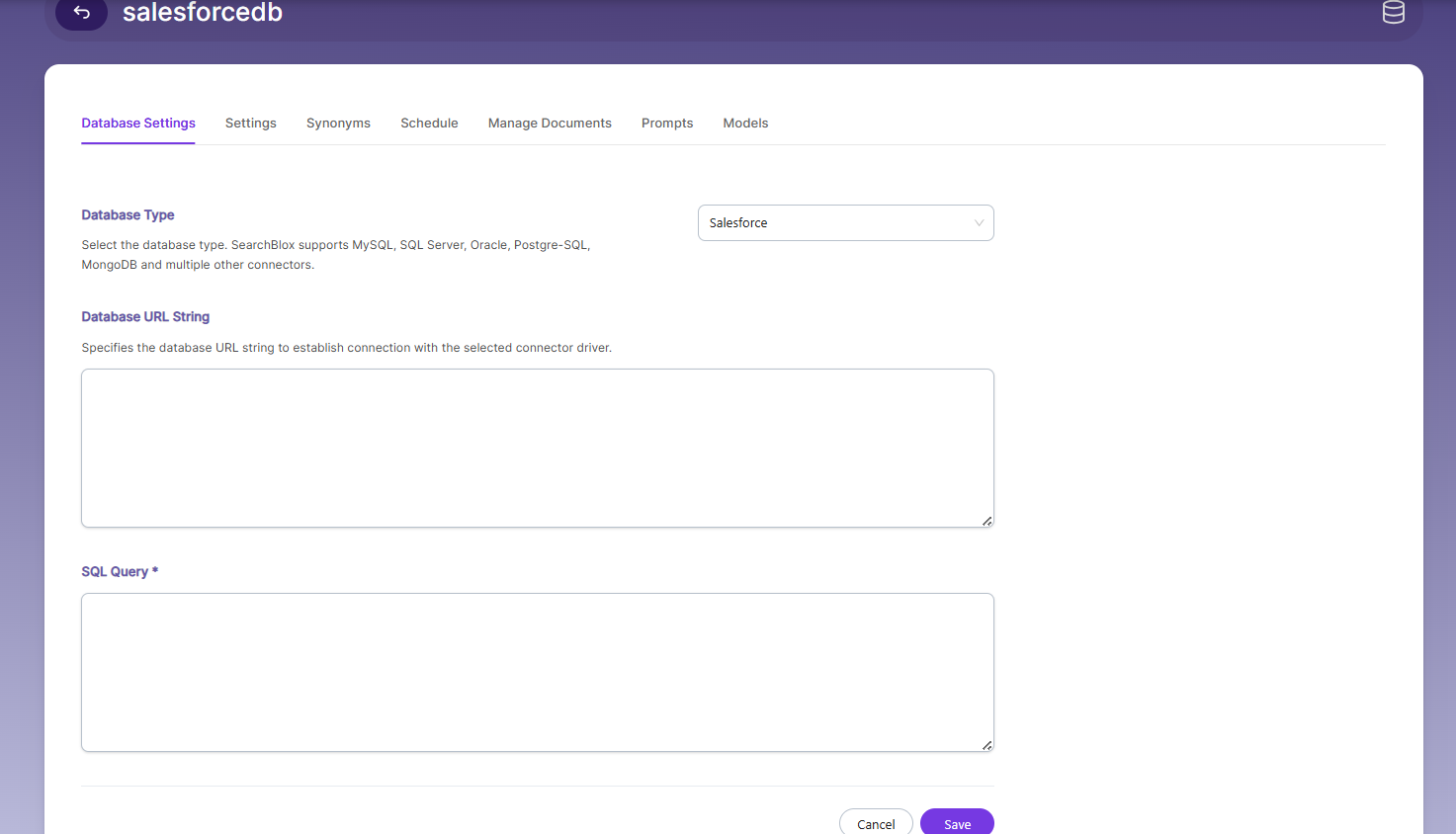
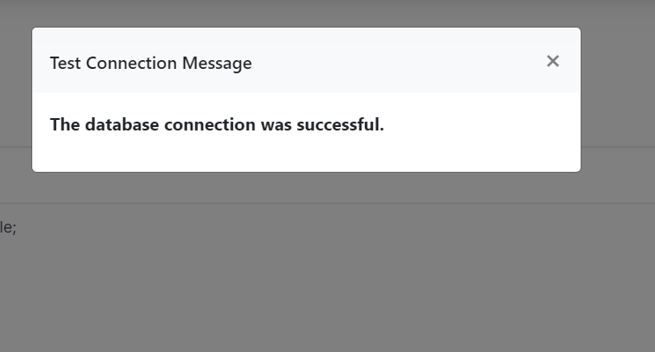
Save the settings, then click Test Database Collection to verify them. Make sure the database connection is successful, as indexing will only work if the connection is valid.
Task 4 – Schedule and Index
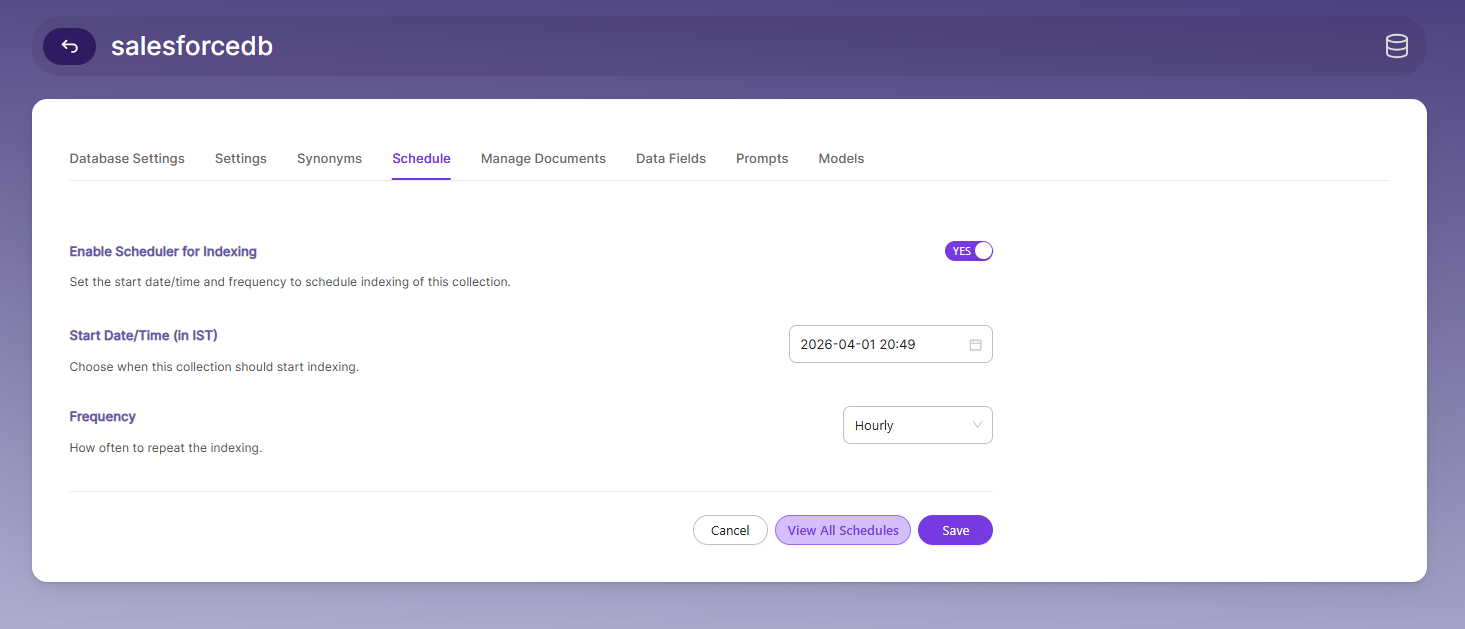
You can schedule indexing either from the Schedule tab or from the Manage Collection page.
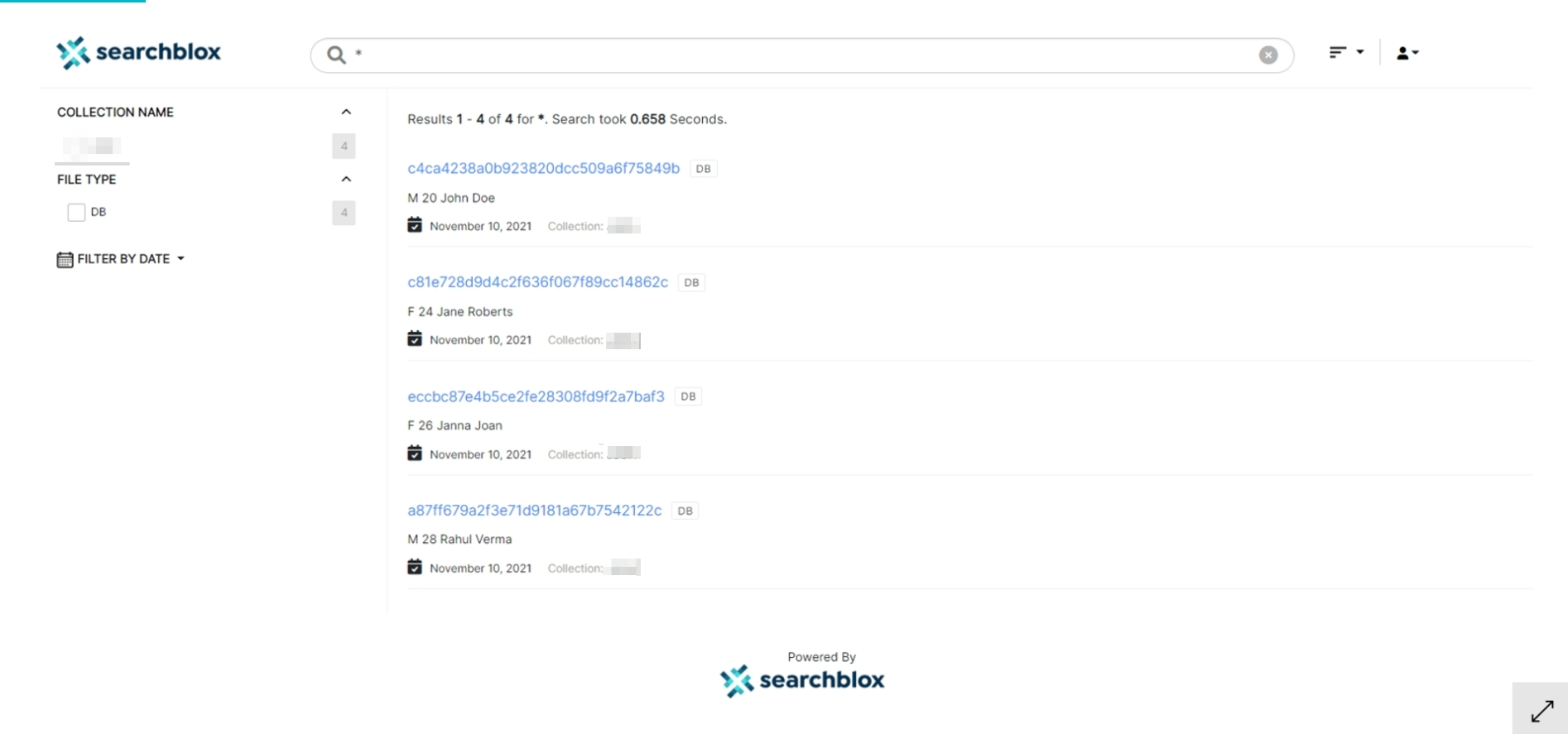
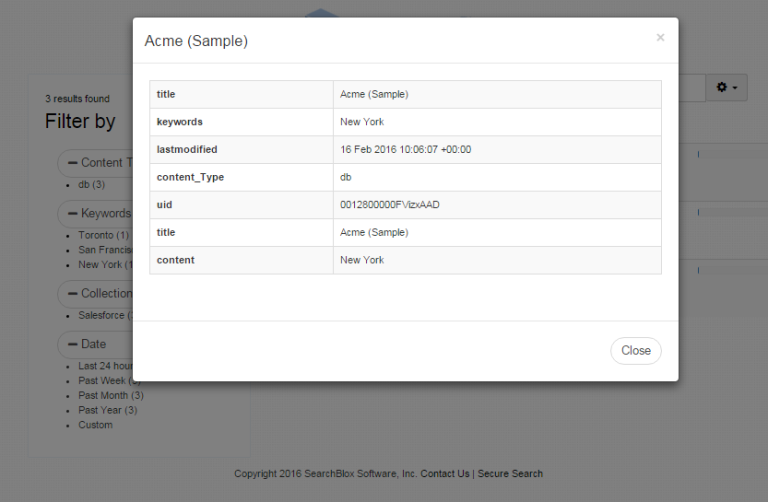
After reaching the maximum number of documents, click Stop if continuous indexing is not needed. The search results in faceted search are displayed as shown here:
Task 5 – Viewing Search Results in Kibana
Indexed content from Salesforce can be visualized using Kibana.
The following example uses the maximum number of fields available in the account data table. The query to use is:
SELECT * FROM AccountSteps in Kibana
1. Start Kibana
How to start Kibana Visualizations
2. Add the collection ID.
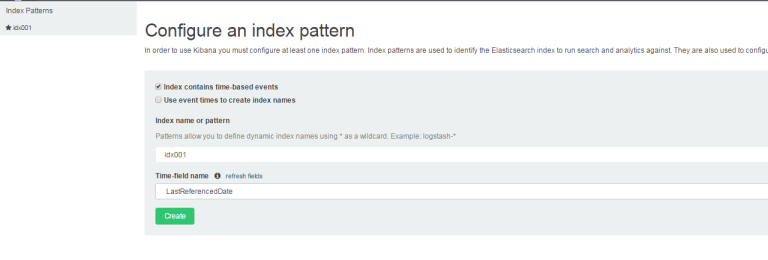
**3. After adding the index, you can view the mapped fields.
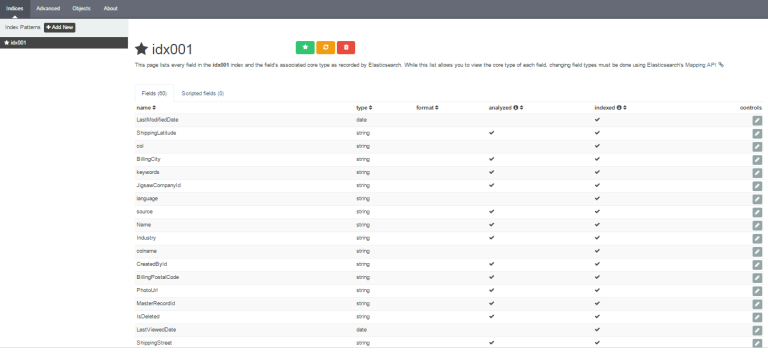
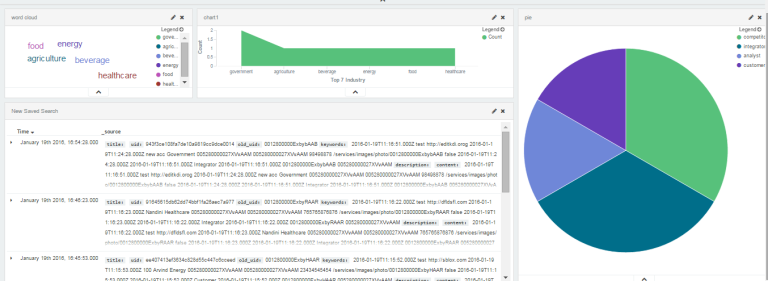
**4. Create visualizations by following the steps in the reference link provided in the previous step.
A sample visualization generated from Salesforce data indexed in SearchBlox.
Updated 28 days ago