
SSL Configuration
SearchBlox comes with SSL enabled by default, but it uses a self-signed certificate which browsers may flag as untrusted. For a production setup, it is strongly recommended to use a proper SSL certificate issued for your domain — either obtained from a hosting provider or imported manually using Java KeyTool if you already have one.
Importing External SSL Certificate using Java Key Tool
Important Notes:
- When creating or exporting JKS file, make sure to save it in PKCS #12 format instead of the default JKS format. This is required because the Jetty web server, which SearchBlox uses, only works with PKCS #12.
- If you are running SearchBlox across multiple servers (a cluster), make sure to add all the server hostnames as Subject Alternative Names (SANs) while generating the certificate. Doing this lets you use a single certificate file across all machines in the cluster without creating separate certificates for each.
- Throughout the certificate setup process, keep the same password for every step. Using different passwords at different stages can cause errors and make troubleshooting difficult.
Follow the steps to import external SSL Certificates (.pem or .certs):
Step 1
Go to the path:
For Windows: C:\SearchBloxServer\etc
For Linux: /opt/searchblox/etc/
NoteIf a keystore file already exists in the folder, make sure to back it up first, then either rename it or delete it before proceeding. Also, if your certificate file is in PKCS#7 format, you do not need to follow Steps 2, 3, and 4 — skip directly to Step 4 Alternative instead.
Step 2
Generate a Java keystore and key pair
we need to create a .jks file (Example: searchblox.jks) using the following command .
keytool -genkey -alias searchblox -keyalg RSA -keystore searchblox.jks -keysize 2048Step 3
Import a root or intermediate CA certificate to an existing Java keystore
If we have .pem/.cert (Example:searchblox.pem/searchblox.crt)
we need to import into searchblox.jks file which we have created in the previous step.
keytool -import -trustcacerts -alias sbx -file searchblox.pem -keystore searchblox.jksStep 4
Converting the .JKS file into .P12 or .PKCS12 Format
In this step, convert the searchblox.jks keystore file into the PKCS12 format (.p12 or .pkcs12). This conversion is necessary because Jetty requires the certificate to be in PKCS12 format to work correctly.
keytool -importkeystore -srckeystore searchblox.jks -destkeystore searchblox.p12 -deststoretype PKCS12Step 4 Alternative
Note: If your certificate is in PKCS #7 format, Step 4's command will not work and will return an error. In that case, skip Steps 2, 3, and 4 entirely and use this alternative command instead to directly convert your PKCS #7 certificate into the required .P12 or .PKCS12 format.
openssl pkcs12 -export -in <searchblox.crt> -inkey <domain>.com.key -certfile <certificate-chain.crt> -out searchblox.p12It will ask you to create a new password for PKCS12 file and ask for other required details(First name/last name is the CN (i.e must match FQDN that users will browse to)). Once you enter please type yes.
Step 5
Run the following command to create keystore file using PKCS12 file.
keytool -importkeystore -srckeystore searchblox.p12 -srcstoretype PKCS12 -destkeystore keystoreStep 6
Generating the OBF key
For Linux:
java -cp /opt/searchblox/lib/logging/slf4j-api-2.0.17.jar:/opt/searchblox/lib/logging/jetty-slf4j-impl-12.1.5.jar:/opt/searchblox/lib/jetty-util-12.1.5.jar org.eclipse.jetty.util.security.Password admin@1234For Windows:
java -cp C:\SearchBloxServer\lib\logging\slf4j-api-2.0.17.jar;C:\SearchBloxServer\lib\logging\jetty-slf4j-impl-12.1.5.jar;C:\SearchBloxServer\lib\jetty-util-12.1.5.jar org.eclipse.jetty.util.security.Password Admin@123
Step 7
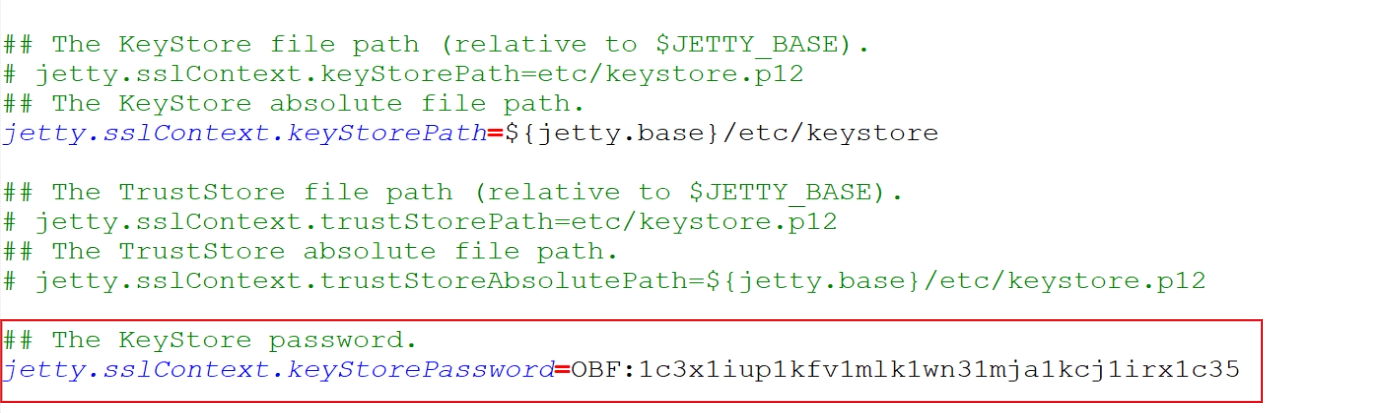
Take the OBF key generated in the previous step and update it in the ssl.ini configuration file. Replace the existing keystore password value with your new OBF key.
The KeyStore password:
jetty.sslContext.keyStorePassword=OBF:1ing1j1s1kmy1jnb1nl91nip1jk71kjo1iz21iky
Step 8
Stop and Start SearchBlox service
Open your browser and go to the URL: https://localhost:8443/console and confirm the valid SSL cert is now displayed when you click on the browsers lock icon.
Disable TLS
TLS can be disabled by updating the configuration within ../etc/jetty-ssl-context.xml
By default, only TLS v1.2 / TLS v1.3 is enabled. In case, If you see TLS v1 and TLS v1.1 are enabled, you can follow below steps to disable vulnerable TLS protocols.
Disable TLSv1 and TLSv1.1 using the steps below:
1.) Edit the following file after stopping SearchBlox service:
/opt/searchblox/etc/jetty-ssl-context.xml
or
C:\SearchBloxServer\etc\jetty-ssl-context.xml
2.) Add or update the required protocols under the sslContextFactory tag.
<Call name="setExcludeProtocols">
    <Arg>
      <Array type="String">
       <Item>TLSv1</Item>
        <Item>TLSv1.1</Item>
      </Array>
    </Arg>
  </Call>
  <Call name="addExcludeCipherSuites">
  <Arg>
    <Array type="String">
      <Item>.*NULL.*</Item>
      <Item>.*RC4.*</Item>
      <Item>.*MD5.*</Item>
      <Item>.*3DES.*</Item>
      <Item>.*DES.*</Item>
      <Item>.*DSS.*</Item>
    </Array>
  </Arg>
</Call>- Restart the SearchBlox service.
Cipher suites in SSL
Cipher suites can be included or excluded by editing the the file ../etc/jetty-ssl-context.xml
To exclude cipher suites:
<Set name="ExcludeCipherSuites">
<Array type="String">
<Item>SSL_RSA_WITH_DES_CBC_SHA</Item>
<Item>SSL_DHE_RSA_WITH_DES_CBC_SHA</Item>
<Item>SSL_DHE_DSS_WITH_DES_CBC_SHA</Item>
<Item>TLS_DHE_RSA.*</Item>
<Item>TLS_ECDHE.*</Item>
</Array>
</Set>
To include cipher suites:
<Set name="IncludeCipherSuites">
<Array type="String">
<Item>SSL_RSA_WITH_DES_CBC_SHA</Item>
<Item>SSL_DHE_RSA_WITH_DES_CBC_SHA</Item>
<Item>SSL_DHE_DSS_WITH_DES_CBC_SHA</Item>
<Item>TLS_DHE_RSA.*</Item>
<Item>TLS_ECDHE.*</Item>
</Array>
</Set>
Disable SSL
If you want to turn off SSL entirely and run SearchBlox over plain HTTP instead, follow the steps below. After doing this, SearchBlox will no longer be accessible over HTTPS and will only be reachable through the standard HTTP port.
- Go to <SEARCHBLOX_INSTALLATION_PATH>/start.d/http.ini and uncomment the following line
--module=http - Disable or comment the line
--module=httpsfrom file<SEARCHBLOX_INSTALLATION_PATH>/start.d/https.ini - Disable or comment the line
--module=sslfrom file<SEARCHBLOX_INSTALLATION_PATH>/start.d/ssl.ini - Restart SearchBlox
SearchBlox will be accessible only at http://localhost:8080/console
Updated 9 days ago