
AutoComplete
SearchBlox Indexed Data Based AutoComplete
- Suggestions can be generated from either the content field or the title field of the indexed data.
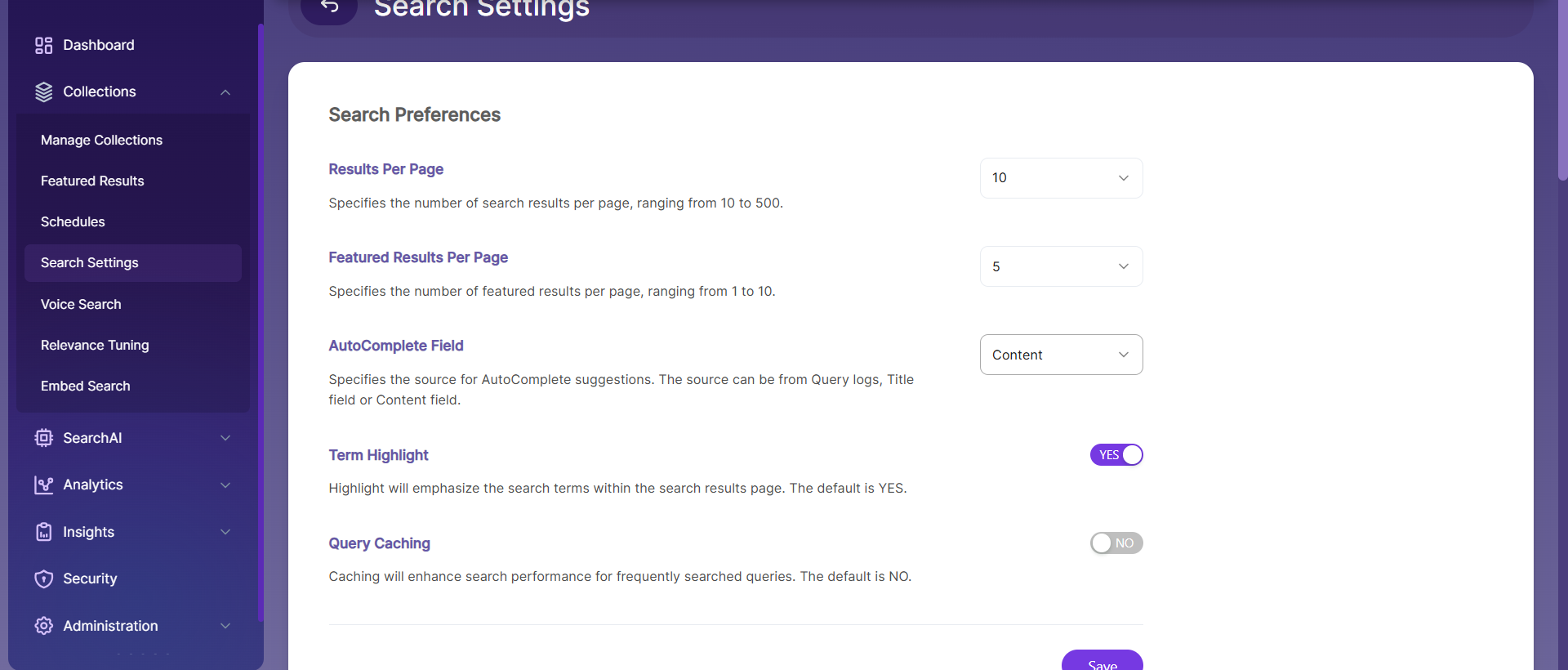
Content-Based Autocompletes
- Content-based autocomplete provides suggestions from the indexed content. To enable this feature, the user must turn it on in the Search Settings as shown below:
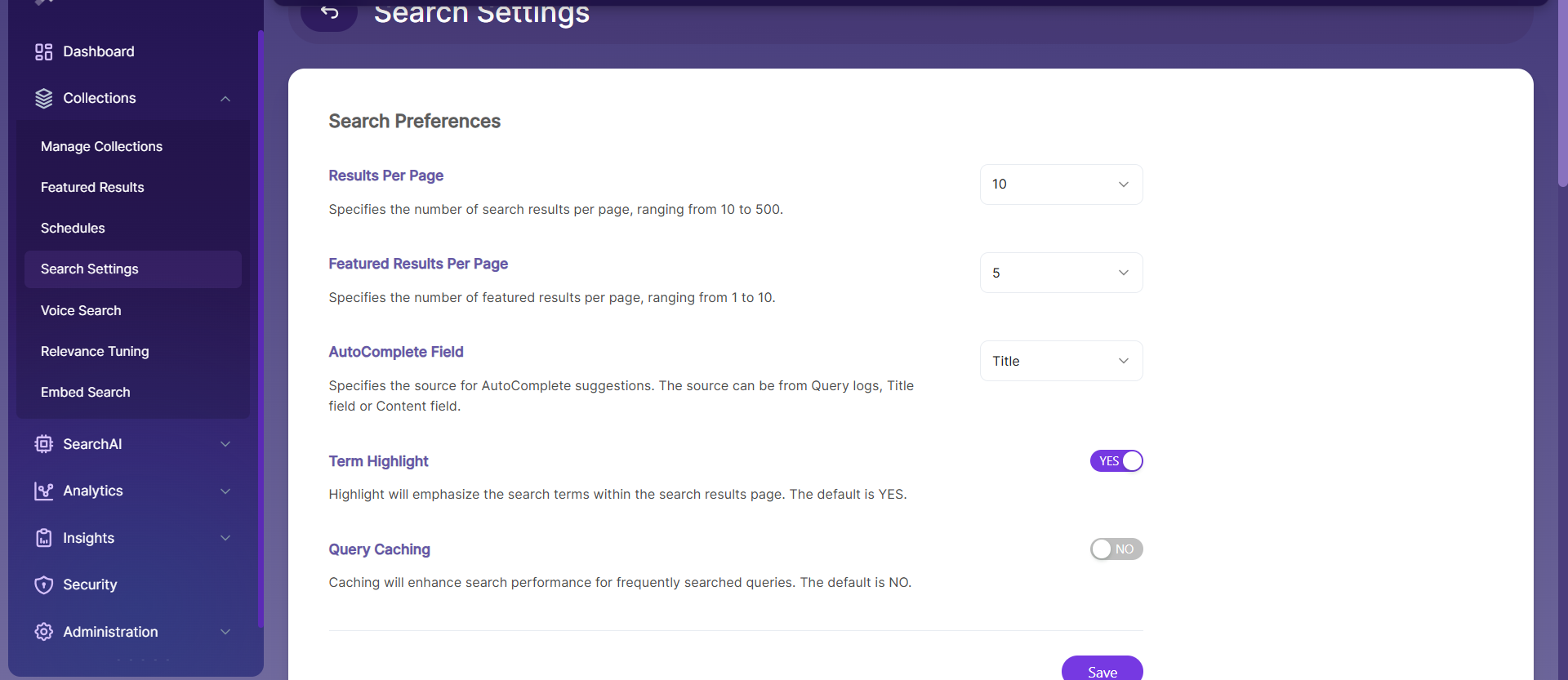
Title-Based Autocomplete
- Title-based autocomplete gives suggestions from the indexed title field. To enable this in search, the user must turn it on in the Search Settings as shown:
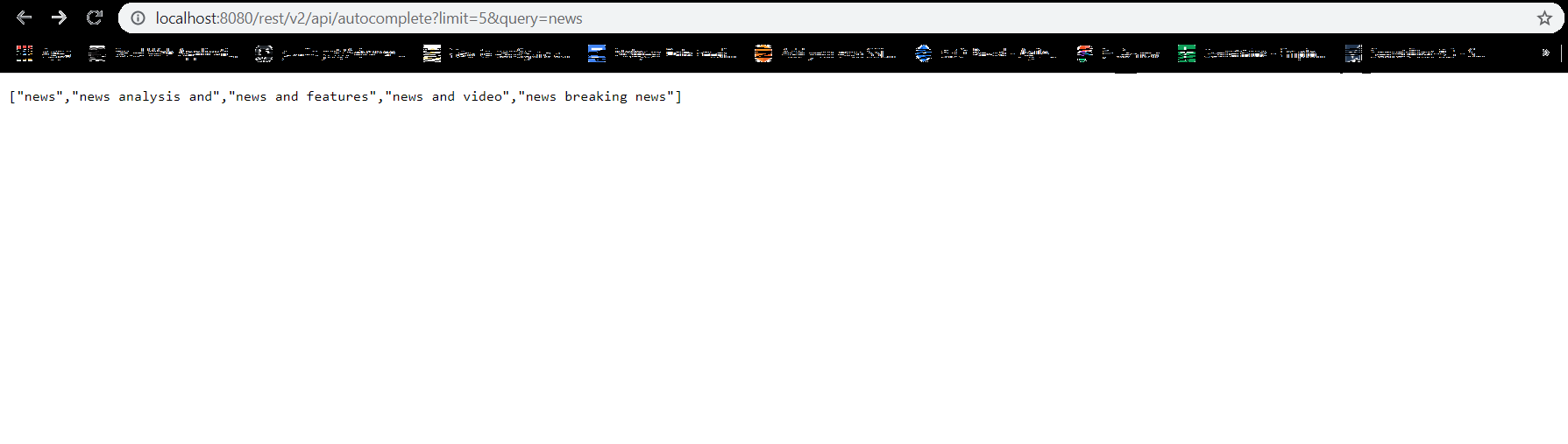
- Response of Title field suggestions:
-
SearchBlox shows suggestions from the indexed content or title using the Autocomplete API, based on the collections selected as shown:
https://localhost:8443/rest/v2/api/autocomplete?limit=5&query=newswhere query is the search text, and limit is the number of suggestions to display.
Important InformationYou must select the Autocomplete field in Search Settings for suggestions to be fetched from the title or content fields via the Autocomplete API.
| Parameter | Description |
|---|---|
| q | The search text (query) |
| limit | How many suggestions to show |
SearchBlox Query-Based AutoComplete
- Suggestions can come from the user’s previous search queries.
- Query-based autocomplete shows suggestions from past queries stored in the querylogs index. To enable this in search, the user must turn it on in the Search Settings as shown.
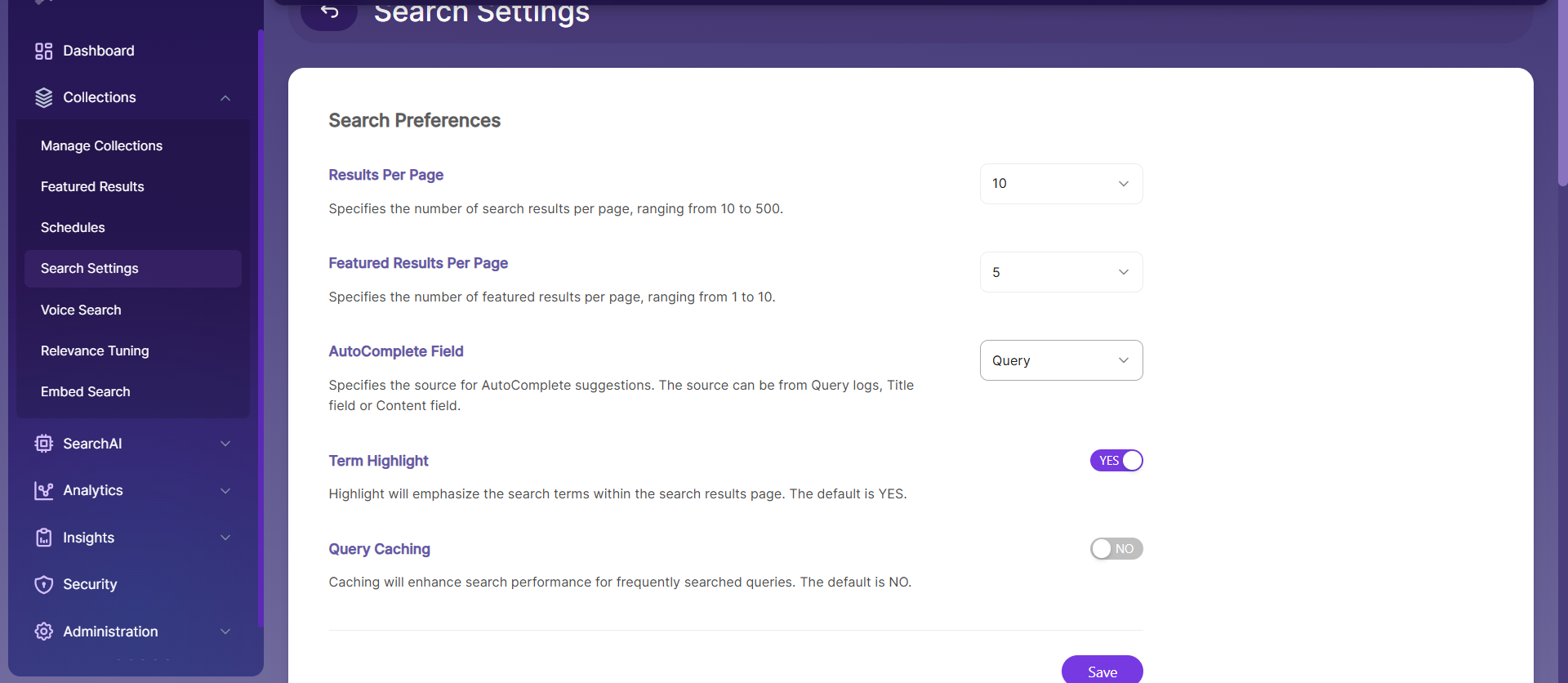
- SearchBlox can also provide suggestions from past queries by using the searchlogs collection in the Autocomplete servlet as shown:
https://localhost:8443/rest/v2/api/autocomplete?limit=5&query=new
Important InformationYou do not need to select the Autocomplete field in Search Settings for query-based suggestions. Setting cname to searchlogs will always fetch suggestions from querylogs regardless of the Search Settings selection.
| query | The search text entered by the user |
| cname | Must be set to searchlogs to get suggestions from query logs |
| limit | How many suggestions to show |
- Autocomplete search for Querylogs (the cname for Querylogs is searchlogs).
JSON Response:
["news", "news analysis and", "news and features", "news and video", "news breaking news"]
Autocomplete in Faceted Search
- Autocomplete is turned on by default in faceted search.
- You can turn it off by editing
<SEARCHBLOX_INSTALLATION_PATH>/webapps/ROOT/search/facet.jsand setting showAutoSuggest to false, like this:
"showAutoSuggest": false, - In the default faceted search, the number of autosuggest results shown is 5.
AutoComplete Parameters
| SearchBlox Parameters | Description | GSA Equivalent |
|---|---|---|
| query | The partial text the user types to get suggestions | q |
| limit | Maximum number of suggestions to return (default is 10) | max |
| col | Collection number | site |
| cname | Collection name | site |
Custom AutoComplete
- SearchBlox also supports AutoComplete for fields other than content, title, or querylogs — including both built-in SearchBlox fields and any custom fields you have indexed.
Custom Autocomplete for Custom Fields
You can enable Autocomplete for a custom field by following these steps:
- Go to <SEARCHBLOX_INSTALLATION_PATH>/searchblox/webapps/ROOT/WEB-INF/.
- Edit mapping.json, jdbc.json, or csv.json based on the collection that uses the custom field.
- Add the required mapping for the custom field.
"author": {
        "type": "completion"
},- Clear the collection and reindex it.
- In settings, choose the Autocomplete Field as Title or Content.
- Test the autosuggestions using this URL and parameters in the Autocomplete API:
https://localhost:8443/rest/v2/api/autocomplete?query=speaker&type=custom&field=author
Custom Autosuggest for SearchBlox Fields
Custom Autosuggest can also be used for SearchBlox fields by following these steps.
For example, if you want to use autosuggest for the description field, it can be done in two ways.
Providing Subfield within the Actual Field
- Go to <SEARCHBLOX_INSTALLATION_PATH>/searchblox/webapps/ROOT/WEB-INF/.
- Edit mapping.json, jdbc.json, or csv.json based on the collection that uses the field for AutoSuggest.
- Add the required mapping to the description field.
"description": {
         "type": "text",
        "store": true,
        "analyzer": "sb_analyzer"
        "fields": {
          "desc": {
            "type": "completion"
          }
        }
},- Clear the collection and reindex it.
- Choose the Autocomplete Field as Title or Content.
- Autosuggestions can be fetched based on description field using
description.descas in the following URL
https://localhost:8443/rest/v2/api/autocomplete?limit=5&query=cnn&col=1&field=description.desc
Copying to a New Field
- Go to <SEARCHBLOX_INSTALLATION_PATH>/searchblox/webapps/ROOT/WEB-INF/.
- Update mapping.json, jdbc.json, or csv.json depending on the collection that uses the field for AutoSuggest. For more details, refer to Mapping Files for Collections.
- Add the required mapping to the description field and test field.
"description": {
         "type": "text",
        "store": true,
        "analyzer": "sb_analyzer"
        "copy_to": "test"
              },
        "test": {
            "type": "completion"
},- Clear the collection and reindex it.
- Choose Title or Content as the Autocomplete Field.
- Get autosuggestions from the description field using the test field in the URL.
https://localhost:8443/rest/v2/api/autocomplete?limit=5&query=cnn&cname=test

Updated 14 days ago