
Models
The Models page is where administrators connect AI providers and assign them to specific SearchBlox AI tasks, such as powering ChatBots, generating embeddings for semantic search, or enriching document content.
Navigate to Administration → Models to access this page.
The Models page contains two tabs:
- Providers
- Tasks
How It Works
The configuration process consists of two steps:
- Providers Tab – Connect an AI platform such as OpenAI, AWS Bedrock, Azure OpenAI, Ollama, or ONNX by providing the required endpoint URL and API credentials.
- Tasks Tab – Assign a connected provider and model to a specific SearchBlox feature. For example, you can assign GPT-4 to the ChatBot task or an embedding model to semantic search.
Tip: Use the Reload Settings from Config button (refresh icon) in the page header whenever you want to reload all model settings from the server configuration file.
Providers
The Providers tab displays all AI platforms currently connected to SearchBlox.
A provider is an AI service that SearchBlox uses to power its AI capabilities. Supported providers include cloud-based services such as OpenAI, AWS Bedrock, and Azure OpenAI, as well as locally hosted models through Ollama or ONNX.
Before any SearchBlox AI feature can be used, the corresponding provider must be added and activated from this tab. Once configured, providers become available for assignment to tasks in the Tasks tab.
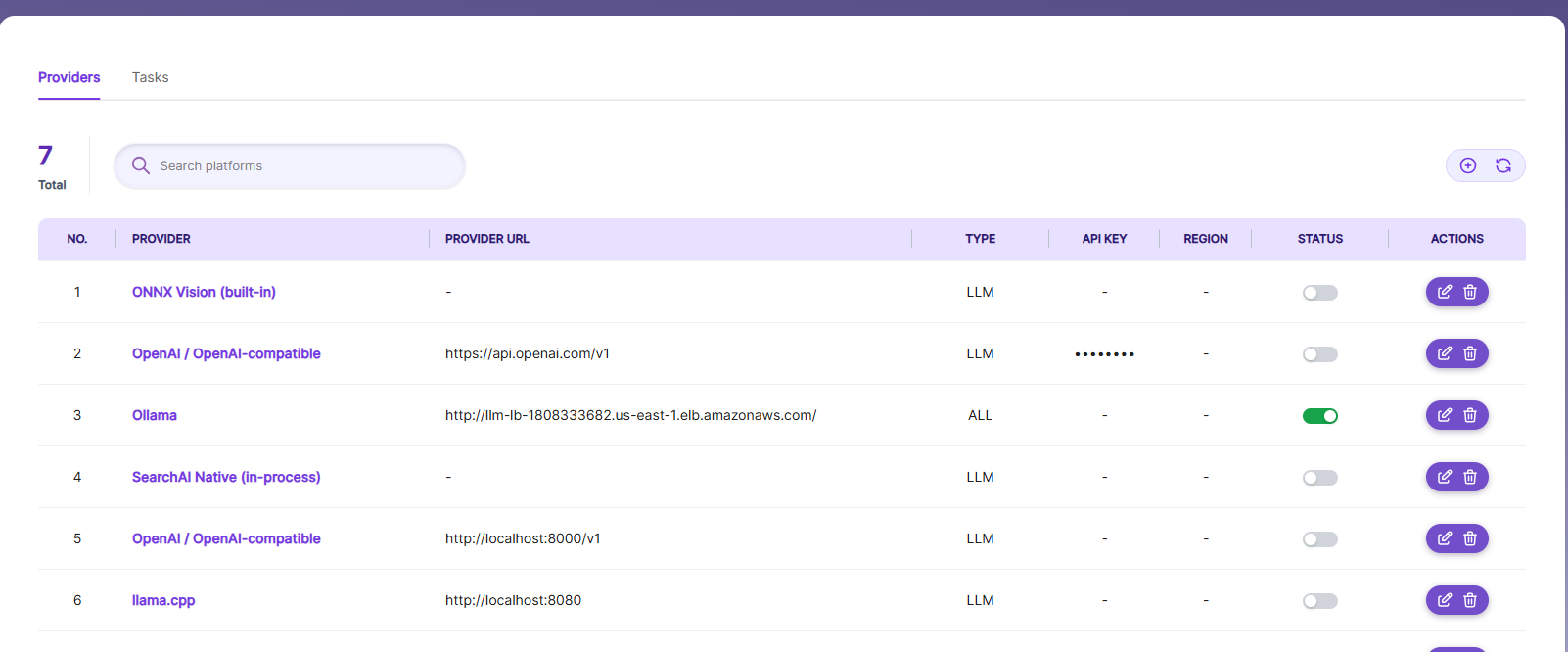
| Column | What It Shows |
|---|---|
| No. | Row number |
| Provider | Name of the AI platform. Clicking it opens the Edit modal |
| Type | Provider usage type: ALL, EMBEDDING, RERANKER, VISION, or LLM |
| Provider URL | Endpoint URL of the AI platform |
| API Key | API key displayed in masked format (••••••••) for security. Can only be edited in the Edit modal |
| Region | Region identifier used only for AWS Bedrock |
| Status | Toggle to enable or disable the provider |
| Actions | Delete option to permanently remove the provider |
Features
Add Provider
Click the "+" icon in the header to open the Add Provider modal. Select a platform from the dropdown (only platforms not already configured are shown), choose a type, and enter connection details. Fields displayed are context-sensitive based on the selected platform.
Edit Provider
Click the provider name in the table to open the Edit Provider modal. The provider name is shown as read-only. Editable fields include Type, Provider URL, API Key, and Region, depending on the platform. ONNX shows a note that no additional configuration is required.
Activate / Deactivate Provider
Use the Status toggle switch in the table to enable or disable a provider. Active providers are available for task assignment.
Delete Provider
Click the trash icon in the Actions column. A confirmation dialog appears warning that the provider will be deleted permanently and cannot be recovered.
Search / Filter
Use the search bar to filter the list by platform name, description, URL, API key, or region. The filter is applied in real-time as you type.
Reload List
Click the refresh icon to reload the providers list from the server.
Tasks Tab
The Tasks tab is where you assign a connected AI provider and model to a specific SearchBlox feature.
For example, you can assign OpenAI GPT-4o to the ChatBot task while using a different, lightweight model for Document Enrichment. This provides fine-grained control over which AI model powers each SearchBlox AI capability.
Note: A provider must be added and activated in the Providers tab before it can be assigned to a task in the Tasks tab.
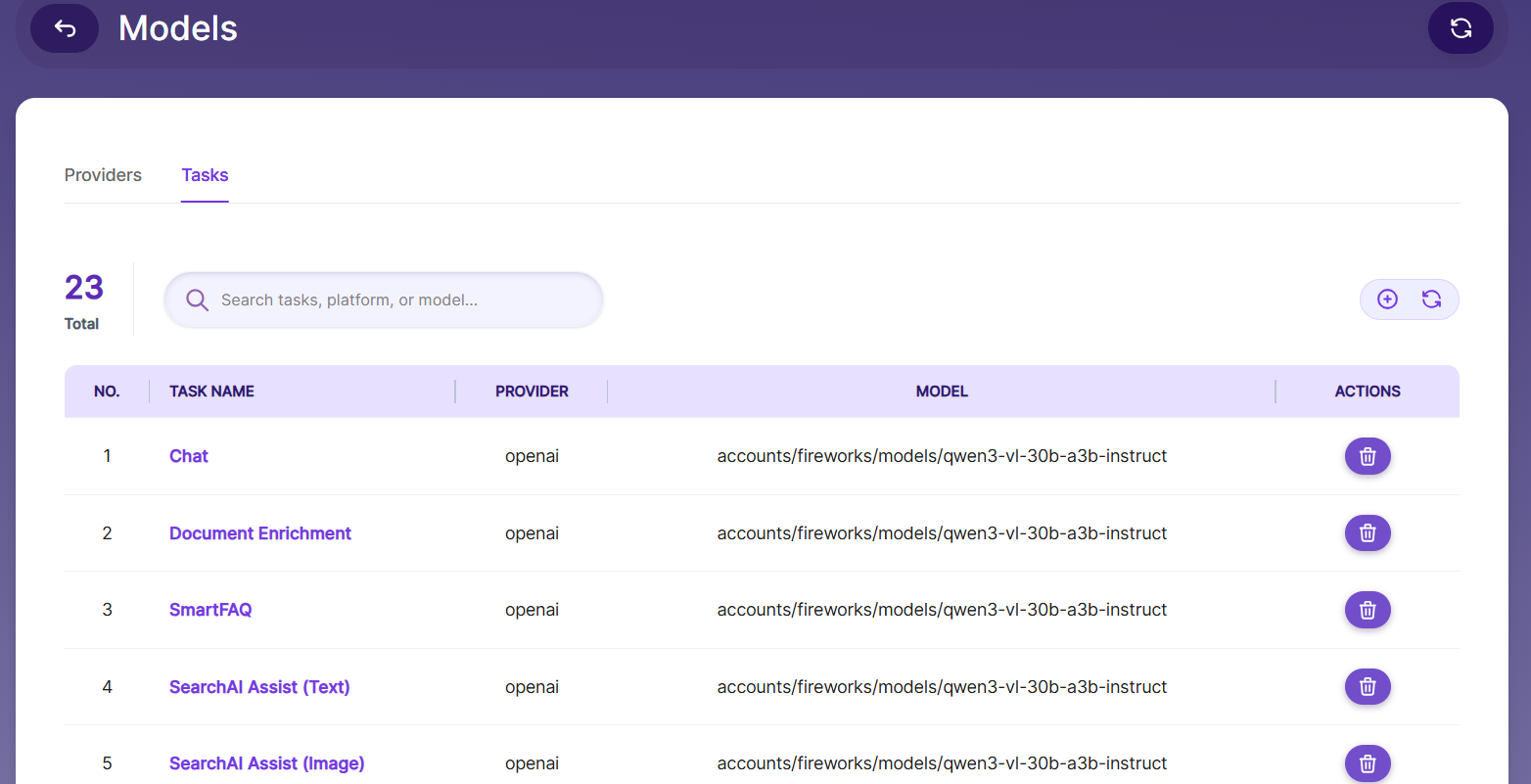
| Column | What It Shows |
|---|---|
| No. | Row number |
| Task Name | Name of the task. Clicking it opens the Edit modal |
| Provider | AI platform assigned to the task |
| Model | Specific AI model assigned to the task |
| Actions | Delete option to permanently remove the task |
Features
Add Task
Click the "+" icon in the header to open the Add Task modal. Enter a unique task name (converted to kebab-case internally, e.g., "Document Enrichment" becomes "document-enrichment"), select a platform from available providers, and optionally specify a model name.
Edit Task
Click the task name in the table to open the Edit Task modal. The task name is displayed as read-only. You can change the Provider (dropdown) and the Model (free-text input).
Delete Task
Click the trash icon in the Actions column. A confirmation dialog appears warning that the task will be deleted permanently and cannot be recovered.
Search / Filter
Use the search bar to filter the list by task name, platform, or model. The filter is applied in real-time.
Reload List
Click the refresh icon to reload the tasks list from the server.
Things to Know
- While data is loading, the page displays a loading animation. This is expected behavior.
- Actions such as Save and Delete display success or error notifications at the top of the page.
- Duplicate provider names and duplicate task names are not allowed. The system validates these values and displays an error before saving.
- API keys are always masked in the table view. The actual value can only be viewed or edited from the Edit modal.
- ONNX providers run locally on your server and do not require a Provider URL, API Key, or Region.
- AWS Bedrock is the only provider that requires a Region value.
- Use the Back arrow in the page header to return to the main Admin Console.
Updated 22 days ago