
Azure Blob Collection
SearchBlox provides an Azure Blob Collection to index documents stored in Microsoft Azure Blob Storage. It connects directly to your Azure storage containers, automatically crawls the stored files, and indexes their content for search — making large document repositories easily searchable without manually uploading files into SearchBlox.
Supported document formats include PDFs, Word documents, Excel files, text files, and other common formats stored in Azure Blob containers.
Note: Azure Blob Collection supports RAG for AI-powered search, Knowledge Graph for entity extraction, private access control, content encryption, and configurable language settings.
Creating an Azure Blob Collection
- Log in to the Admin Console.
- Navigate to the Collections tab.
- Click the Create button or the + icon.
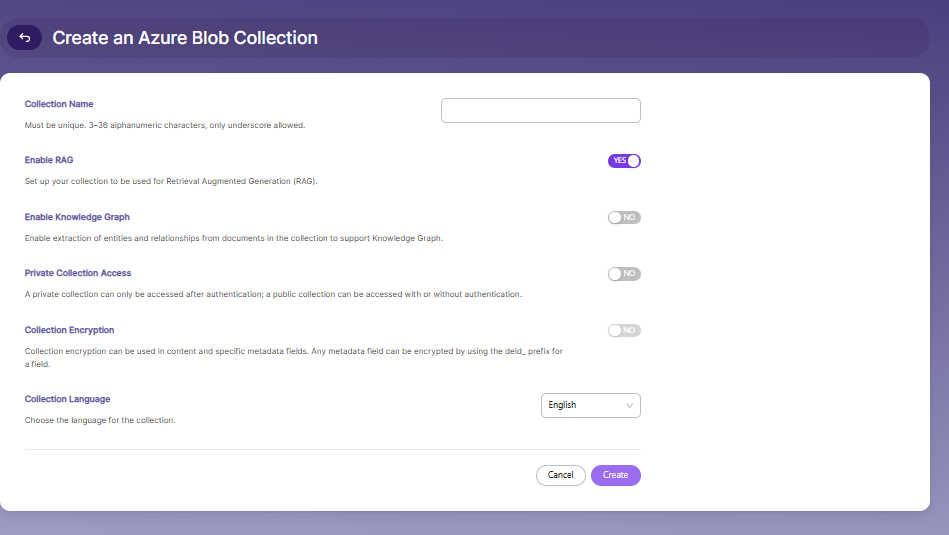
- Enter a Collection Name. The name must be unique and contain 3–36 alphanumeric characters. Only underscores (_) are allowed as special characters.
- Configure Enable RAG by turning it ON to allow the collection to be used for Retrieval Augmented Generation, or turn it OFF if AI-based retrieval is not required.
- Configure Enable Knowledge Graph by turning it ON to extract entities and relationships from documents, or turn it OFF if this feature is not needed.
- Configure Private Collection Access by enabling it to restrict access to authenticated users only, or disabling it to allow public access.
- Configure Collection Encryption if required to protect document content or metadata fields. Metadata fields can be encrypted using the deid_ prefix.
- Select the Collection Language based on the primary language used in the documents. The default language is English.
- Click Create to create the Azure Blob Collection.
Configuring Azure Blob Settings
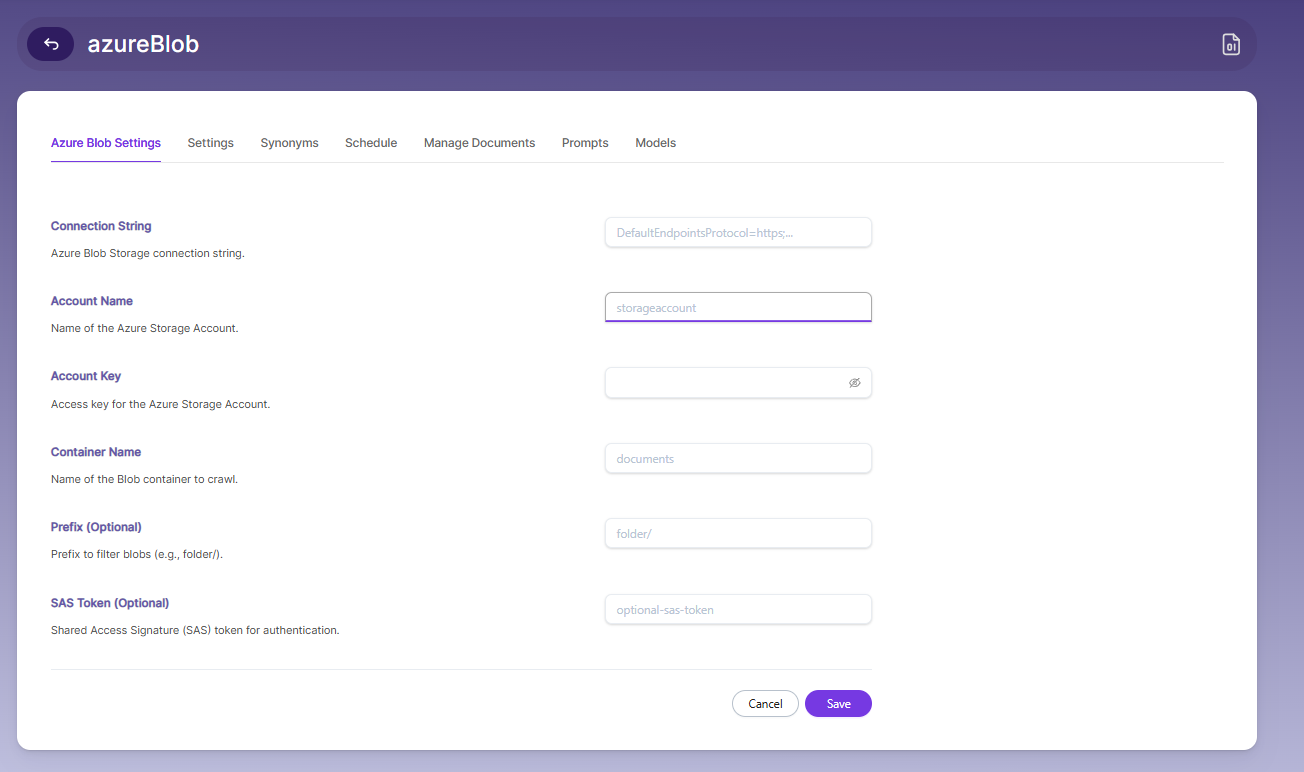
To configure Azure Blob Storage for your collection, follow these steps:
-
Go to the Azure Blob Settings tab within the collection.
-
Enter the Connection String.
This is the Azure Blob Storage connection string used to authenticate and connect to the storage account. It typically begins withDefaultEndpointsProtocol=https. -
Enter the Account Name.
Provide the name of your Azure Storage account where the blob container is located. -
Enter the Account Key.
This is the access key associated with the Azure Storage account used for authentication. -
Enter the Container Name.
Specify the name of the Azure Blob container that contains the documents to be crawled and indexed. -
Enter the Prefix (Optional).
You can specify a prefix (such asfolder/) to restrict crawling to a particular folder or path within the container. -
Enter the SAS Token (Optional).
A Shared Access Signature (SAS) token can be provided as an alternative authentication method to securely grant limited access to the storage resources. -
Click Save to store the configuration and enable SearchBlox to access the Azure Blob container.
Azure blob Collection Settings
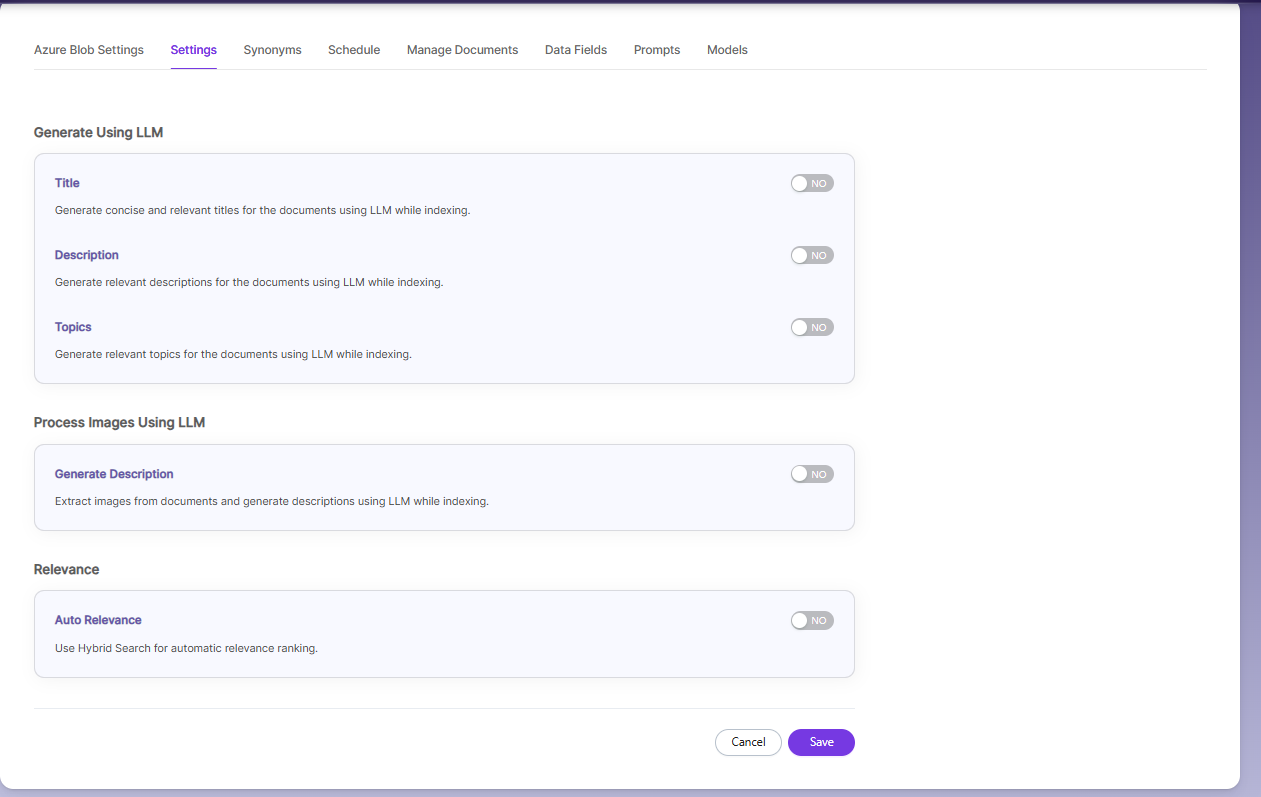
Generate Using LLM
- Enable Title to automatically generate concise and relevant titles for indexed documents using LLM.
- Enable Description to generate meaningful summaries for documents during indexing.
- Enable Topics to extract and assign relevant topics based on document content.
Process Images Using LLM
- Enable Generate Description to extract images from documents and generate descriptions using LLM during indexing.
Synonyms
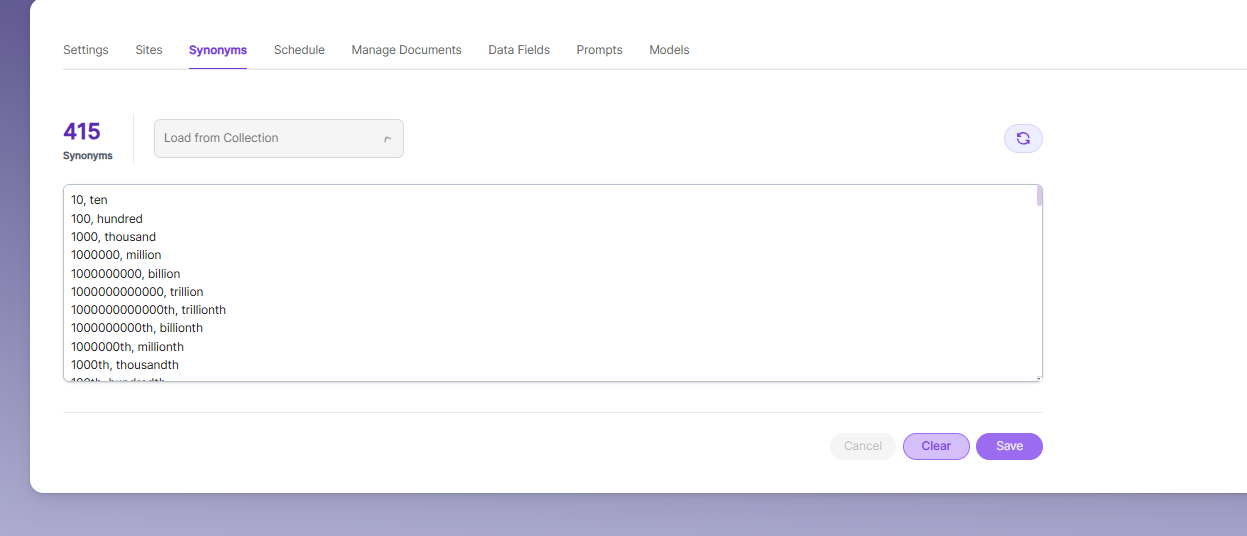
Synonyms help the search show relevant documents even when the exact search word is not used.
For example, if someone searches for “global,” the results can also include documents that use “world” or “international.”
We have an option to load Synonyms from the existing documents.
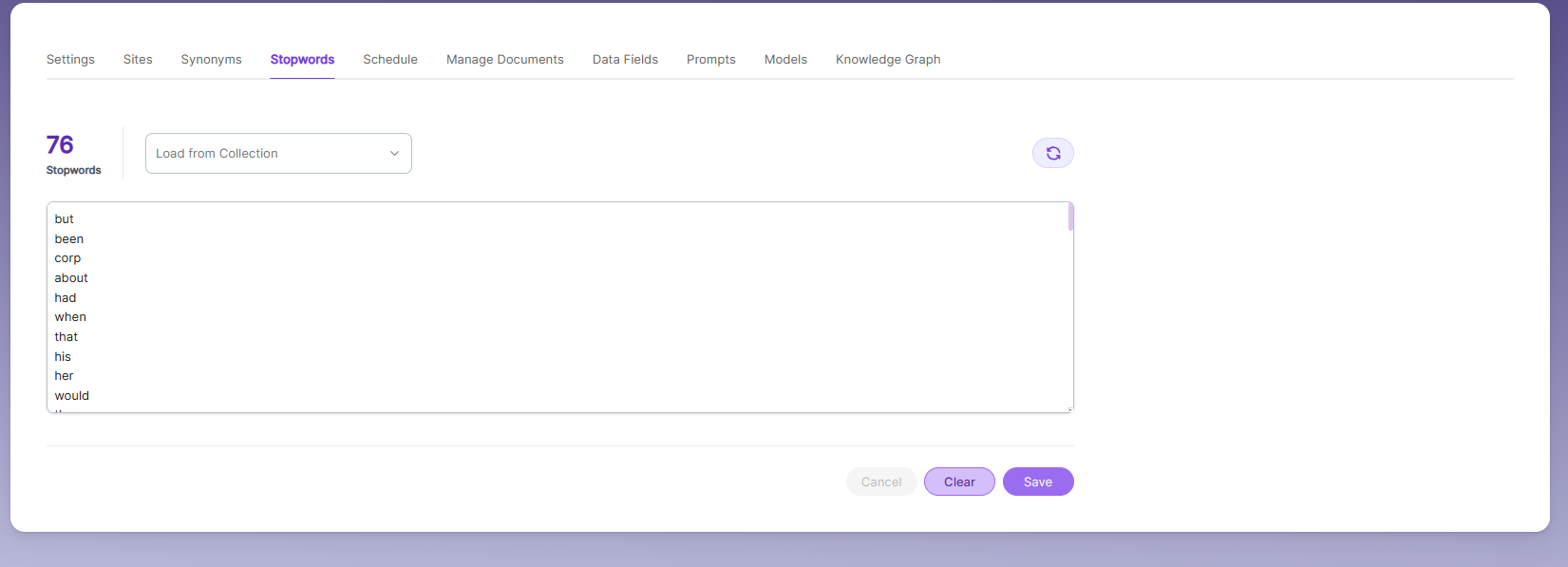
Stopwords
Stopwords are common, high-frequency words that carry minimal semantic value and are typically excluded during text processing, indexing, or search operations. Examples include articles (a, an, the), conjunctions (and, but, or), prepositions (in, on, about), and auxiliary verbs (is, was, would, had).
Purpose:
Reduce noise in search indexing and text analysis
Improve processing efficiency by excluding low-value tokens
Enhance search relevance by prioritizing meaningful keywords
Schedule and Index
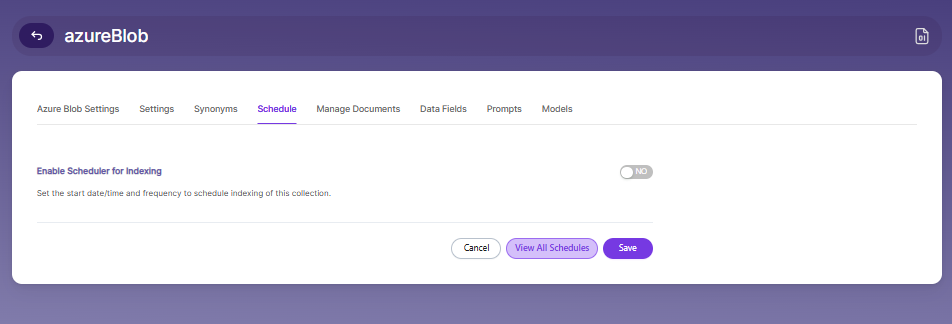
Sets the frequency and the start date/time for indexing a collection. Schedule Frequency supported in SearchBlox is as follows:
- Once
- Hourly
- Daily
- Every 48 Hours
- Every 96 Hours
- Weekly
- Monthly
The following operation can be performed in Azure blob collections
| Activity | Description |
|---|---|
| Enable Scheduler for Indexing | Once enabled, you can set the Start Date and Frequency |
| Schedule | For each collection, indexing can be scheduled based on the above options. |
| View all Schedules | Redirects to the Schedules section, where all the Collection Schedules are listed. |
Manage Documents Tab
-
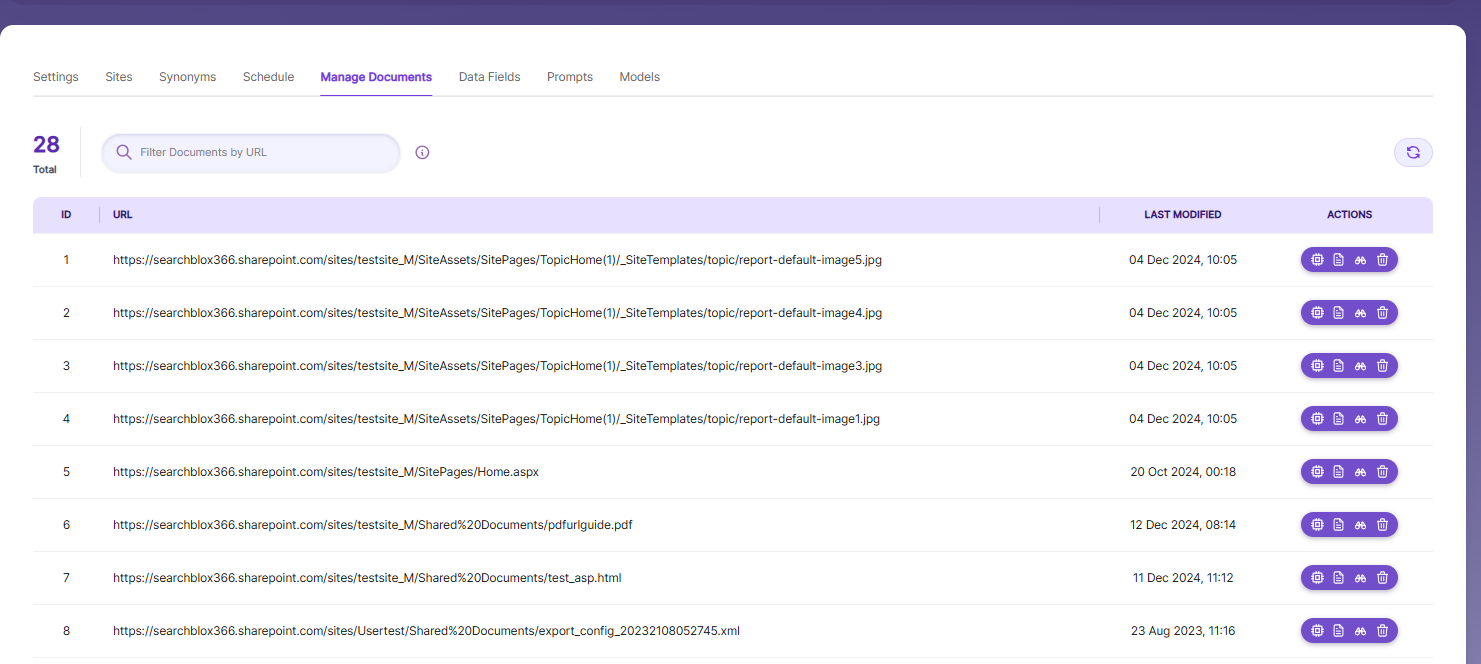
Using Manage Documents tab we can do the following operations:
- Filter
- View content
- View metadata
- Refresh
- Delete
-
To delete a file from your collection, enter the file path and click "Delete".
-
To see the status of an indexed file, click "View Metadata".
Data Fields Tab
Using Data Fields tab we can create custom fields for search and we can see the Default Data Fields with non-encrypted collection. SearchBlox supports 4 types of Data Fields as listed below:
| Type | Description |
|---|---|
| Keyword | Used for alphanumeric values such as IDs, tags, codes, or other exact-match fields. |
| Number | Used for numeric values such as prices, quantities, ratings, or counts. |
| Date | Used for date values that can be searched, sorted, and filtered. |
| Text | Used for full-text search within custom field content. |
- Once the Data fields are configured, collection must be cleared and re-indexed to take effect.
Prompts
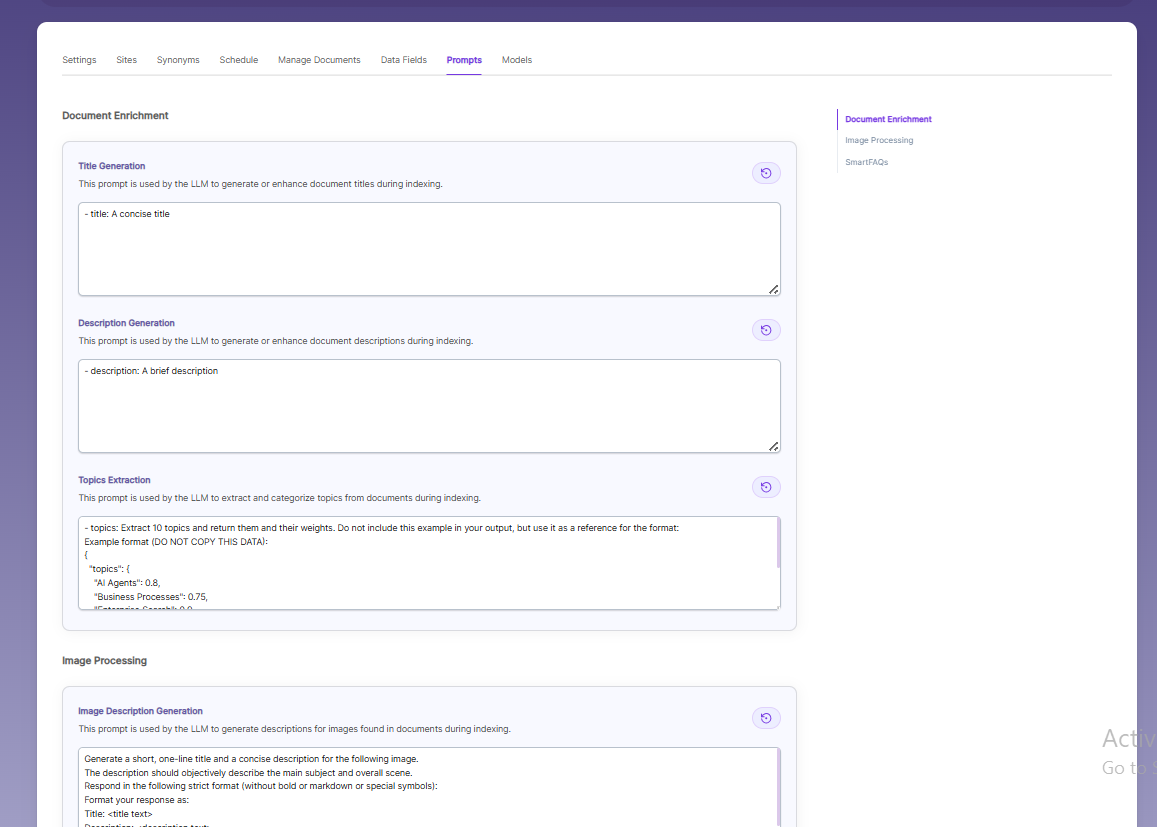
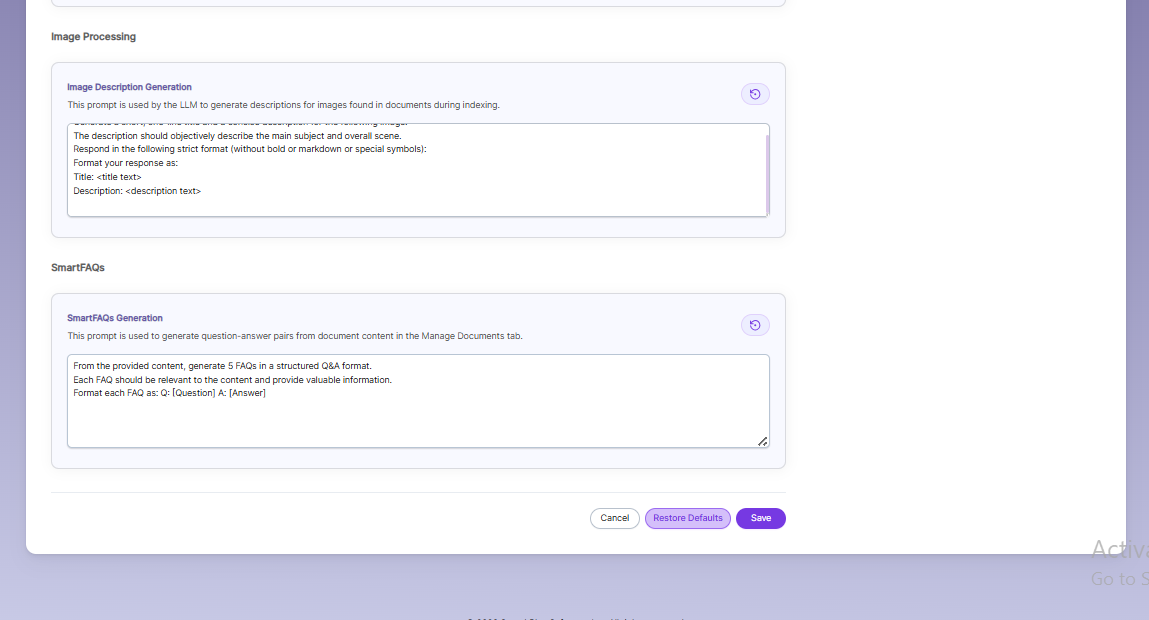
- When LLM/RAG is enabled, you can edit AI-based prompts for Title, Description, Topic, Image Description, and Smart FAQs.
- You can customize these prompts anytime, and use Restore Default to reset them back to the original SearchBlox settings.
Azure Blob Collection Models
The Models page allows you to configure and override AI models used for embeddings, reranking, and LLM-based features within the collection.
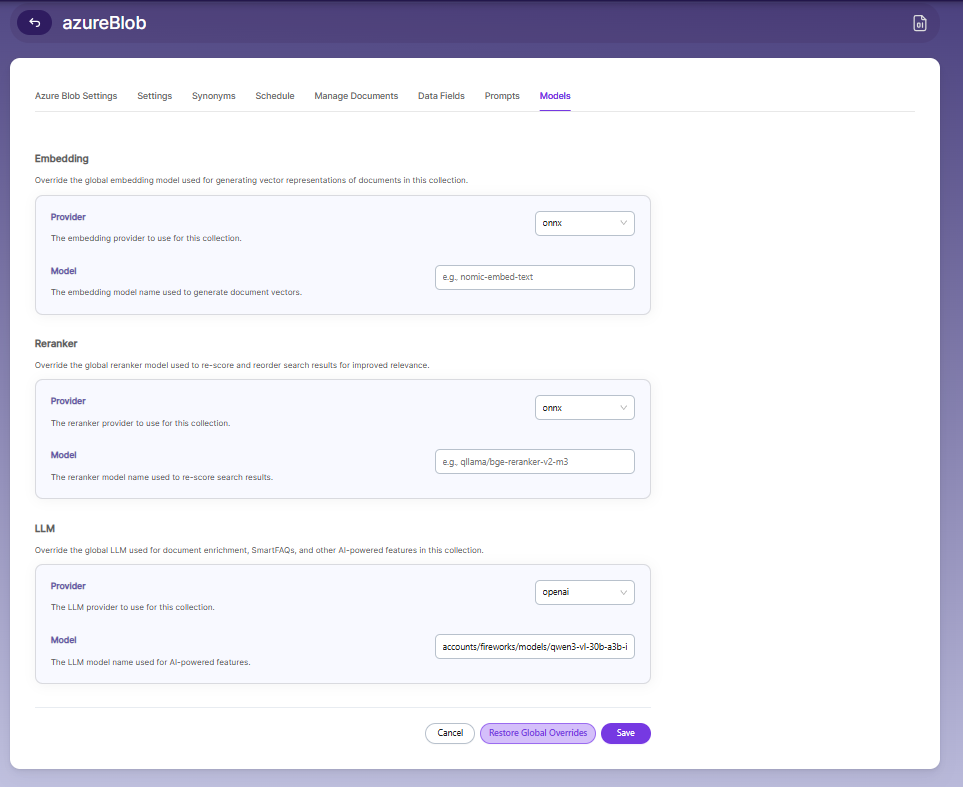
Embedding
- Provider specifies the embedding provider used to generate vector representations of documents.
- Model defines the embedding model used to convert document content into vectors for semantic search.
Reranker
- Provider specifies the reranker provider used for improving search result relevance.
- Model defines the reranker model used to re-score and reorder search results based on relevance.
LLM
-
Provider specifies the Large Language Model provider used for AI-powered features.
-
Model defines the LLM used for tasks such as document enrichment, summaries, and SmartFAQs.
-
These settings override global configurations and apply only to the current collection.
Updated 23 days ago