
A/B Tests
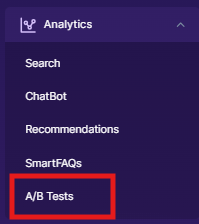
A/B Tests can be accessed from Analytics → A/B Tests in the SearchBlox Admin Console. Super Admin or Admin permissions are required.
A/B Tests in SearchBlox let you run controlled experiments comparing two search or product configurations side by side. By splitting traffic between a Control (A) and a Variant (B), you can measure which setup performs better based on metrics like click-through rate, conversion rate, or ranking quality — and optionally auto-promote the winner when the test concludes.
SearchBlox supports two types of A/B tests:
- Search A/B Test- Compares two search configurations to evaluate and optimise search relevance and performance
- Product A/B Test -Compares two product configurations to evaluate recommendations, ranking, and product display
Create Search A/B Test
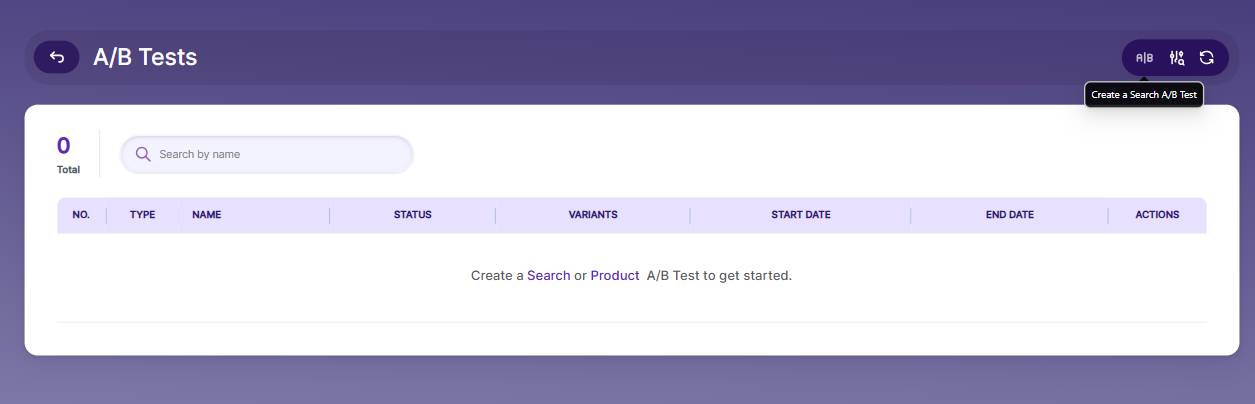
Configure Collection A (Control):
- Select the collection
- Adjust Vector Weight (semantic search impact)
- Adjust Keyword Weight (keyword search impact)
- Enable/Disable Reranking
Configure Collection B (Variant):
- Select a different collection or modify settings
- Adjust vector and keyword weights
- Enable/Disable reranking
Test Settings
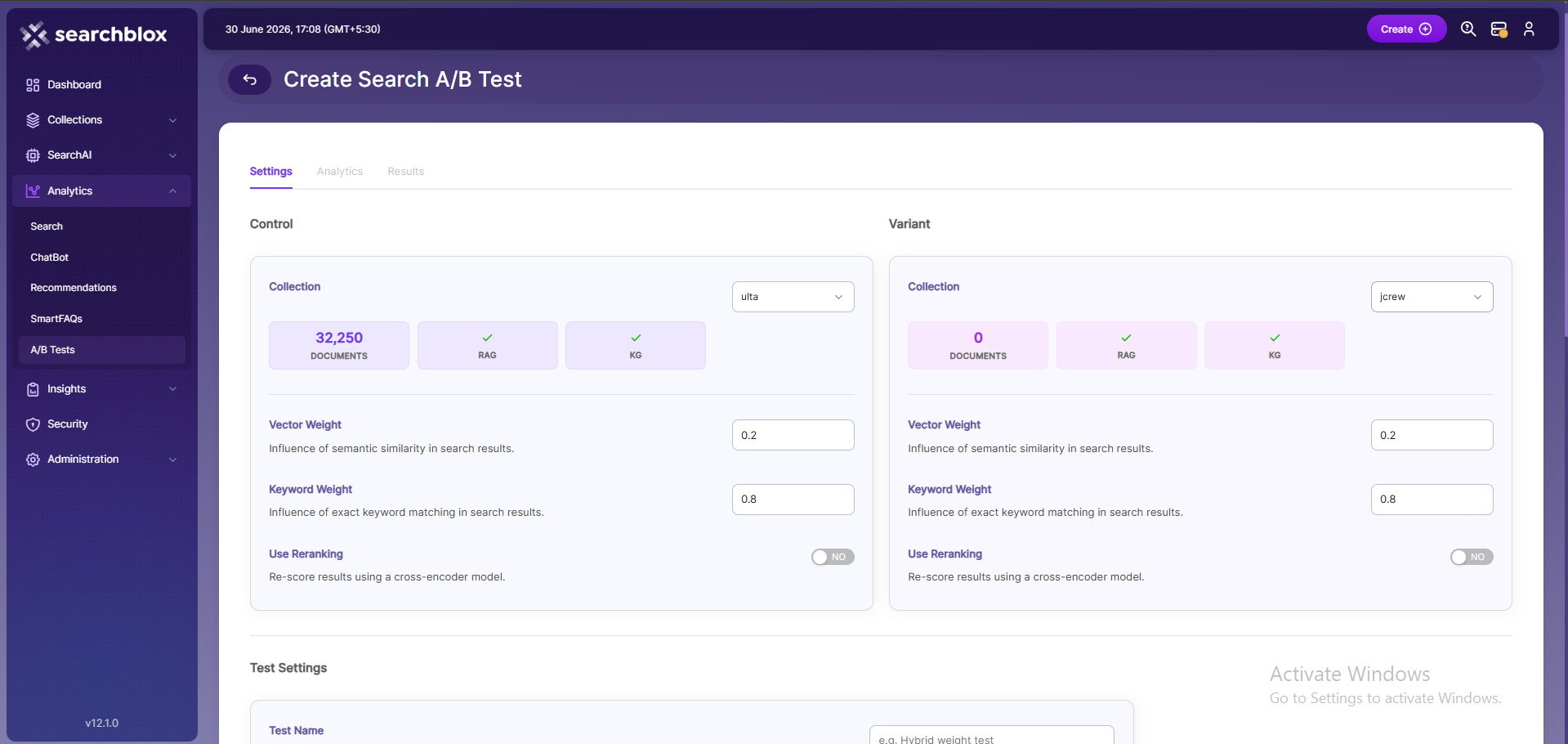
- To configure the test settings for an A/B Test in SearchBlox, follow these steps:
- Navigate to the Test Settings section while creating an A/B Test
- Enter the Test Name- Provide a unique and descriptive name (e.g., "Hybrid Weight Test")
- Add a Description (optional)- Include details about the purpose of the test
- Set Traffic to Variant (%)- Define the percentage of users routed to Variant B .Example: 50% splits traffic equally between Control and Variant
- Define Minimum Sample Size- Specify the minimum number of interactions required for reliable results. Example: 1000
- Set Max Duration (hours)- how long the test will run. Example: 168 (7 days)
- Select a Success Metric- Choose the key metric to evaluate the test (e.g., CTR – Click-through rate)
- CTR (Click-through Rate)
Measures the percentage of users who click on a search result.
Best for evaluating user engagement and relevance. - NDCG (Normalized Discounted Cumulative Gain)
Measures ranking quality by considering the position of relevant results.
Best for evaluating search result ordering and relevance quality. - MRR (Mean Reciprocal Rank)
Measures how quickly the first relevant result appears.
Best for scenarios where finding the first correct result quickly is important. - Latency
Measures the response time of search queries.
Best for optimizing performance and speed. - Composite
Combines multiple metrics into a single score.
Best for balanced evaluation across engagement, relevance, and performance.
- Set Confidence Level- Define the statistical confidence threshold (e.g., 0.95 for 95% confidence)
- Configure Auto-promote Winner- Enable to automatically apply the winning variant after the test concludes . Disable to review results manually
- Select Search Types- Choose applicable search modes:
- Standard
- Hybrid
- RAG
- Vector
- Click Create Search A/B Test to start the experiment
Optionally, click Compare configs to review differences before launching
Click Cancel to discard changes
Managing A/B Tests
After creating an A/B Test in SearchBlox, you can monitor and manage it using the available actions.
- Preview A/B Test Configuration
- To preview the configuration details:
- Navigate to Analytics → A/B Tests
- Locate the created test in the list
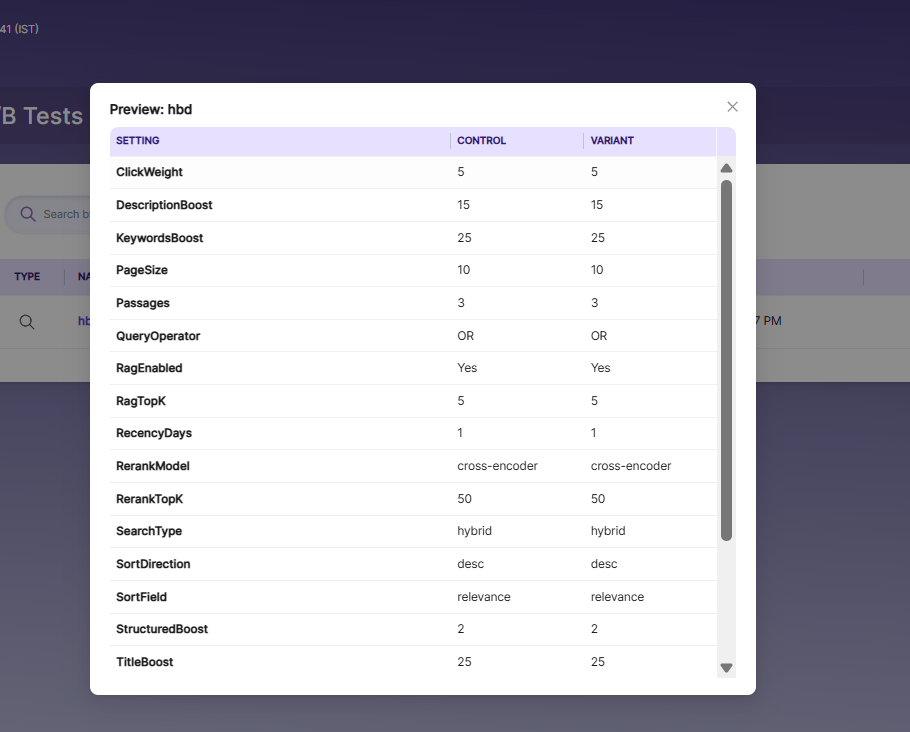
- Click on Preview--> A popup window will display a side-by-side comparison of control and Variant configuration :
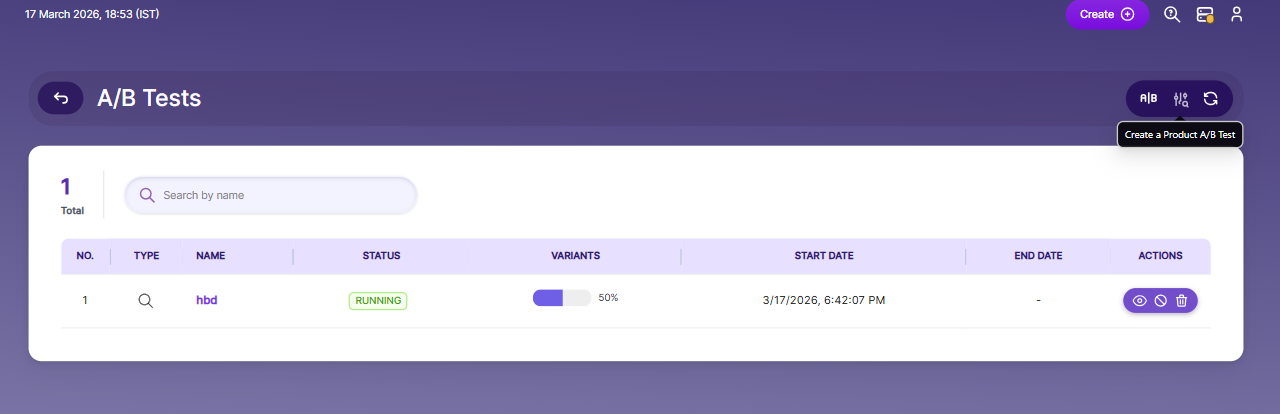
Create Product A/B Test
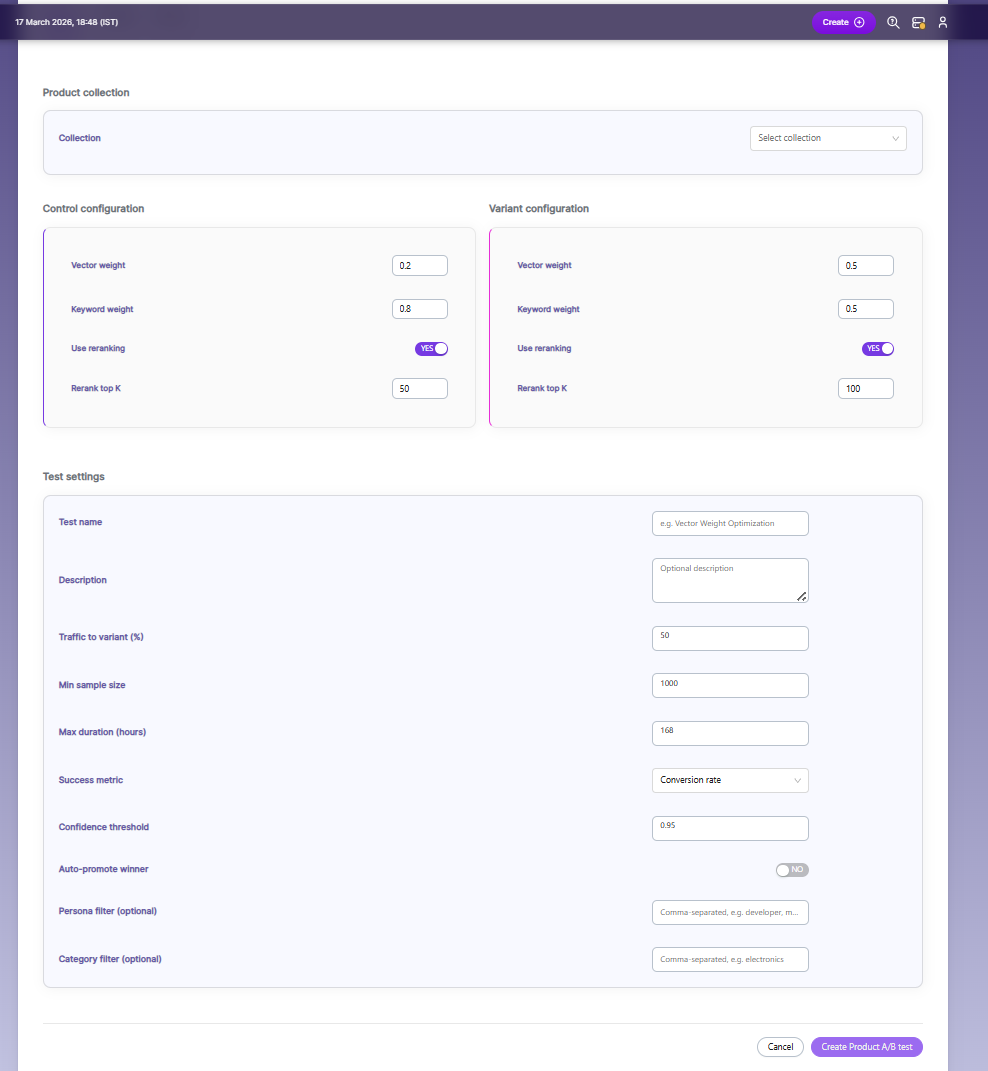
Configure Product Collection:
- Select the Product Collection from the dropdown
- This defines the dataset on which the A/B test will run
Configure Control (A):
- Adjust Vector Weight (semantic search impact)
- Adjust Keyword Weight (keyword search impact)
- Enable/Disable Reranking
- Set Rerank Top K (number of top results to rerank)
Configure Variant (B):
- Modify configuration to test improvements
- Adjust Vector Weight and Keyword Weight
- Enable/Disable Reranking
- Set Rerank Top K
Test Settings
- To configure the test settings for a Product A/B Test in SearchBlox, follow these steps:
- Navigate to the Test Settings section while creating a Product A/B Test
- Enter the Test Name- Provide a unique and descriptive name (e.g., "Vector Weight Optimization")
- Add a Description (optional)- Include details about the purpose of the test
- Set Traffic to Variant (%)- Define the percentage of users routed to Variant B .Example: 50% splits traffic equally between Control and Variant
- Define Minimum Sample Size- Specify the minimum number of interactions required for reliable results. Example: 1000
- Set Max Duration (hours)- how long the test will run. Example: 168 (7 days)
- Select a Success Metric- Choose the key metric to evaluate the test (e.g., Conversion rate)
- Conversion Rate
Measures the percentage of users who complete a desired action (e.g., purchase, add-to-cart)
Best for evaluating business impact - Click-through Rate (CTR)
Measures the percentage of users who click on a product
Best for evaluating user engagement - Revenue
Measures the total revenue generated from users in the test
Best for evaluating overall business performance - Add to Cart Rate
Measures the percentage of users who add products to the cart
Best for evaluating purchase intent
- Set Confidence Threshold- Define the statistical confidence threshold (e.g., 0.95 for 95% confidence)
- Configure Auto-promote Winner- Enable to automatically apply the winning variant after the test concludes . Disable to review results manually
- Apply Persona Filter (optional)- Restrict test to specific user groups (comma-separated)
- Apply Category Filter (optional)- Restrict test to specific product categories
- Click Create Product A/B Test to start the experiment
Click Cancel to discard changes
Managing A/B Product Tests
After creating an A/B Test in SearchBlox, you can monitor and manage it using the available actions.
- Preview A/B Test Configuration
- To preview the configuration details:
- Navigate to Analytics → A/B Tests
- Locate the created test in the list
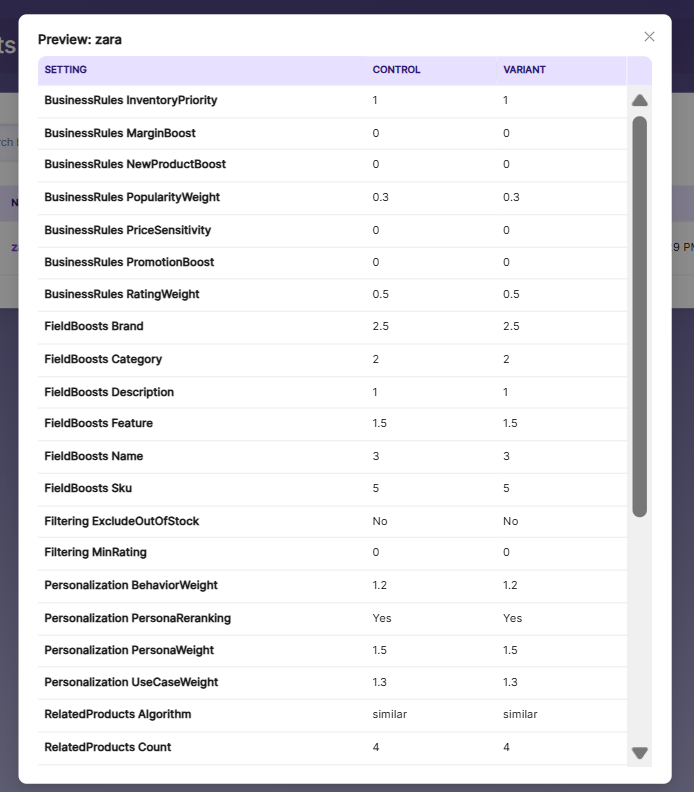
- Click on Preview--> A popup window will display a side-by-side comparison of control and Variant configuration :
Updated 22 days ago