
Sitemap Collection
A Sitemap Collection indexes your website using its sitemap XML file instead of following links from page to page. The crawler reads the sitemap, gets the full list of URLs directly, and indexes only those pages — making crawling faster,
more predictable, and easier to control.
When to use a Sitemap Collection instead of a WEB Collection:
- Your website is large and you want faster, more controlled indexing
- You want to index only specific pages listed in your sitemap
- Your site uses JavaScript rendering that makes standard link-following unreliable
- You need regular, scheduled updates based on sitemap changes
Creating a Sitemap Collection
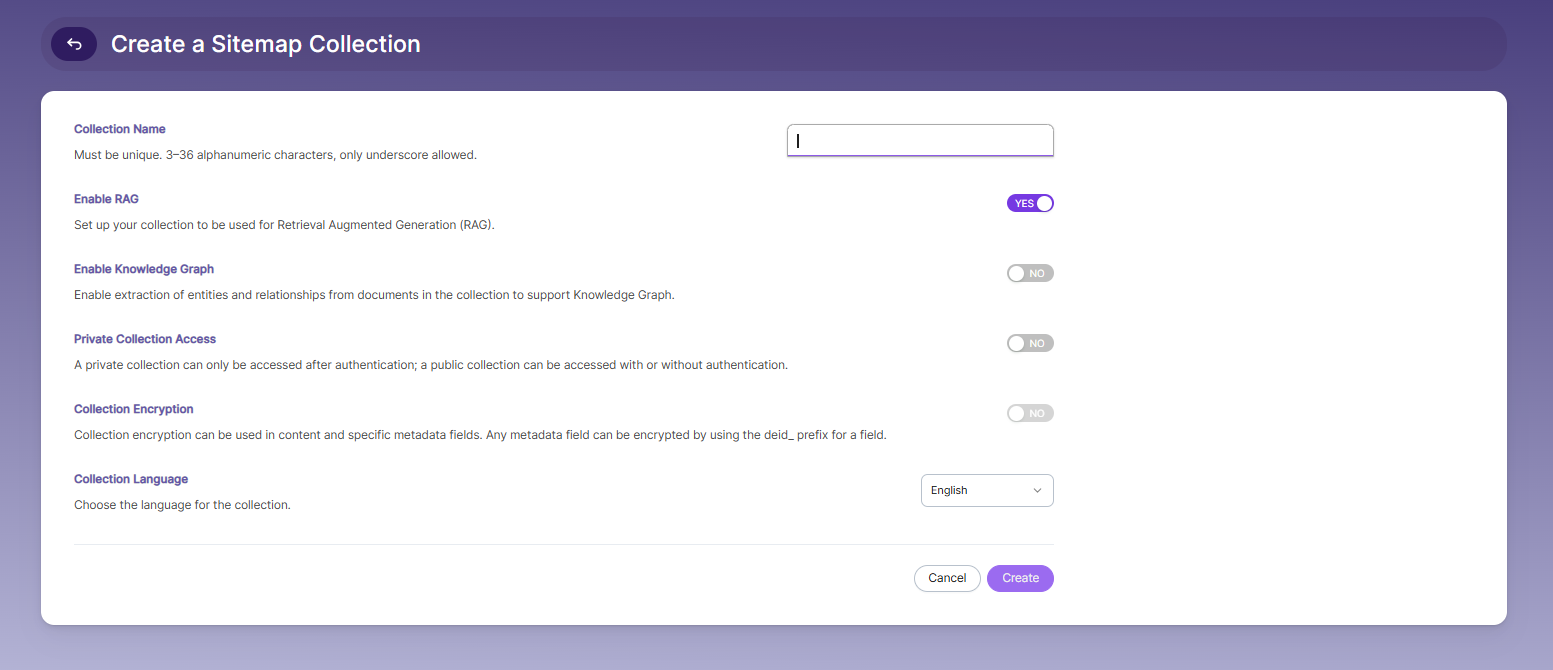
To create a Sitemap Collection, follow these steps:
- Log in to the Admin Console
- Go to the Collections tab and click Create or the + icon
- Select Sitemap Collection as the collection type
- Enter a unique name for your collection (3–36 alphanumeric characters, underscores only)
- Configure RAG settings:
- Enable to use Retrieval Augmented Generation (RAG)
- Disable if RAG is not required
- Configure Knowledge Graph:
- Enable to extract entities and relationships from documents
- Disable if not needed
- Set access permissions:
- Enable Private Access to restrict access to authenticated users
- Disable to allow public access
- Configure encryption (optional):
- Enable if you want to encrypt content or metadata fields
- Select the collection language (default is English)
- Click Create to create the collection.
Configuring Sitemap URLs
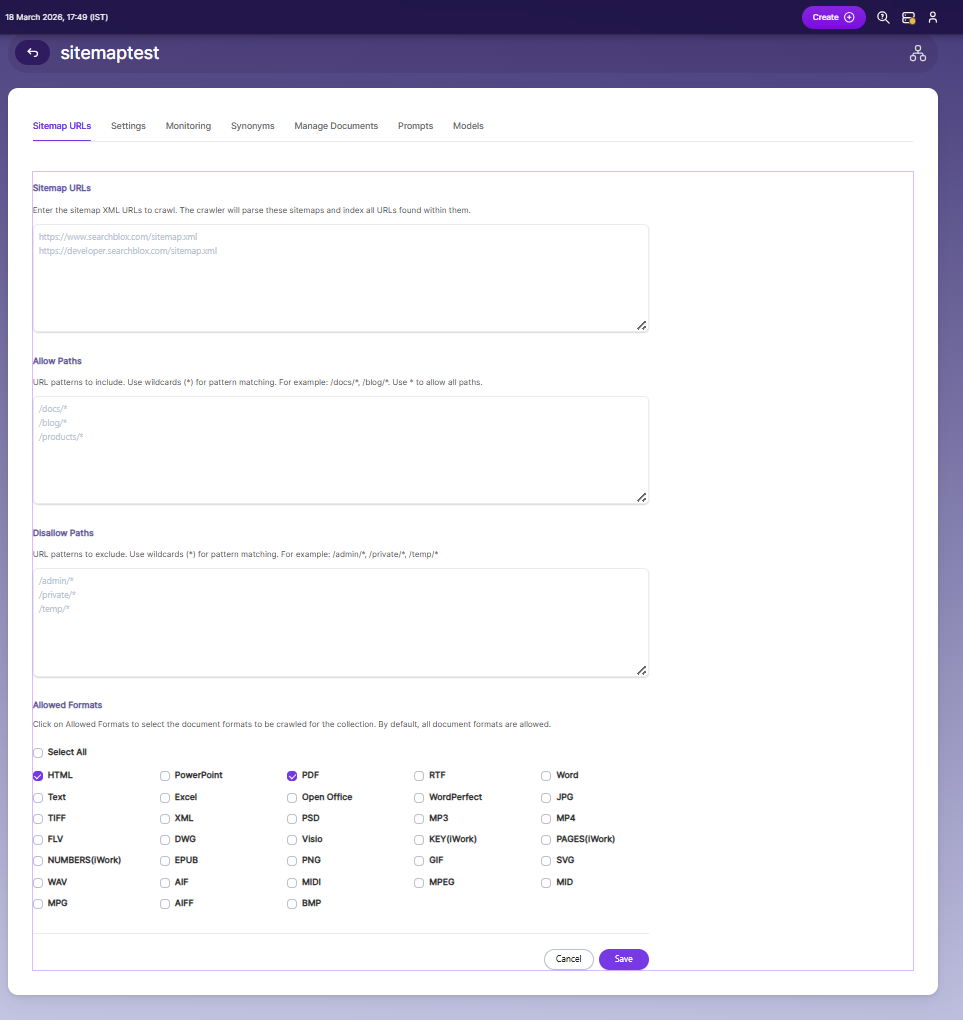
Sitemap URLs
- Sitemap URLs are the entry points for the crawler.
- The crawler reads the provided sitemap XML files and indexes all URLs listed within them.
- You can add multiple sitemap URLs (one per line).
- Ensure the sitemap is valid and publicly accessible.
Allow Paths
-
Allow Paths define which URLs from the sitemap should be included during crawling.
-
Use wildcard patterns (
*) to match multiple paths. -
This helps restrict indexing to specific sections of a website.
-
Example patterns:
/docs/*/blog/*/products/*
Disallow Paths
-
Disallow Paths define which URLs should be excluded from crawling.
-
Use wildcard patterns (
*) to filter out unwanted content. -
This is useful for excluding irrelevant or sensitive sections.
-
Example patterns:
/admin/*/private/*/temp/*
Allowed Formats
- Allowed Formats let you choose which file types should be indexed.
- By default, all formats are allowed unless restricted.
- Select only the formats relevant to your use case to optimize indexing.
Sitemap Collection Settings
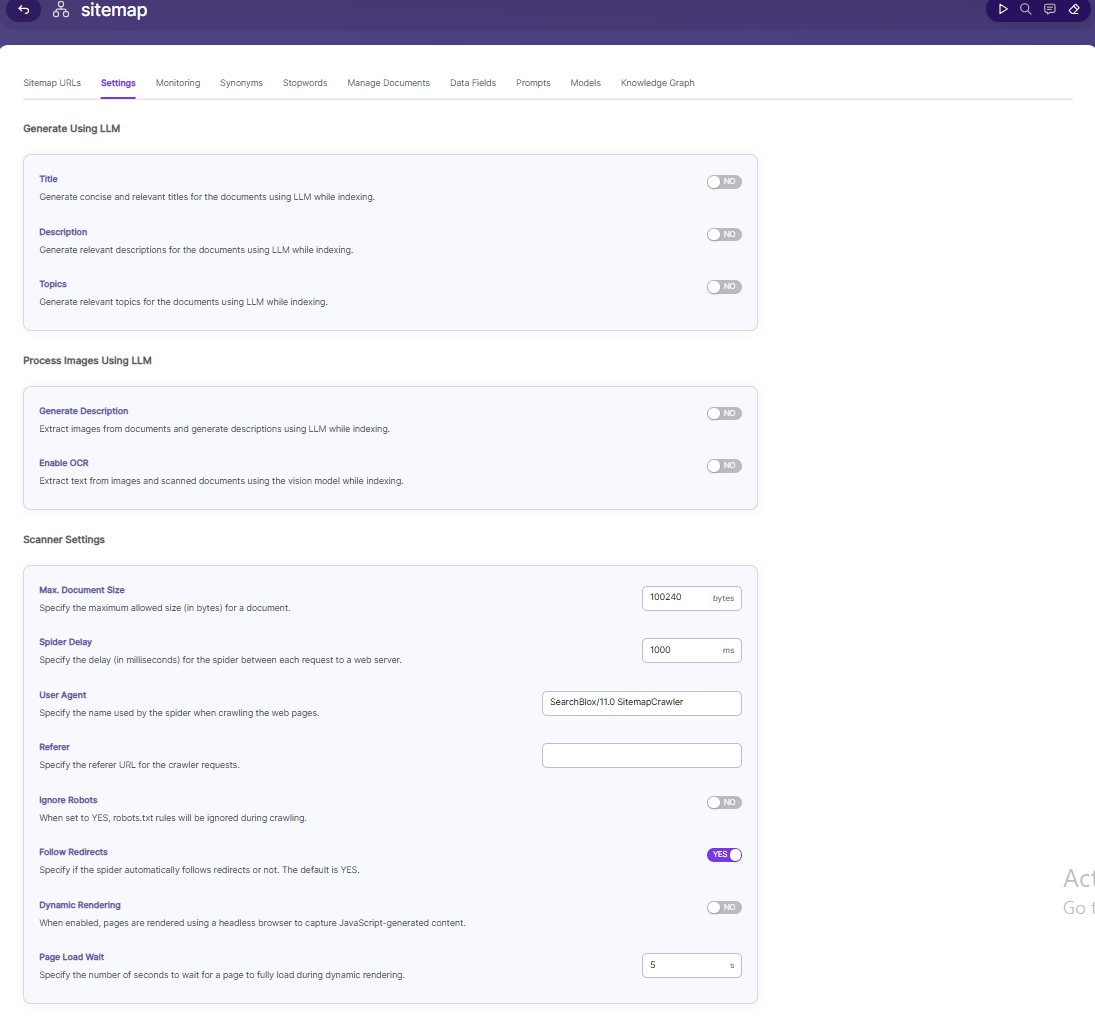
The Settings page allows you to configure how documents are processed, indexed, and crawled within the Sitemap Collection. Default values are applied when the collection is created, but you can customize them based on your requirements.
Generate Using LLM
- Enable Title to automatically generate concise and relevant titles for the documents using LLM while indexing.
- Enable Description to generate relevant descriptions for the documents using LLM while indexing.
- Enable Topics to generate relevant topics for the documents using LLM while indexing.
Process Images Using LLM
- Enable Generate Description to extract images from documents and generate descriptions using LLM while indexing.
- Enable Enable OCR to extract text from images and scanned documents using the vision model while indexing.
Scanner Settings
- Max. Document Size — Specify the maximum allowed size (in bytes) for a document (default:
100240bytes). - Spider Delay — Specify the delay (in milliseconds) for the spider between each request to a web server (default:
1000ms). - User Agent — Specify the name used by the spider when crawling the web pages (default:
SearchBlox/11.0 SitemapCrawler). - Referer — Specify the referer URL for the crawler requests.
- Ignore Robots — When set to YES,
robots.txtrules will be ignored during crawling. - Follow Redirects — Specify if the spider automatically follows redirects or not. The default is YES.
- Dynamic Rendering — When enabled, pages are rendered using a headless browser to capture JavaScript-generated content.
- Page Load Wait — Specify the number of seconds to wait for a page to fully load during dynamic rendering (default:
5seconds).
RAG
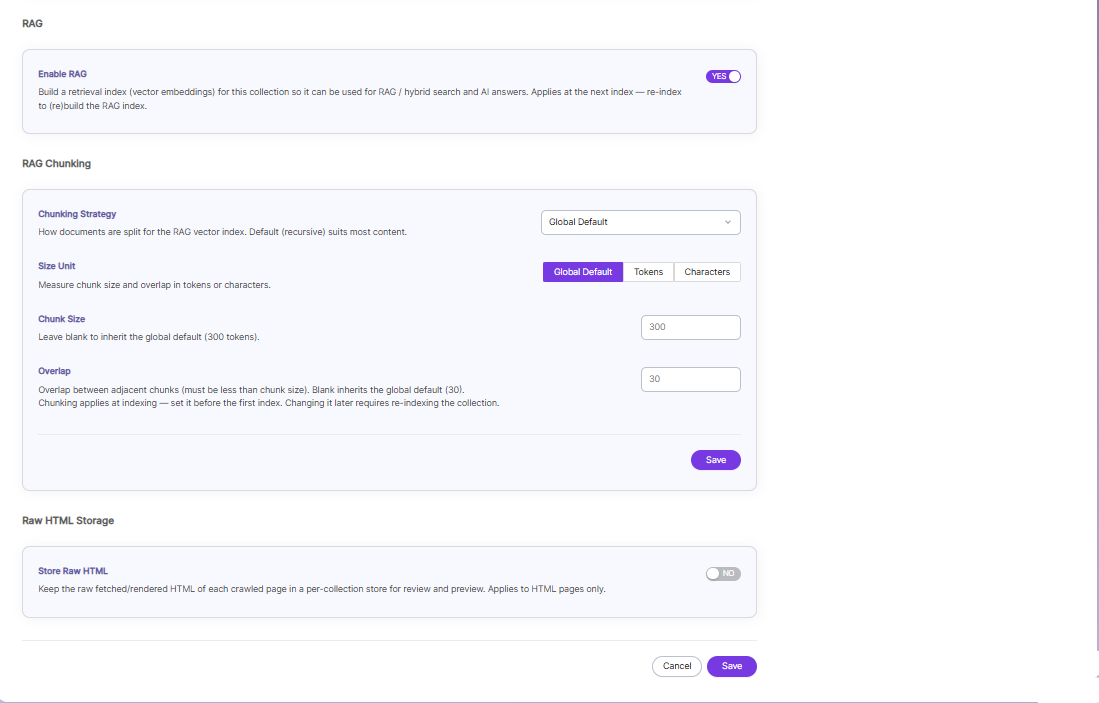
- Enable RAG — Turn ON to build a retrieval index (vector embeddings) for this collection so it can be used for RAG, Hybrid Search, and AI Answers. This setting applies at the next index — re-index the collection to build or rebuild the RAG index.
RAG Chunking
-
Chunking Strategy — Determines how documents are split for the RAG vector index. Default (recursive) suits most content.
-
Size Unit — Measure chunk size and overlap using one of three modes:
- Global Default — Inherits the system-wide default chunking configuration.
- Tokens — Measure chunk size and overlap in tokens.
- Characters — Measure chunk size and overlap in characters.
-
Chunk Size — Leave blank to inherit the global default (300 tokens).
-
Overlap — Overlap between adjacent chunks; must be less than the chunk size. Leave blank to inherit the global default (30).
Note: Chunking applies at indexing — set it before the first index. Changing it later requires re-indexing the collection.
Click Save to apply the RAG Chunking configuration.
Raw HTML Storage
- Store Raw HTML — Enable to keep the raw fetched/rendered HTML of each crawled page in a per-collection store, for review and preview. Applies to HTML pages only.
Click Save to store the collection settings, or Cancel to discard changes.
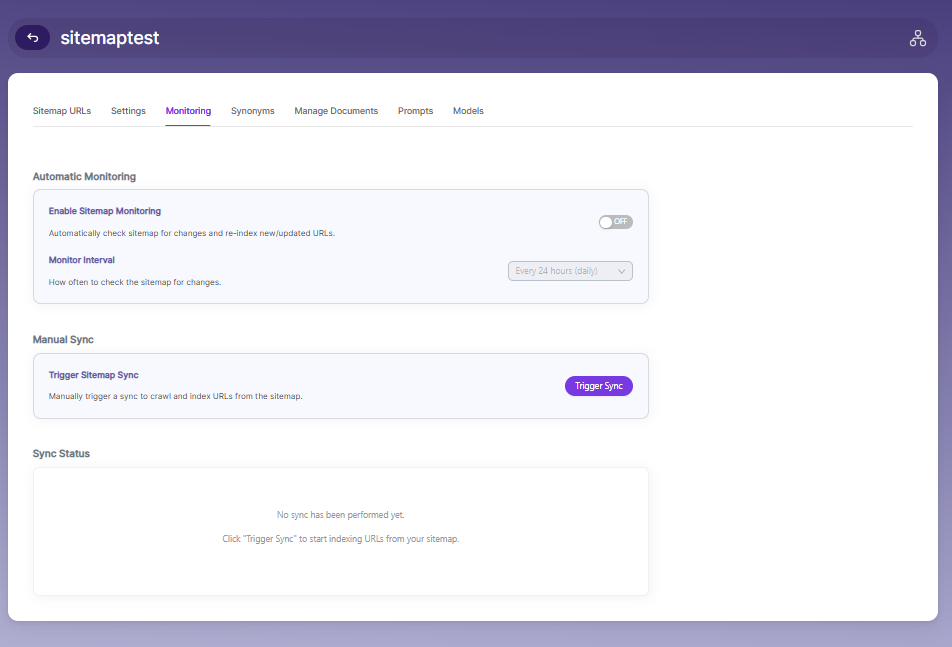
Sitemap Collection Monitoring
The Monitoring page allows you to control how sitemap updates are tracked and how indexing is triggered.
Automatic Monitoring
- Enable Sitemap Monitoring to automatically check the sitemap for updates and re-index new or modified URLs.
- Monitor Interval defines how frequently the system checks for changes in the sitemap (for example, every 24 hours).
Manual Sync
- Use Trigger Sitemap Sync to manually start crawling and indexing URLs from the sitemap.
- This is useful when you want immediate updates instead of waiting for the scheduled monitoring interval.
Sync Status
- The Sync Status section displays the current state of sitemap indexing.
- It shows whether a sync has been performed and provides feedback on indexing activity.
Synonyms
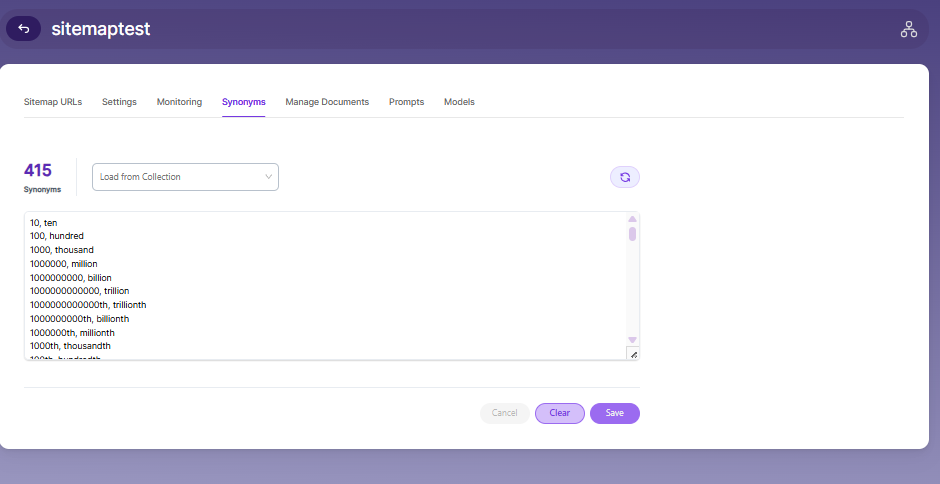
Synonyms find relevant documents related to a search term, even if the search term is not present. For example, while searching for documents that use the term “global,” results with synonyms “world” and “international” would be listed in the search results.
We have an option to load Synonyms from the existing documen
Stopwords
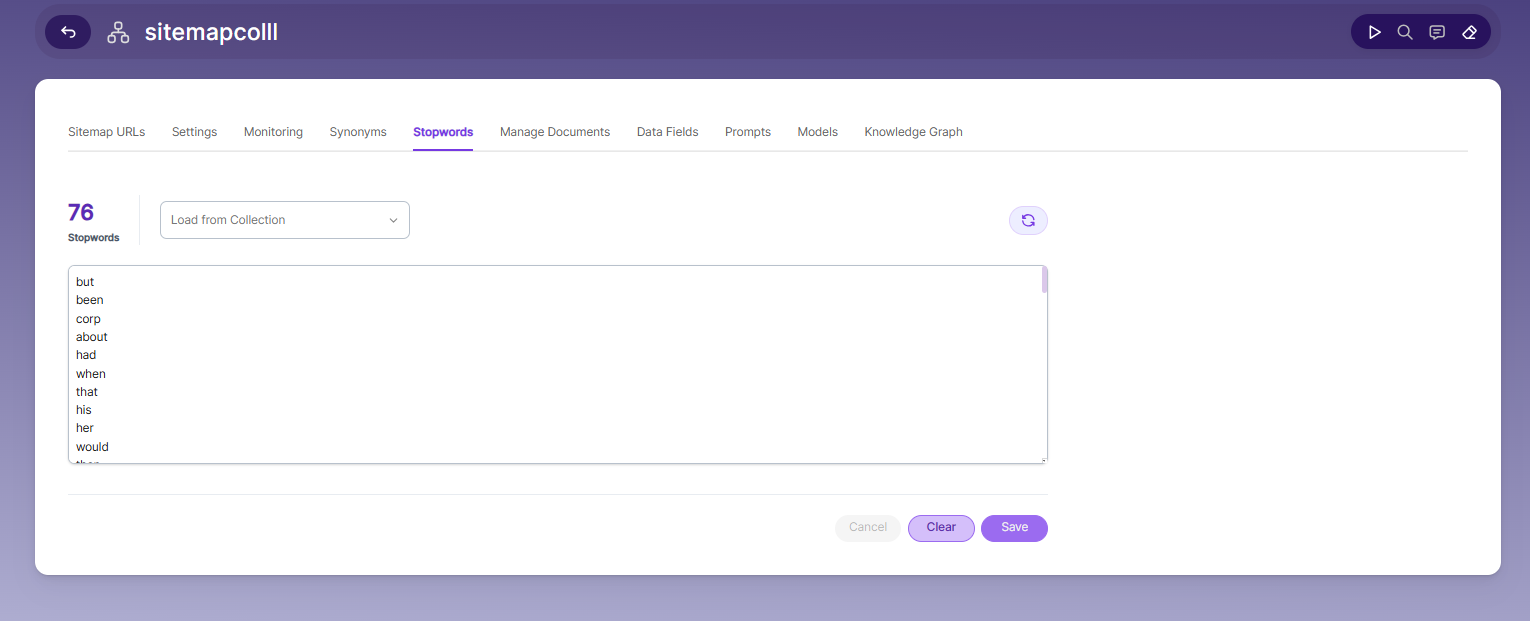
Stopwords are common, high-frequency words that carry minimal semantic value and are typically excluded during text processing, indexing, or search operations. Examples include articles (a, an, the), conjunctions (and, but, or), prepositions (in, on, about), and auxiliary verbs (is, was, would, had).
Purpose:
Reduce noise in search indexing and text analysis
Improve processing efficiency by excluding low-value tokens
Enhance search relevance by prioritizing meaningful keywords
Manage Documents
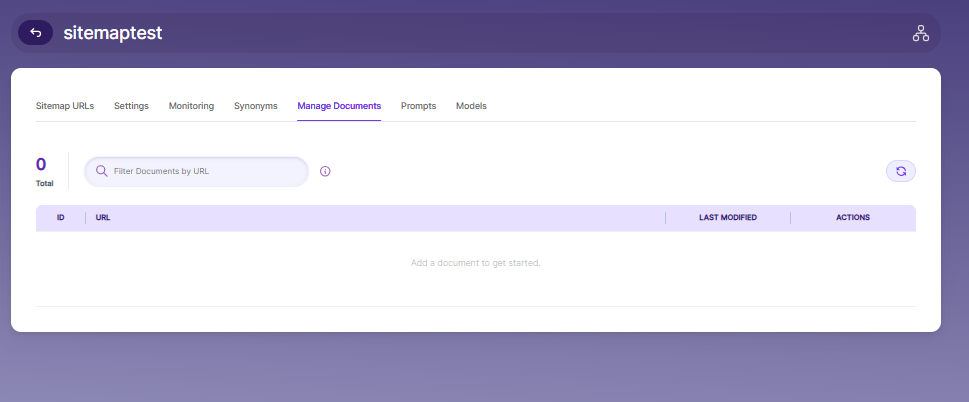
- Using Manage Documents tab we can do the following operations:
- Add/Update
- Filter
- View content
- View meta data
- Refresh
- Delete
-
To add a document click on "+" icon as shown in the screenshot.
-
Enter the document/URL, Click on add/update.
-
Once the document is updated you will be able to see the document URL on the screen and we will be able to perform the above mentioned operations.
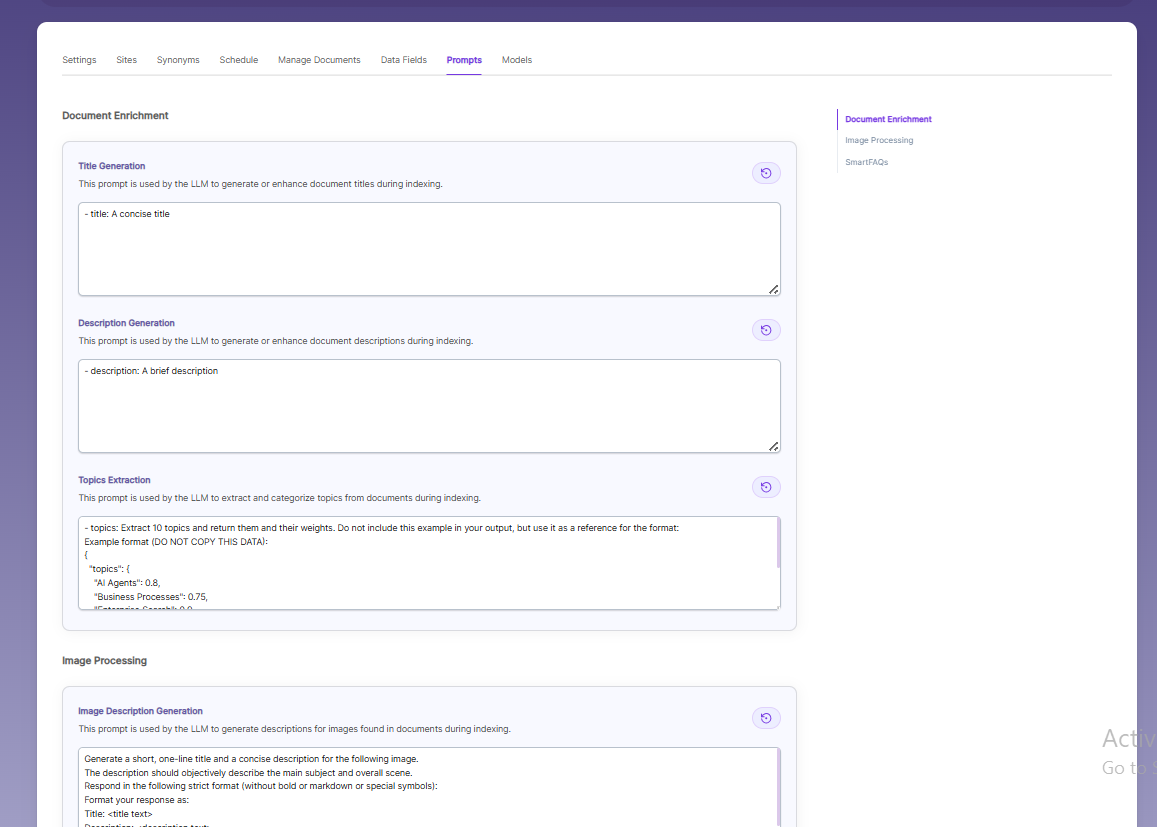
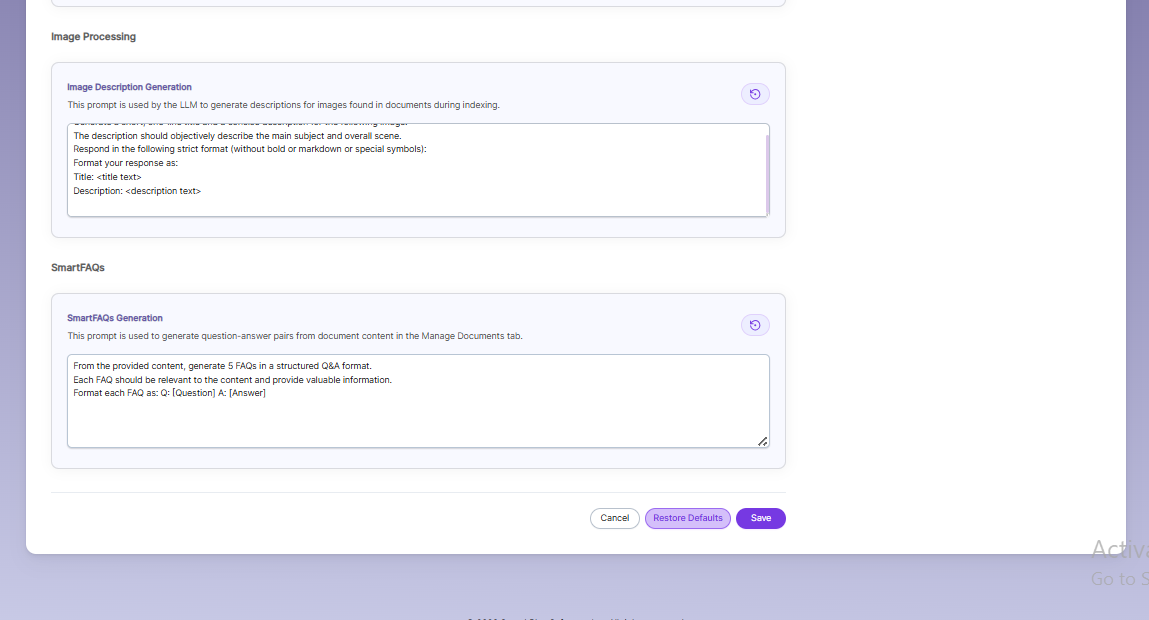
Prompts
- When LLM/RAG is enabled, you can edit AI-based prompts for Title, Description, Topic, Image Description, and Smart FAQs.
- You can customize these prompts anytime, and use Restore Default to reset them back to the original SearchBlox settings.
Sitemap Collection Models
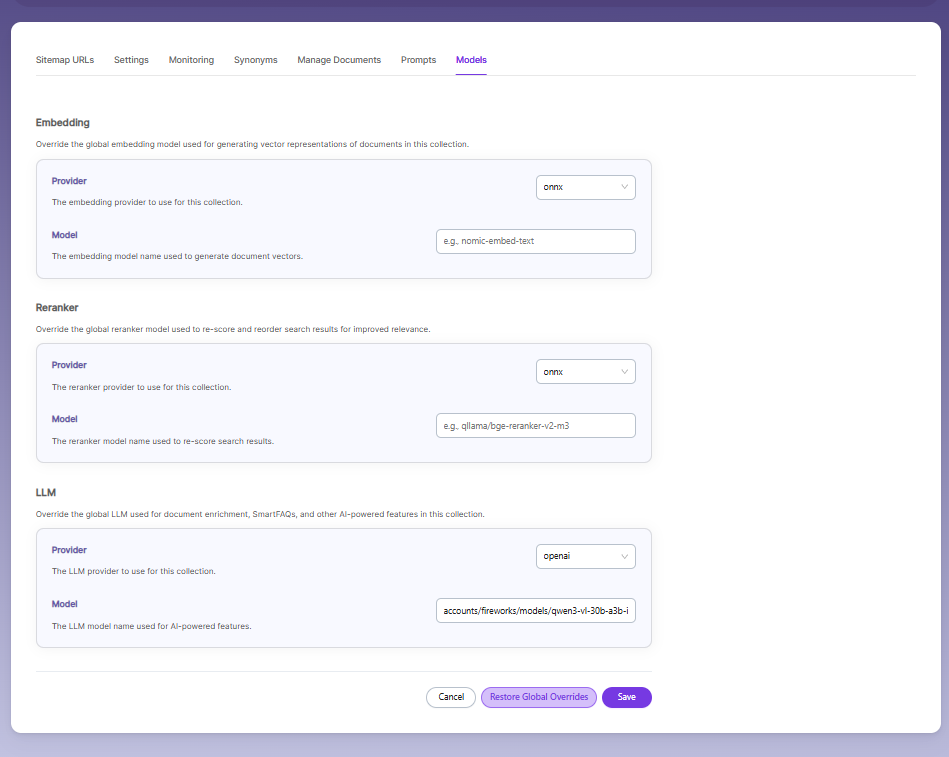
The Models page allows you to configure and override AI models used for embeddings, reranking, and LLM-based features within the collection.
Embedding
- Provider specifies the embedding provider used to generate vector representations of documents.
- Model defines the embedding model used to convert document content into vectors for semantic search.
Reranker
- Provider specifies the reranker provider used for improving search result relevance.
- Model defines the reranker model used to re-score and reorder search results based on relevance.
LLM
-
Provider specifies the Large Language Model provider used for AI-powered features.
-
Model defines the LLM used for tasks such as document enrichment, summaries, and SmartFAQs.
-
These settings override global configurations and apply only to the current collection.
Updated 22 days ago