
Azure DevOps Collection
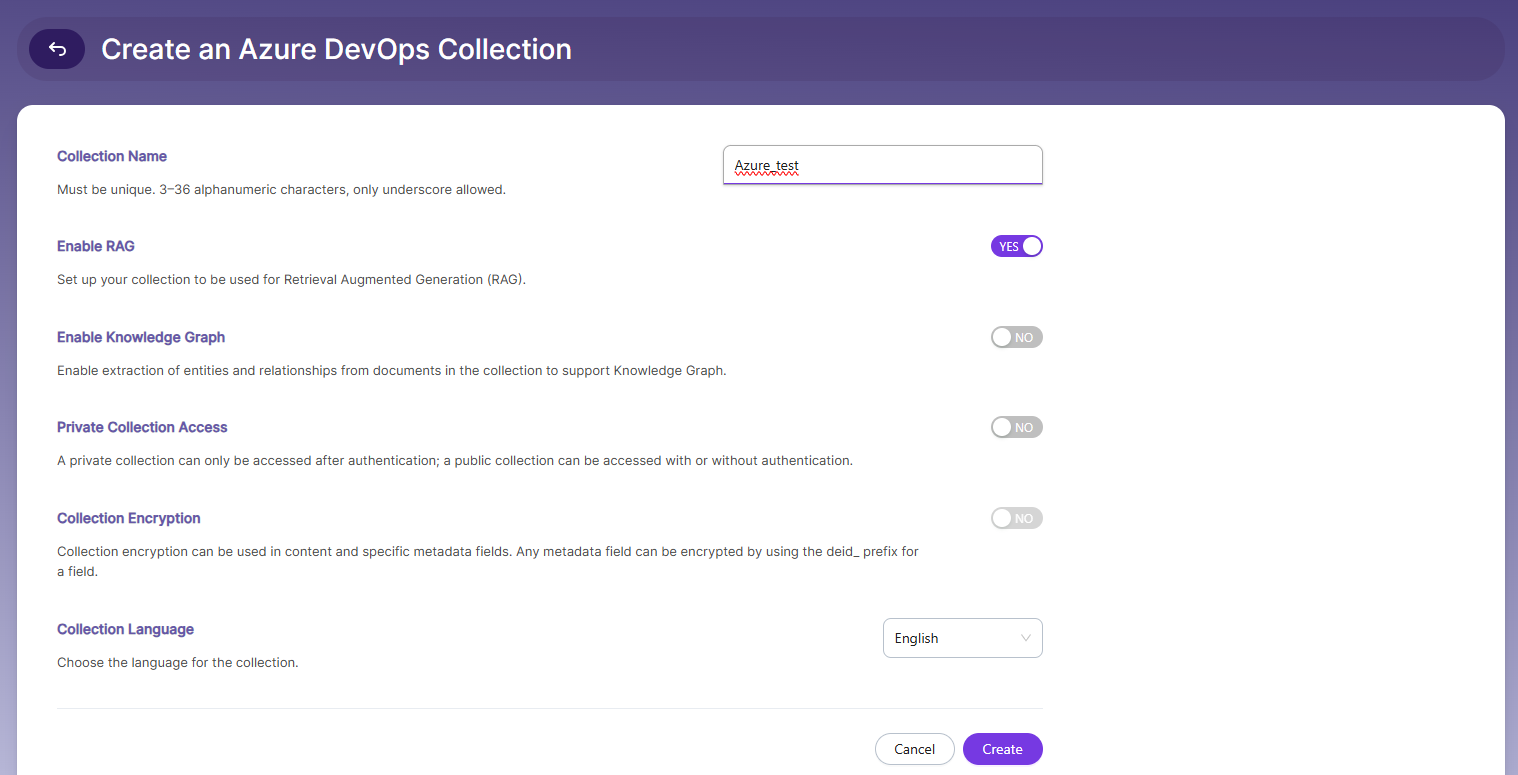
SearchBlox includes a crawler, which allows you to crawl project folders and files in Azure DevOps Organization. Azure DevOps Collection can be created by following the steps given below.
Creating Azure DevOps Collection
You can Create a Confluence Collection with the following steps:
-
After logging in to the Admin Console, select the Collections tab and click on Create a New
Collection or "+" icon. -
Choose Azure DevOps Collection as Collection Type
-
Enter a unique name for the collection (for example, Project).
-
Enable/Disable RAG, enable for ChatBot and Hybrid RAG search.
-
Choose Private/Public Collection Access and Collection Encryption as per the requirements.
-
Choose the language of the content (if the language is other than English).
-
Click Save to create the collection.
-
Once the Azure DevOps collection is created you will be taken to the
Azure DevOps Settingstab.
Azure DevOps Settings Tab
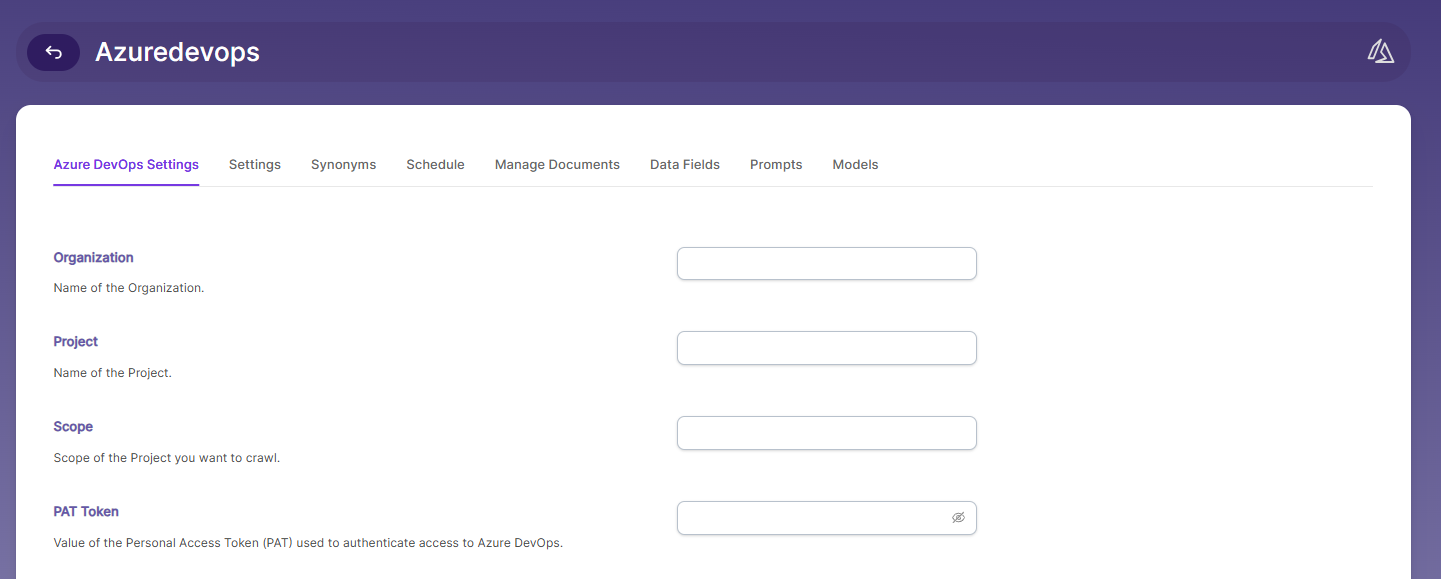
| Field | Description |
|---|---|
| Organization | Name of the Organization on which Azure DevOps account is created. Can be found from Azure DevOps endpoint : <https://dev.azure.com/><Organization-name>/ Or while generating PAT Token. |
| Project | Name of the Project whose documents needs to be indexed. Found on the Login or Home Page with Projects section |
| Scope | Scope of the given project, commonly it will be of the following form: $/<Project-Name> Or can be found in Repos section in Azure DevOps Account. |
| PAT Token | PAT Token is a unique token that can be generated from your Azure DevOps dashboard. Token can be generated from here: https://dev.azure.com/<Organization>/_usersSettings/tokensReplace the Organization name in the above URL OR Click on User Settings tab and select Personal Access Token in Azure DevOps Account. |
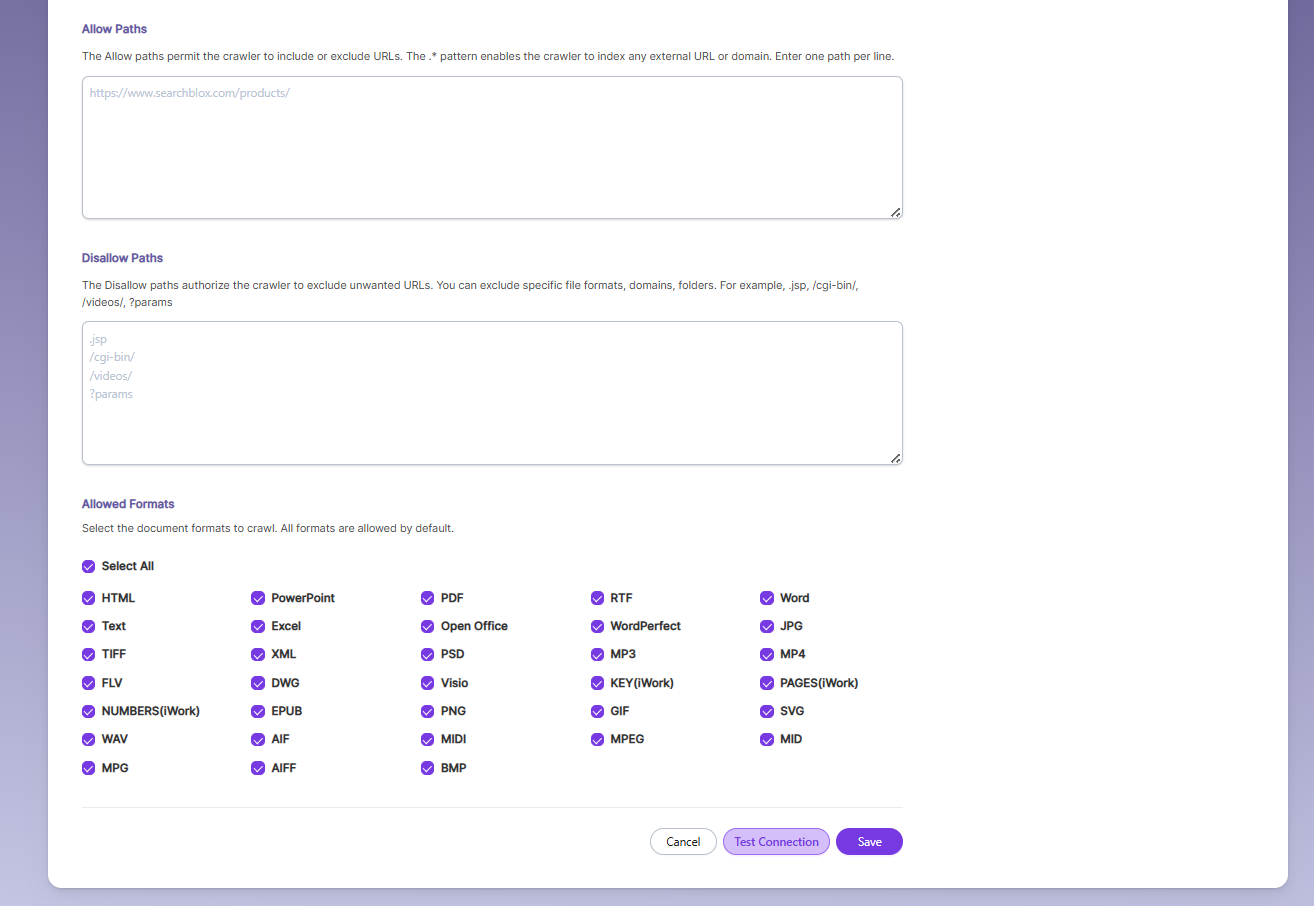
- Provide the Organization, Project, Scope and PAT Token.
- Click on
SaveandTest Connection.
| Settings | Description |
|---|---|
| Title | Generates concise and relevant titles for the indexed documents using LLM. |
| Description | Generates the description for indexed documents using LLM. |
| Topic | Generates relevant topics for indexed documents using LLM based on document's content. |
| Auto Relevance | Enable/Disable Hybrid Search for automatic relevance ranking |
- Click on
SaveandTest Connection.
Settings Tab
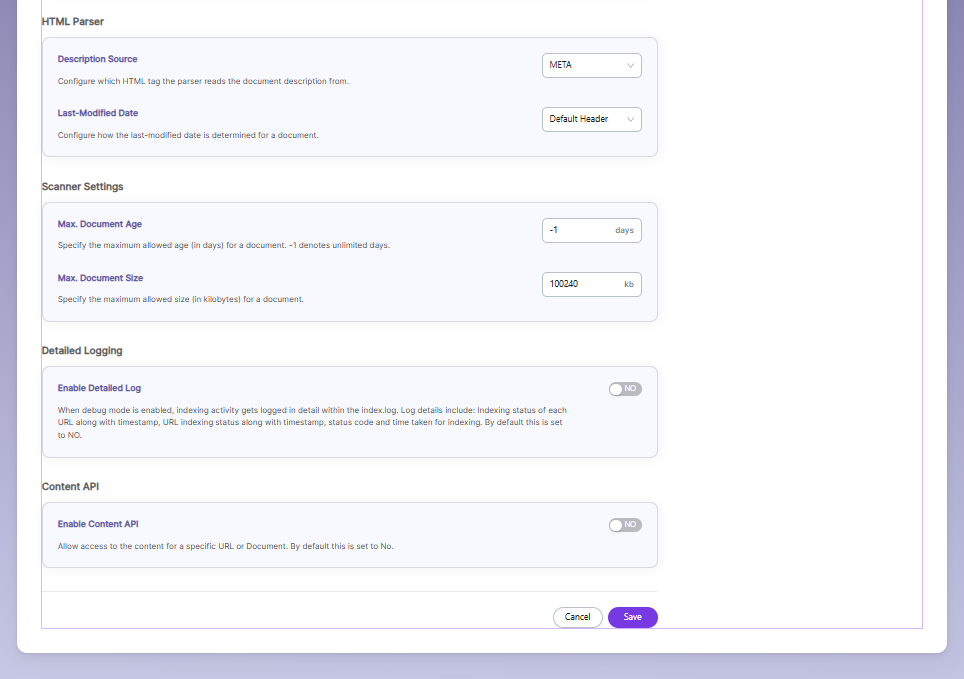
The Settings sub-tab holds tunable parameters for the Azure DevOps crawler and the indexer. SearchBlox comes pre-configured with parameters when a new collection is created. The settings that can be configured from SearchBlox are listed as follows.
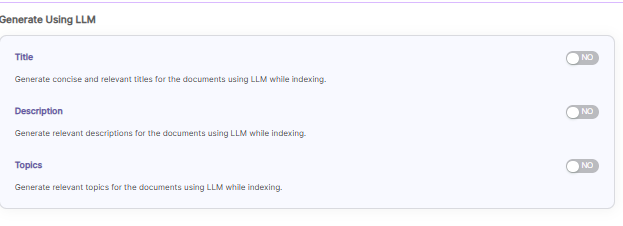
Generate Using LLM
Title — AI creates document titles automatically. Off by default.
Description — AI creates document descriptions automatically. Off by default.
Topics — AI generates relevant topics for documents. Off by default.
Process Images Using LLM
Generate Description — Pulls images out of documents and uses AI to describe them. Off by default.
Enable OCR — Reads text out of images and scanned documents using a vision model. Off by default.
Relevance
Auto Relevance — Uses Hybrid Search to automatically rank results better. ON.
Remove Duplicates — Skips indexing documents with identical content. Off (default is NO).
Stemming — Matches similar word forms together (e.g., "running," "runs," "ran" all match "run"). ON (default YES).
Spelling Suggestions — Suggests corrections for misspelled searches. ON (default YES).
RAG
Enable RAG — Builds an AI-searchable index (vector embeddings) so this collection works with RAG/hybrid search and AI answers. ON. Takes effect on the next re-index.
RAG Chunking
Chunking Strategy — How documents get broken into pieces for the AI index. Set to Global Default (recursive splitting — works for most content).
Size Unit — Measure chunk size in Tokens or Characters. Set to Global Default.
Chunk Size — How big each chunk is. Blank = uses global default (300 tokens).
Overlap — How much adjacent chunks overlap. Blank = uses global default (30).
Set these before the first index — changing later needs a full re-index.
Keyword-in-Context
Enable KWIC Display — Shows a snippet of text around the matched search term in results. ON.
HTML Parser
Description Source — Which HTML tag the parser pulls the description from. Set to META.
Last-Modified Date — How the "last modified" date is figured out for a document. Set to Default Header.
Scanner Settings
Max. Document Age — Oldest a document can be (in days) before it's skipped. Set to -1 (unlimited).
Max. Document Size — Largest file size allowed (in KB). Set to 100240 KB.
Detailed Logging
Enable Detailed Log — Turns on detailed indexing logs (saved in index.log) — records each URL's status, timestamp, status code, and time taken. Off by default; useful for debugging.
Content API
Enable Content API — Lets you fetch the content of a specific URL or document via API. Off by default.
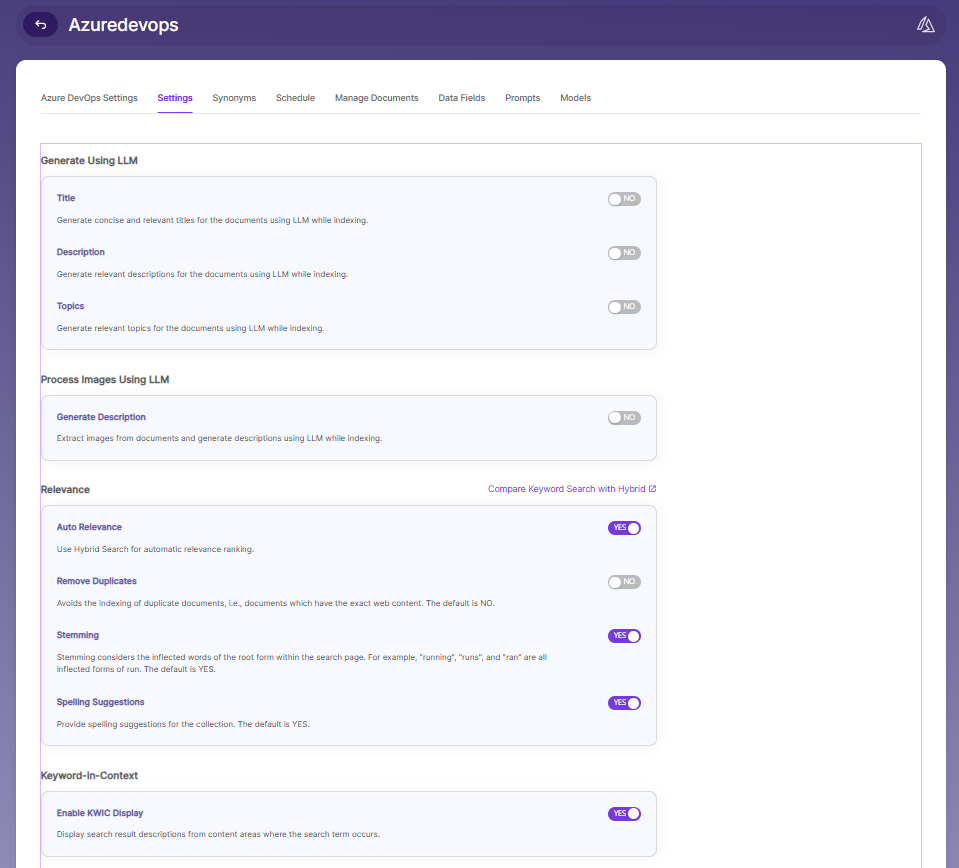
Generate Title, Description and Topics using SearchAI PrivateLLM and Enable Hybrid Search:
- Choose and enable
Generate Using LLMandAuto Relevance
- By clicking
Compare Keyword Search with Hybridwill redirect to the Comparison Plugin
Settings Description Title Generates concise and relevant titles for the indexed documents using LLM. Description Generates the description for indexed documents using LLM. Topic Generates relevant topics for indexed documents using LLM based on document's content. Auto Relevance Enable/Disable Hybrid Search for automatic relevance ranking

| Setting | Description |
|---|---|
| Remove Duplicates | When enabled, prevents indexing of duplicate documents. |
| Stemming | When stemming is enabled, inflected words are reduced to root form. For example, "running", "runs", and "ran" are the inflected form of run. |
| Spelling Suggestions | Provide spelling suggestions for the collection. The default is YES. |
| Keyword-in-Context Display | The keyword-in-context returns search results with the description displayed from content areas where the search term occurs. |
| HTML Parser Setting | The setting configures the HTML parser to read the description for a document from one of the HTML tags: META, H1, H2, H3, H4, H5, H6. |
| Maximum Document Age | Specifies the maximum allowable age in days of a document in the collection. |
| Maximum Document Size | Specifies the maximum allowable size in kilobytes of a document in the collection. |
| Logging | Provides the indexer activity in detail in - List of files that are crawled. |
| Enable Content API | Provides the ability to crawl the content with special characters included. |
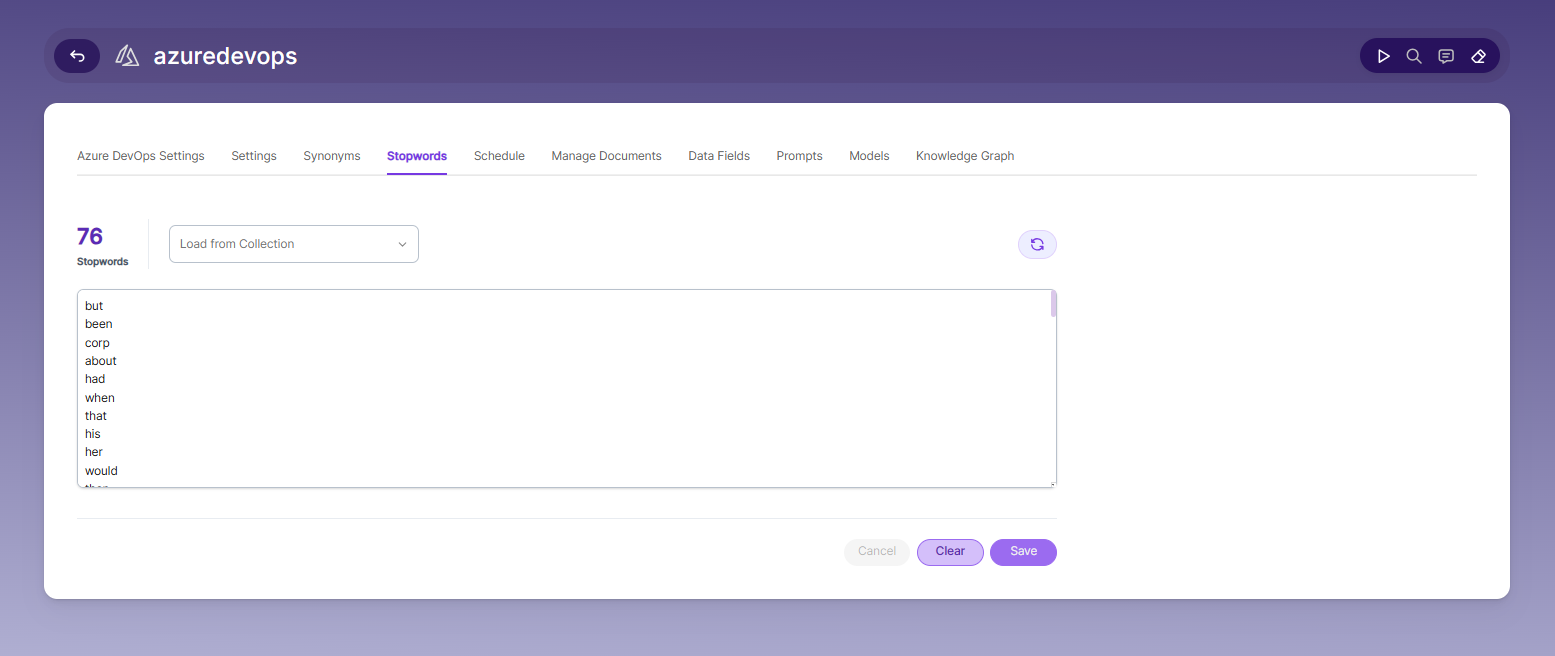
Stopwords
Stopwords are common, high-frequency words that carry minimal semantic value and are typically excluded during text processing, indexing, or search operations. Examples include articles (a, an, the), conjunctions (and, but, or), prepositions (in, on, about), and auxiliary verbs (is, was, would, had).
Purpose:
Reduce noise in search indexing and text analysis
Improve processing efficiency by excluding low-value tokens
Enhance search relevance by prioritizing meaningful keywords
Schedule and Index
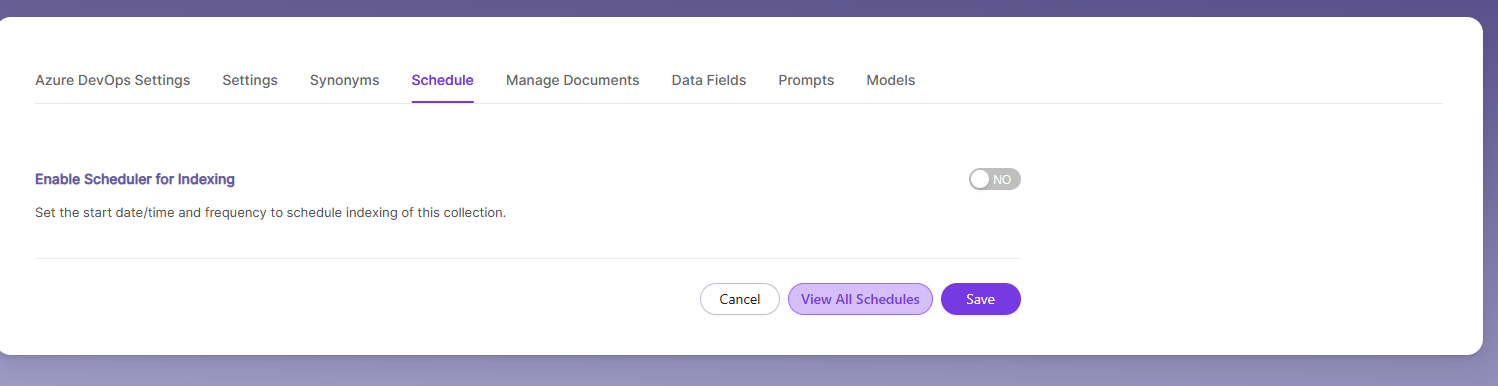
Sets the frequency and the start date/time for indexing a collection. Schedule Frequency supported in SearchBlox is as follows:
- Once
- Hourly
- Daily
- Every 48 Hours
- Every 96 Hours
- Weekly
- Monthly
The following operation can be performed in Confluence collections
| Activity | Description |
|---|---|
| Enable Scheduler for Indexing | Once enabled, you can set the Start Date and Frequency |
| Schedule | For each collection, indexing can be scheduled based on the above options. |
| View all Schedules | Redirects to the Schedules section, where all the Collection Schedules are listed. |
Manage Documents Tab
-
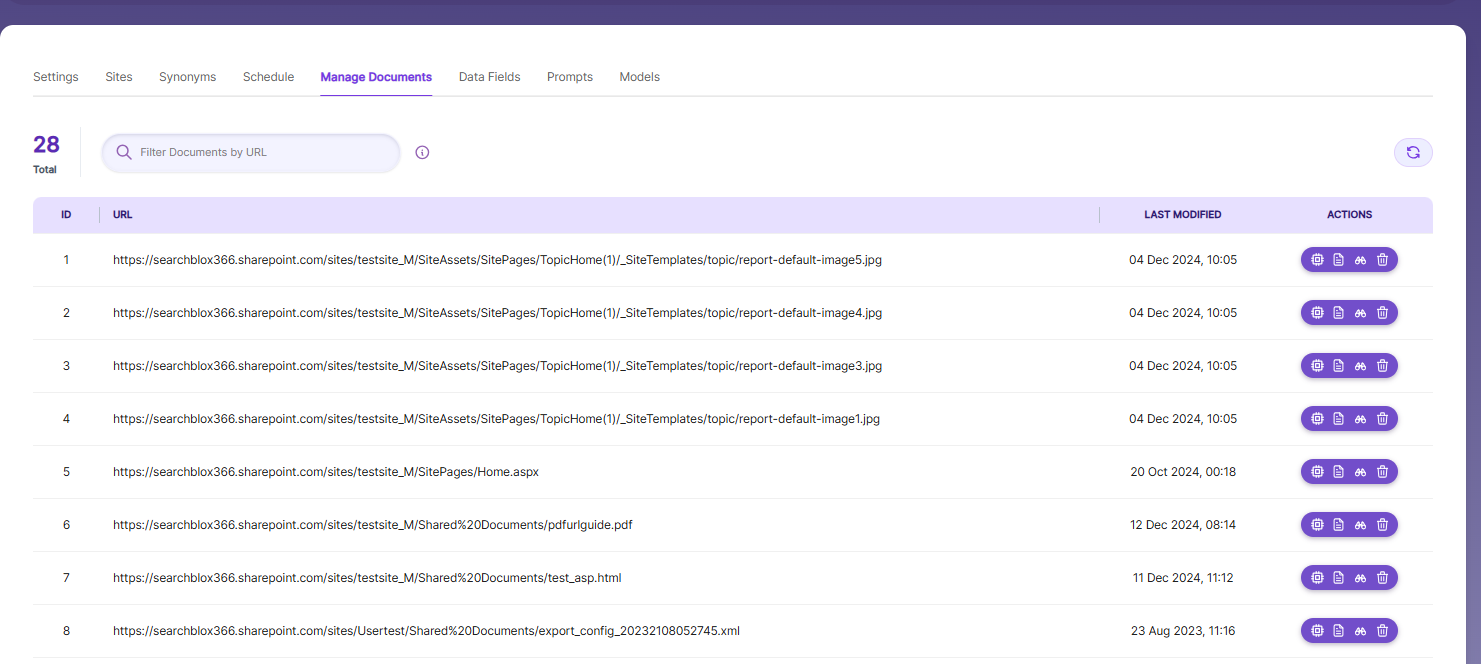
Using Manage Documents tab we can do the following operations:
- Filter
- View content
- View metadata
- Refresh
- Delete
-
To delete a file from your collection, enter the file path and click "Delete".
-
To see the status of an indexed file, click "View Metadata".
Data Fields Tab
Using Data Fields tab we can create custom fields for search and we can see the Default Data Fields with non-encrypted collection. SearchBlox supports 4 types of Data Fields as listed below:
| Type | Description |
|---|---|
| Keyword | Used for alphanumeric values such as IDs, tags, codes, or other exact-match fields. |
| Number | Used for numeric values such as prices, quantities, ratings, or counts. |
| Date | Used for date values that can be searched, sorted, and filtered. |
| Text | Used for full-text search within custom field content. |
- Once the Data fields are configured, collection must be cleared and re-indexed to take effect.
To know more about Data Fields please refer to Data Fields Tab
Prompts
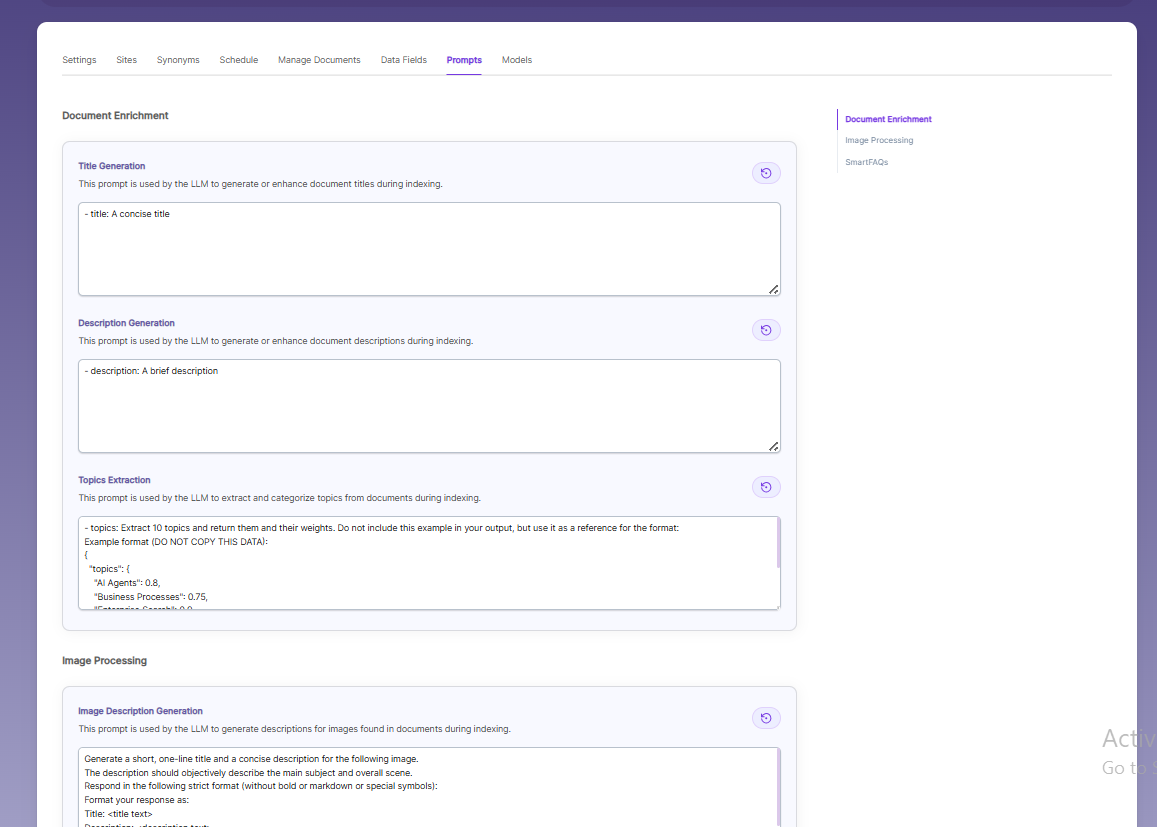
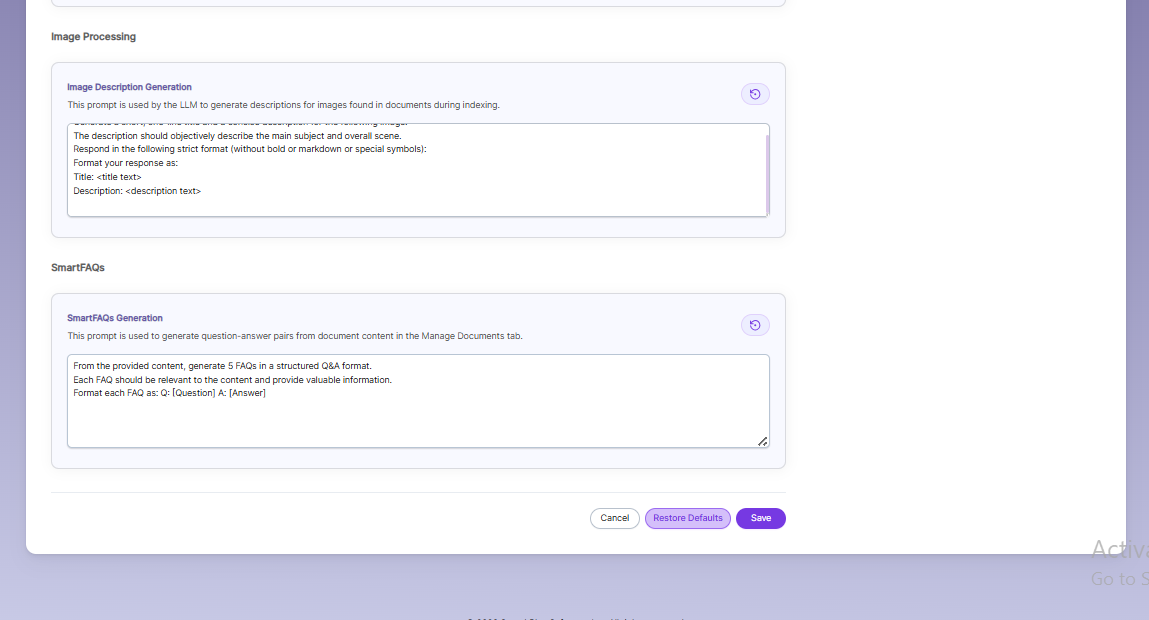
- When LLM/RAG is enabled, you can edit AI-based prompts for Title, Description, Topic, Image Description, and Smart FAQs.
- You can customize these prompts anytime, and use Restore Default to reset them back to the original SearchBlox settings.
Models
The Models section lets you override the global embedding, reranking, and LLM settings for this specific collection. Changes made here apply only to the current collection and do not affect other collections.
Embedding
- Provider specifies the embedding provider used to generate vector representations of documents
- Model defines the embedding model used to convert document content into vectors for semantic search
Reranker
- Provider specifies the reranker provider used for improving search result relevance
- Model defines the reranker model used to re-score and reorder search results based on relevance
LLM
- Provider specifies the Large Language Model provider used for AI-powered features
- Model defines the LLM used for tasks such as document enrichment, summaries, and SmartFAQs
Updated 22 days ago