
Adobe EDS Collection
Overview
SearchBlox provides an Adobe EDS (Edge Delivery Services) Collection to index content published through Adobe Edge Delivery Services. It connects directly to your EDS-hosted site, automatically crawls the published pages, and indexes their content for search — making Adobe EDS content easily searchable without manual uploads.
Note: Adobe EDS Collection supports RAG for AI-powered search, Knowledge Graph for entity extraction, private access control, content encryption, and configurable language settings.
Prerequisites for Adobe EDS Collection
Before creating an Adobe EDS Collection in SearchBlox, ensure the following are in place:
- Published Adobe EDS site — The Adobe Edge Delivery Services site must be live and publicly reachable (or reachable from the SearchBlox server) at its delivery origin, e.g.,
https://main--site--org.aem.live. - Content URL — The base EDS delivery URL for the site should be identified in advance, as this is required to configure the connection.
- Discovery source available — Depending on the Discovery Mode you plan to use:
- A structured query-index.json file must be published and accessible at the expected path (default:
/query-index.json), or - A valid sitemap.xml (or custom sitemap path) must be published and accessible at the expected path (default:
/sitemap.xml).
- A structured query-index.json file must be published and accessible at the expected path (default:
- Site Token (if protected) — If the EDS site is access-protected, a valid site token must be generated/obtained in advance to allow SearchBlox to authenticate and crawl the content.
- Network/firewall access — The SearchBlox server must have outbound network access to the EDS delivery domain (and Publish Domain, if different) over HTTPS.
- Path scoping decided (optional) — Any Include Paths or Exclude Paths to scope the crawl should be identified beforehand (e.g., indexing only
/products, /blogand excluding/drafts, /internal).
Creating an Adobe EDS Collection
- Log in to the Admin Console.
- Navigate to the Collections tab.
- Click the Create button or the + icon.
- Select Adobe EDS Collection as the collection type.
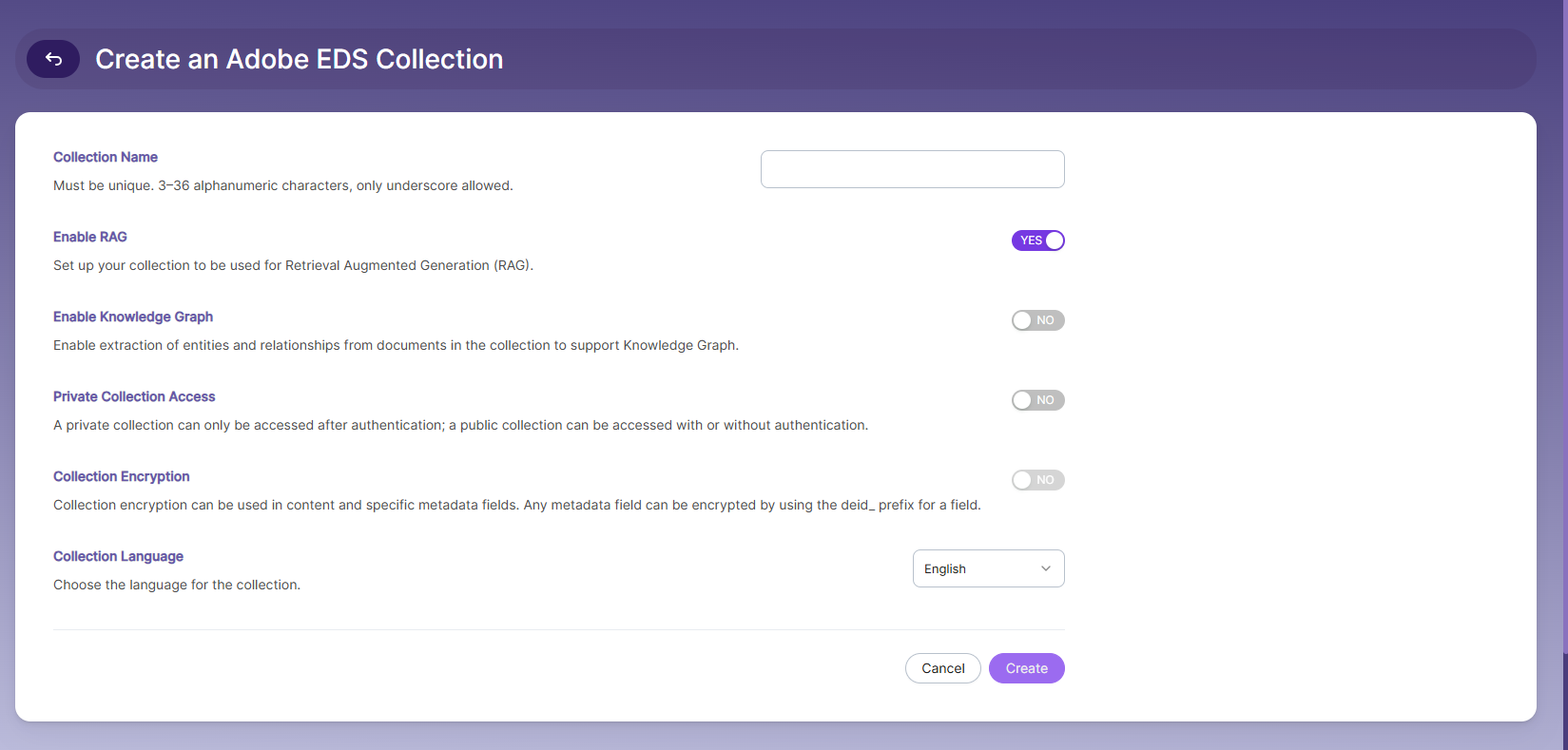
- Enter a Collection Name. The name must be unique and contain 3–36 alphanumeric characters. Only underscores (_) are allowed as special characters.
- Configure Enable RAG by turning it ON to allow the collection to be used for Retrieval Augmented Generation, or turn it OFF if AI-based retrieval is not required.
- Configure Enable Knowledge Graph by turning it ON to extract entities and relationships from documents, or turn it OFF if this feature is not needed.
- Configure Private Collection Access by enabling it to restrict access to authenticated users only, or disabling it to allow public (unauthenticated) access.
- Configure Collection Encryption if required to protect document content or metadata fields. Metadata fields can be encrypted using the deid_ prefix.
- Select the Collection Language based on the primary language used in the site content. The default language is English.
- Click Create to create the Adobe EDS Collection.
Once the collection is created, you will be taken to the Adobe EDS Settings tab to configure the connection details for crawling your EDS site.
Configuring Adobe EDS Settings
To configure Adobe EDS Storage for your collection, follow these steps:
Connection
-
Go to the EDS Settings tab within the collection.
-
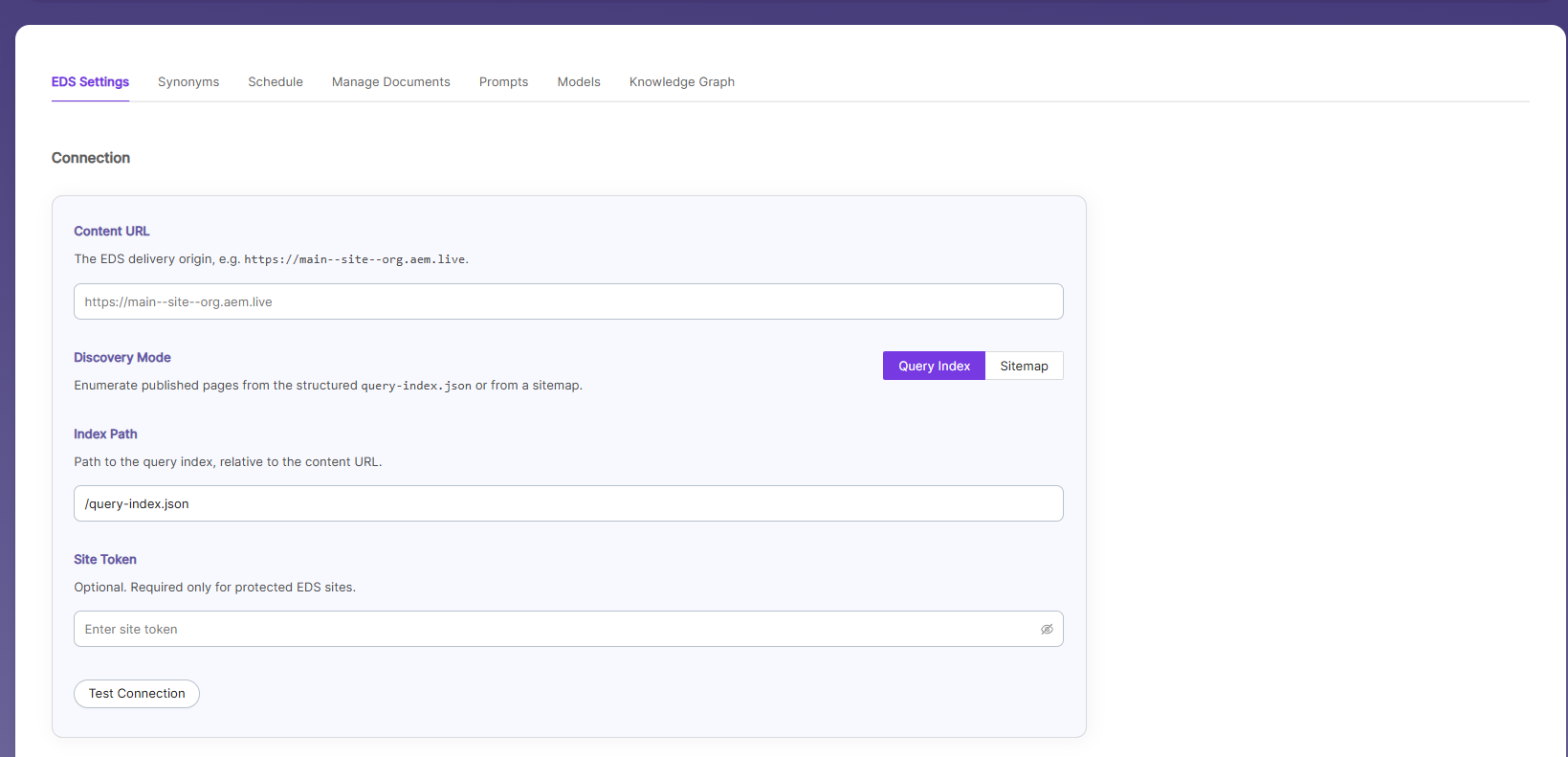
Enter the Content URL.
This is the EDS delivery origin for your published site — for example,https://main--site--org.aem.live. -
Select the Discovery Mode.
This determines how SearchBlox enumerates published pages to crawl:- Query Index — Discovers pages from the site's structured
query-index.jsonfile. - Sitemap — Discovers pages from a standard XML sitemap.
- Query Index — Discovers pages from the site's structured
-
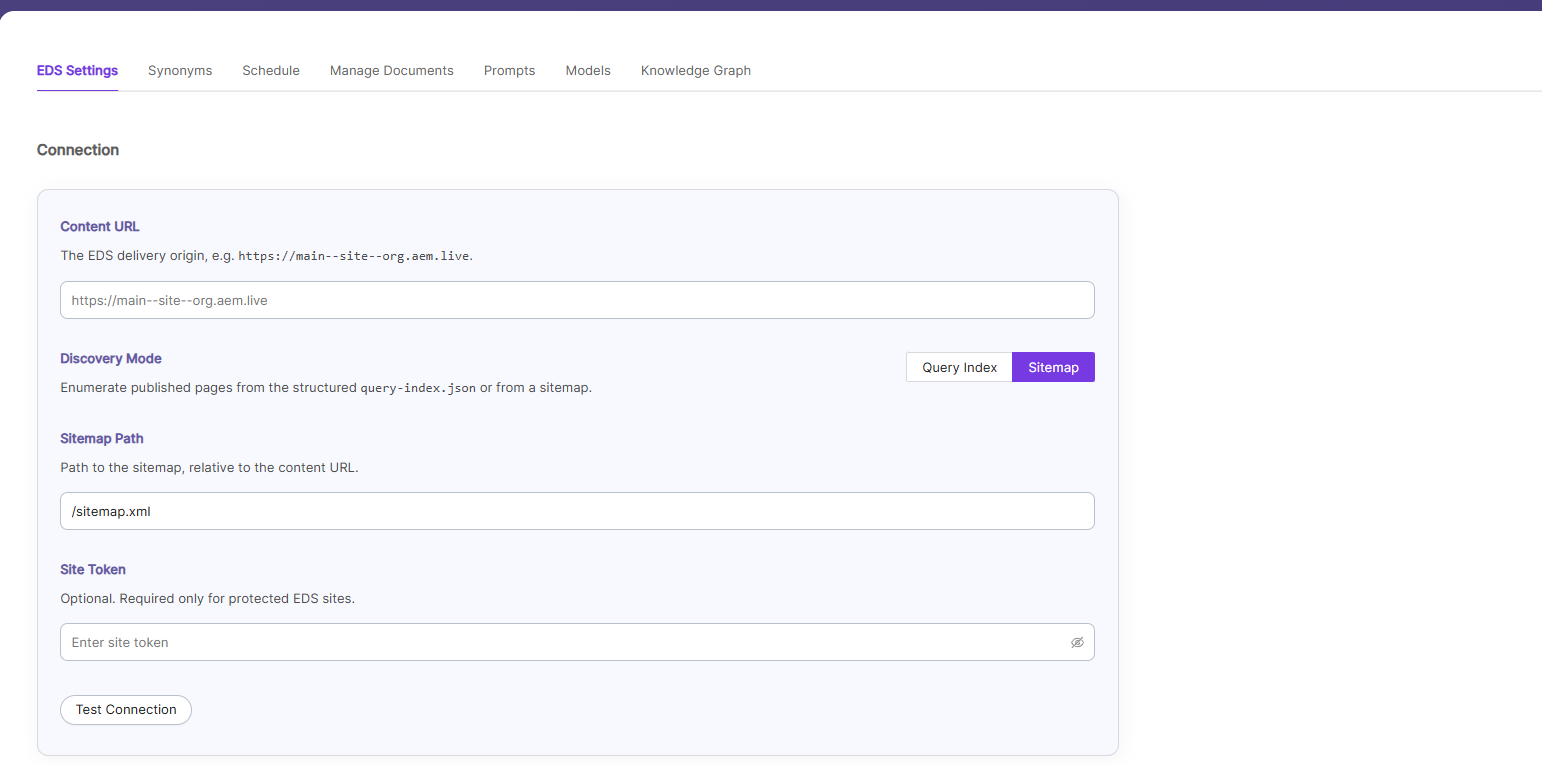
Depending on the selected Discovery Mode, enter the corresponding path:
- If Query Index is selected, enter the Index Path — the path to the query index file, relative to the Content URL (default:
/query-index.json). - If Sitemap is selected, enter the Sitemap Path — the path to the sitemap file, relative to the Content URL (default:
/sitemap.xml).
- If Query Index is selected, enter the Index Path — the path to the query index file, relative to the Content URL (default:
-
Enter the Site Token (Optional).
Required only for protected EDS sites that restrict access to published content. -
Click Test Connection to verify that SearchBlox can successfully reach and authenticate with the EDS site.
Site Map:
Content
-
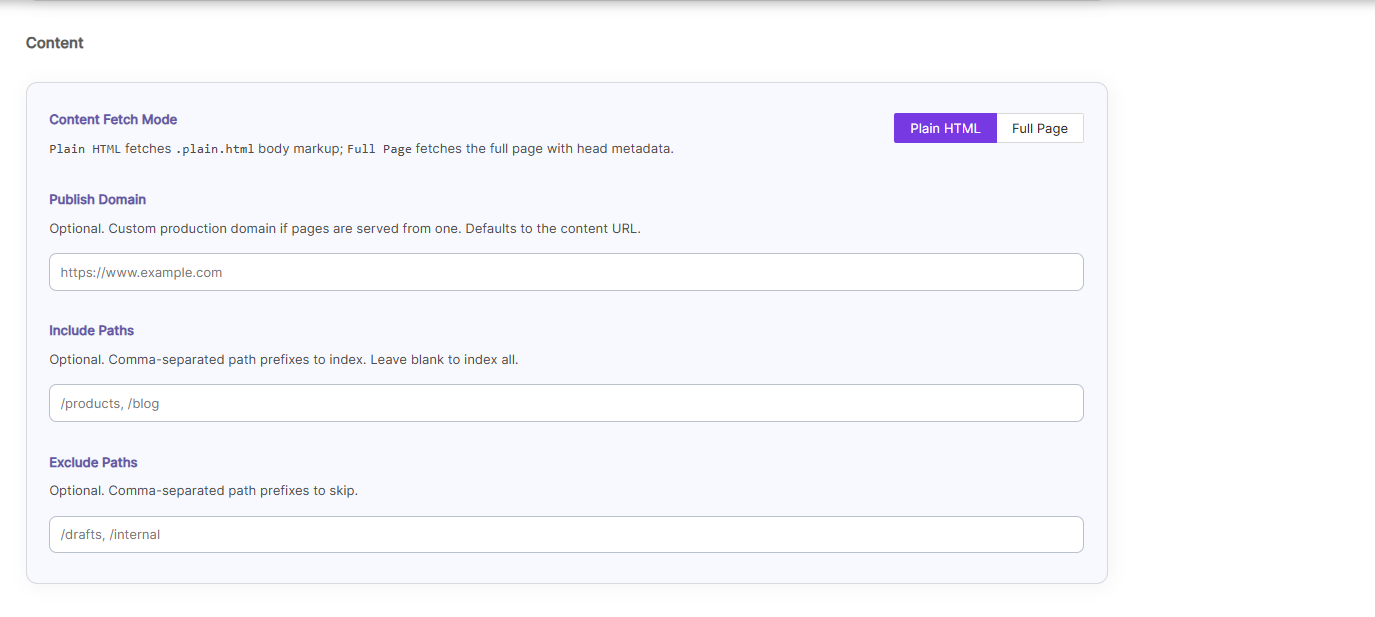
Select the Content Fetch Mode:
- Plain HTML — Fetches the
.plain.htmlbody markup for each page (recommended for most EDS sites). - Full Page — Fetches the full rendered page, including head metadata.
- Plain HTML — Fetches the
-
Enter the Publish Domain (Optional).
Specify a custom production domain if pages are served from one — for example,https://www.example.com. If left blank, this defaults to the Content URL. -
Enter Include Paths (Optional).
Comma-separated path prefixes to restrict indexing to specific sections of the site — for example,/products, /blog. Leave blank to index all discovered pages. -
Enter Exclude Paths (Optional).
Comma-separated path prefixes to skip during indexing — for example,/drafts, /internal.
Adobe EDS Collection Settings
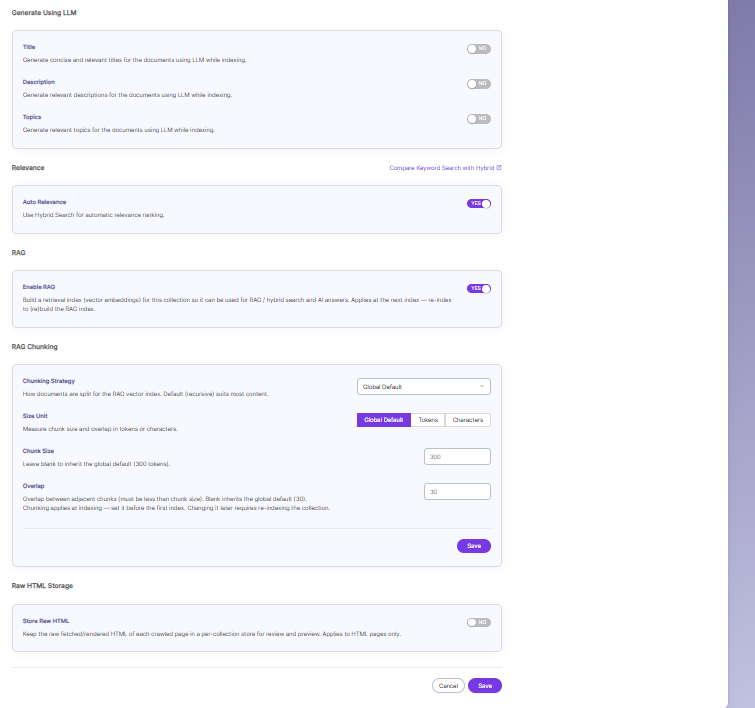
Generate Using LLM
- Enable Title to automatically generate concise and relevant titles for indexed documents using LLM.
- Enable Description to generate meaningful summaries for documents during indexing.
- Enable Topics to extract and assign relevant topics based on document content.
Relevance
- Auto Relevance — Enable to use Hybrid Search for automatic relevance ranking of results. Compare Keyword Search with Hybrid to evaluate the difference before enabling.
RAG
- Enable RAG — Turn ON to build a retrieval index (vector embeddings) for the collection so it can be used for RAG, Hybrid Search, and AI Answers. This setting applies at the next index/re-index of the collection.
RAG Chunking
- Chunking Strategy — Determines how documents are split for the RAG vector index. Global Default suits most content.
- Size Unit — Measure chunk size and overlap in Tokens or Characters (or use the Global Default).
- Chunk Size — Leave blank to inherit the global default (300 tokens).
- Overlap — Overlap between adjacent chunks; must be less than the chunk size. Leave blank to inherit the global default (30).
Note: Chunking settings apply at indexing time — configure them before the first index. Changing chunking settings later requires re-indexing the collection.
Raw HTML Storage
- Store Raw HTML — Enable to keep the raw fetched/rendered HTML of each crawled page in a per-collection store, for review and preview. This applies to HTML pages only.
Save Changes
- After configuring the Content section (Content Fetch Mode, Publish Domain, Include Paths, Exclude Paths), click Save at the bottom of the page to apply all Adobe EDS Collection Settings.
- Click Cancel to discard any unsaved changes and revert to the previously saved configuration.
Synonyms
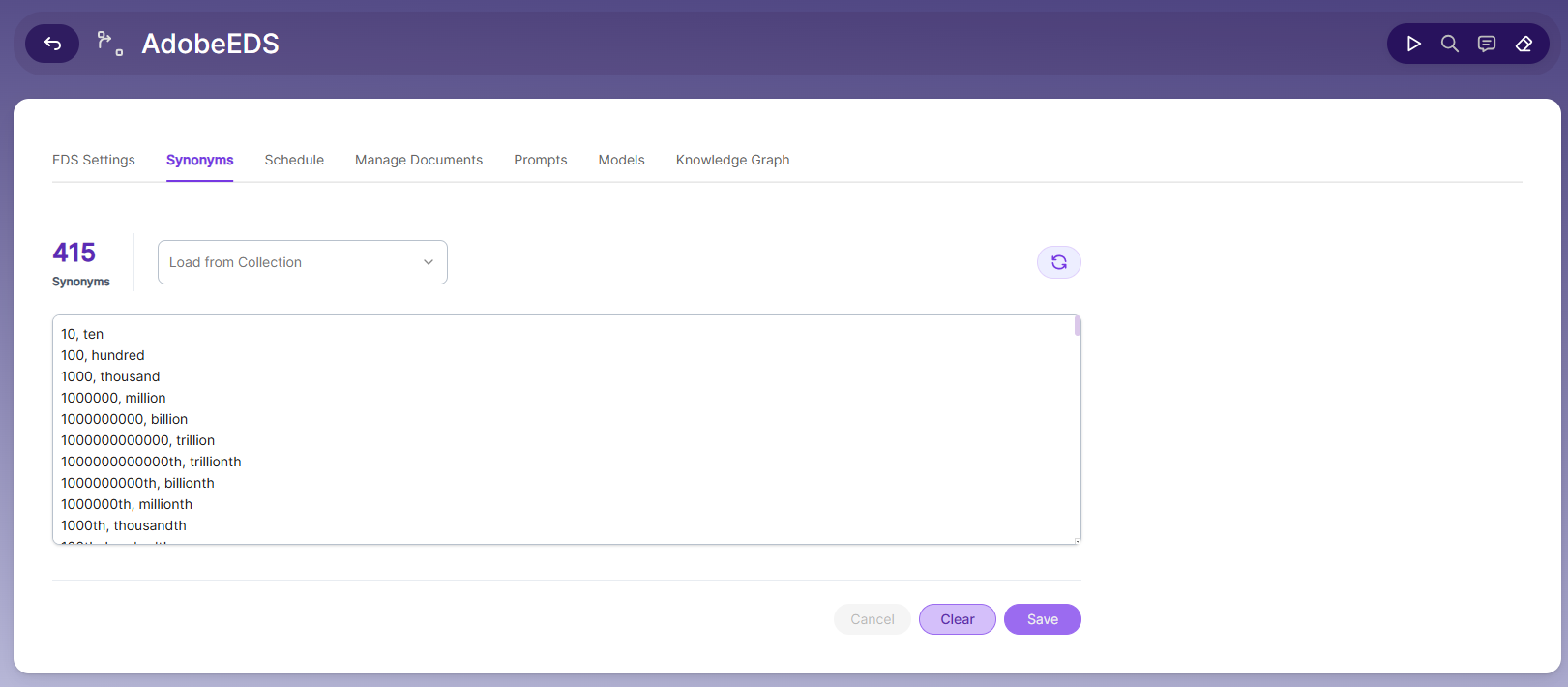
Synonyms help the search show relevant documents even when the exact search word is not used.
For example, if someone searches for “global,” the results can also include documents that use “world” or “international.”
We have an option to load Synonyms from the existing documents.
Stopwords
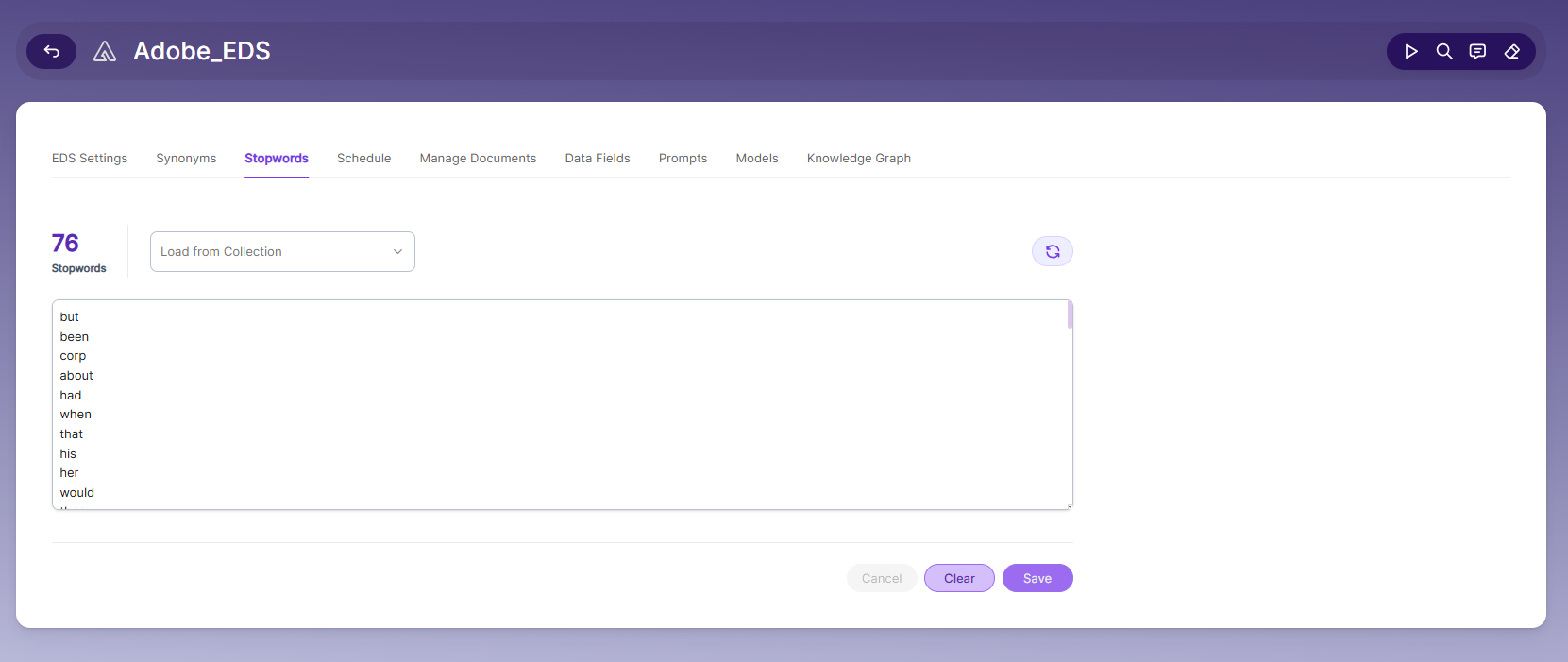
Stopwords are common, high-frequency words that carry minimal semantic value and are typically excluded during text processing, indexing, or search operations. Examples include articles (a, an, the), conjunctions (and, but, or), prepositions (in, on, about), and auxiliary verbs (is, was, would, had).
Purpose:
Reduce noise in search indexing and text analysis
Improve processing efficiency by excluding low-value tokens
Enhance search relevance by prioritizing meaningful keywords
Schedule and Index
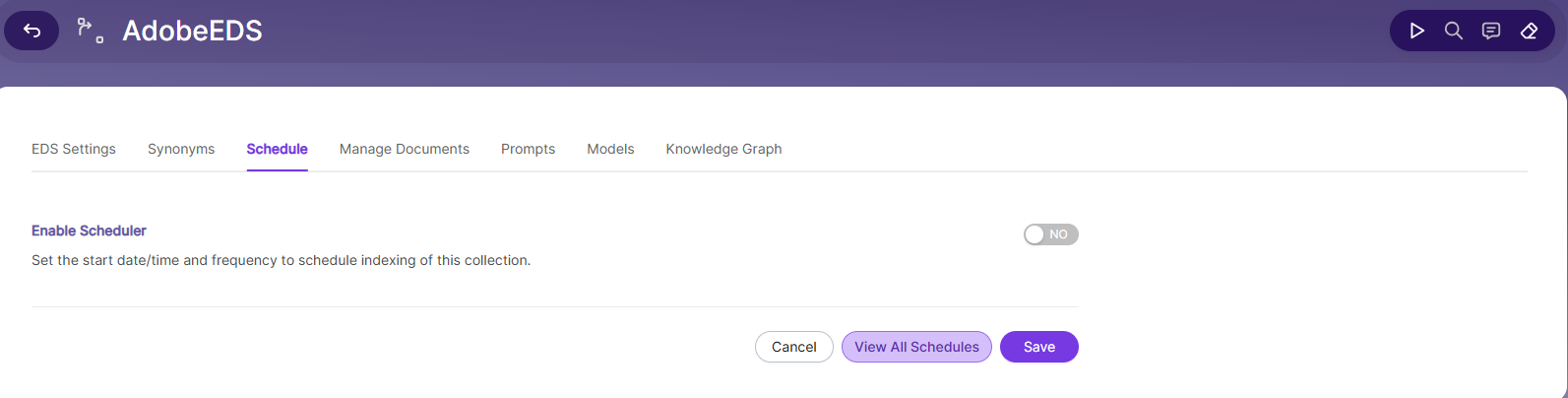
Sets the frequency and the start date/time for indexing a collection. Schedule Frequency supported in SearchBlox is as follows:
- Once
- Hourly
- Daily
- Every 48 Hours
- Every 96 Hours
- Weekly
- Monthly
The following operation can be performed in Azure blob collections
| Activity | Description |
|---|---|
| Enable Scheduler for Indexing | Once enabled, you can set the Start Date and Frequency |
| Schedule | For each collection, indexing can be scheduled based on the above options. |
| View all Schedules | Redirects to the Schedules section, where all the Collection Schedules are listed. |
Manage Documents Tab
-
Using Manage Documents tab we can do the following operations:
- Filter
- View content
- View metadata
- Refresh
- Delete
-
To delete a file from your collection, enter the file path and click "Delete".
-
To see the status of an indexed file, click "View Metadata".
Prompts
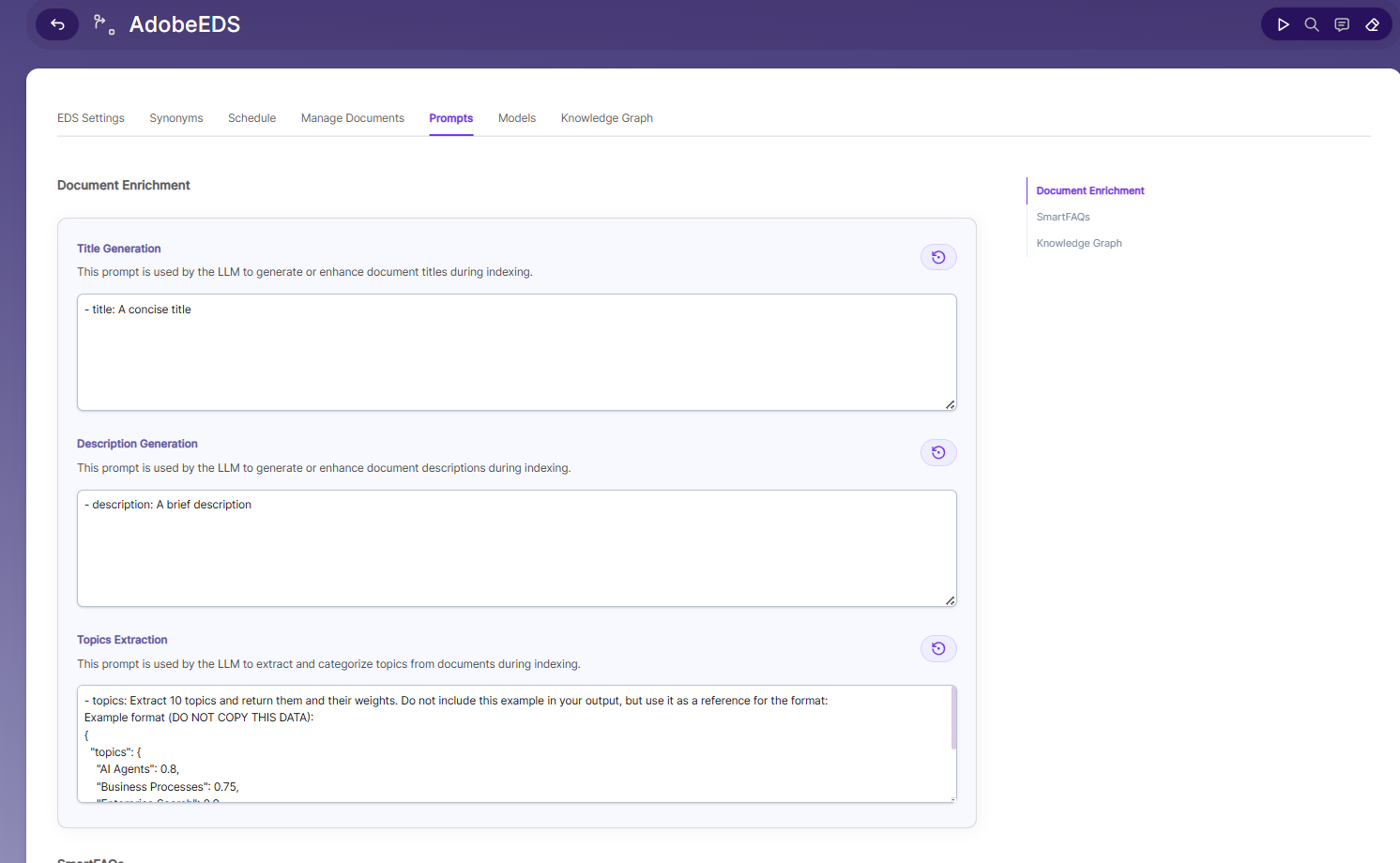
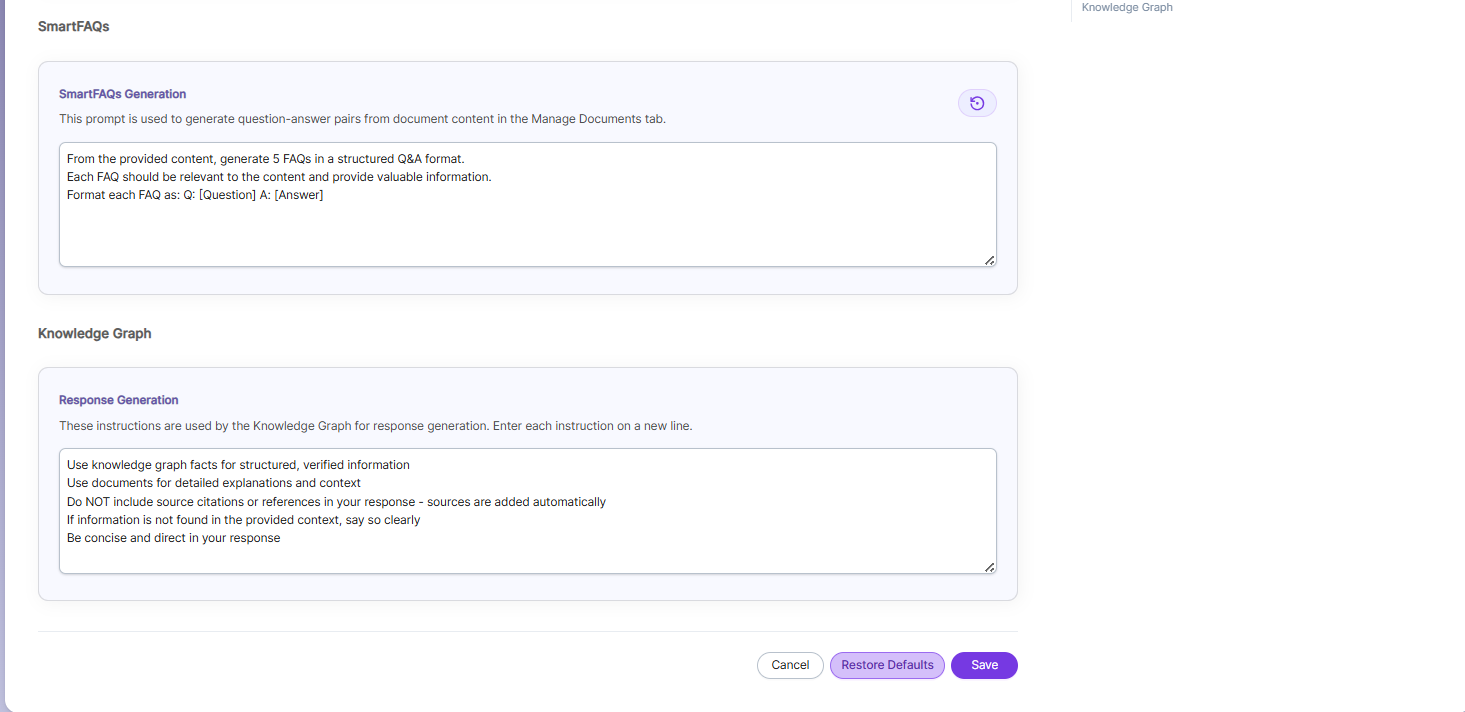
- When LLM/RAG is enabled, you can edit AI-based prompts for Title, Description, Topic, Image Description, and Smart FAQs.
- You can customize these prompts anytime, and use Restore Default to reset them back to the original SearchBlox settings.
Models
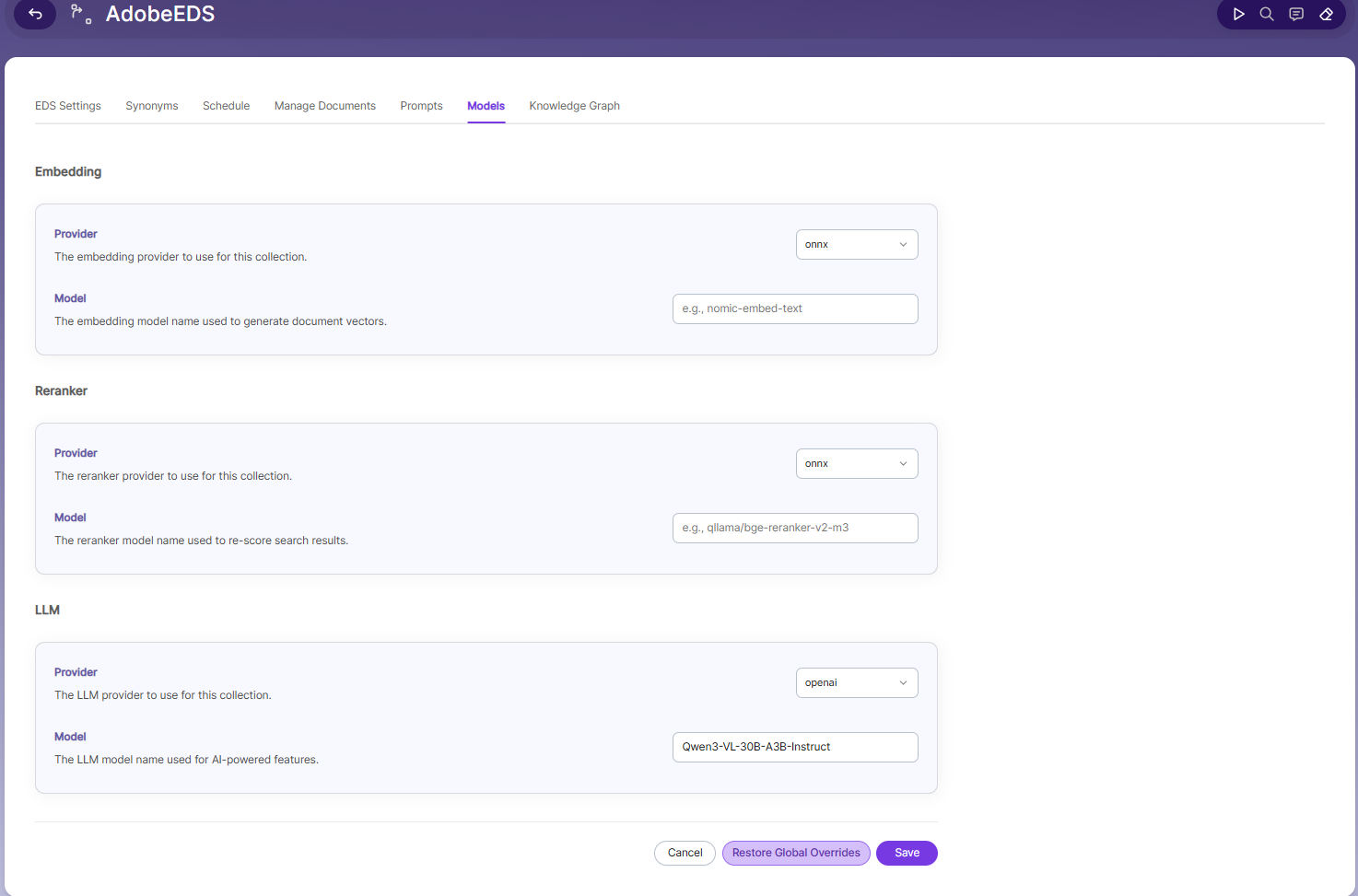
The Models section lets you override the global embedding, reranking, and LLM settings for this specific collection. Changes made here apply only to the current collection and do not affect other collections.
Embedding
- Provider specifies the embedding provider used to generate vector representations of documents
- Model defines the embedding model used to convert document content into vectors for semantic search
Reranker
- Provider specifies the reranker provider used for improving search result relevance
- Model defines the reranker model used to re-score and reorder search results based on relevance
LLM
- Provider specifies the Large Language Model provider used for AI-powered features
- Model defines the LLM used for tasks such as document enrichment, summaries, and SmartFAQs
Knowledge Graph
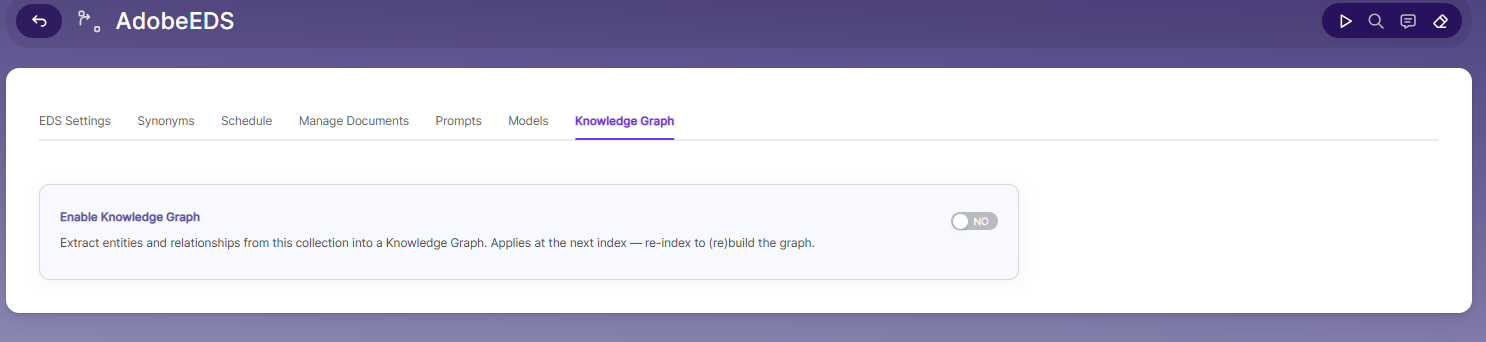
- Enable Knowledge Graph — Turn ON to extract entities and relationships from this collection into a Knowledge Graph. This setting applies at the next index — re-index the collection to build or rebuild the graph.
Updated about 1 month ago