
Drupal Collection
Overview
SearchBlox provides a Drupal Collection connector that lets you crawl and index content directly from a Drupal site using its JSON:API. This allows Drupal-based websites (blogs, articles, pages, or any custom content types) to be made fully searchable and AI-ready within SearchBlox.
What it does:
- Connects to your Drupal site's REST/JSON:API endpoint to pull in content.
- Lets you choose specific content types (e.g., Articles, Pages) to index rather than crawling everything.
- Supports AI-powered enrichment — auto-generating titles, descriptions, and topics for indexed documents using an LLM.
- Can power RAG-based search, Hybrid Search, SmartFAQs, and Knowledge Graph features once content is indexed.
- Supports scheduled re-indexing so content stays up to date automatically.
- Offers security controls like private/public access and field-level encryption for sensitive data.
Creating Drupal Collection
You can create a Drupal Collection by following these steps:
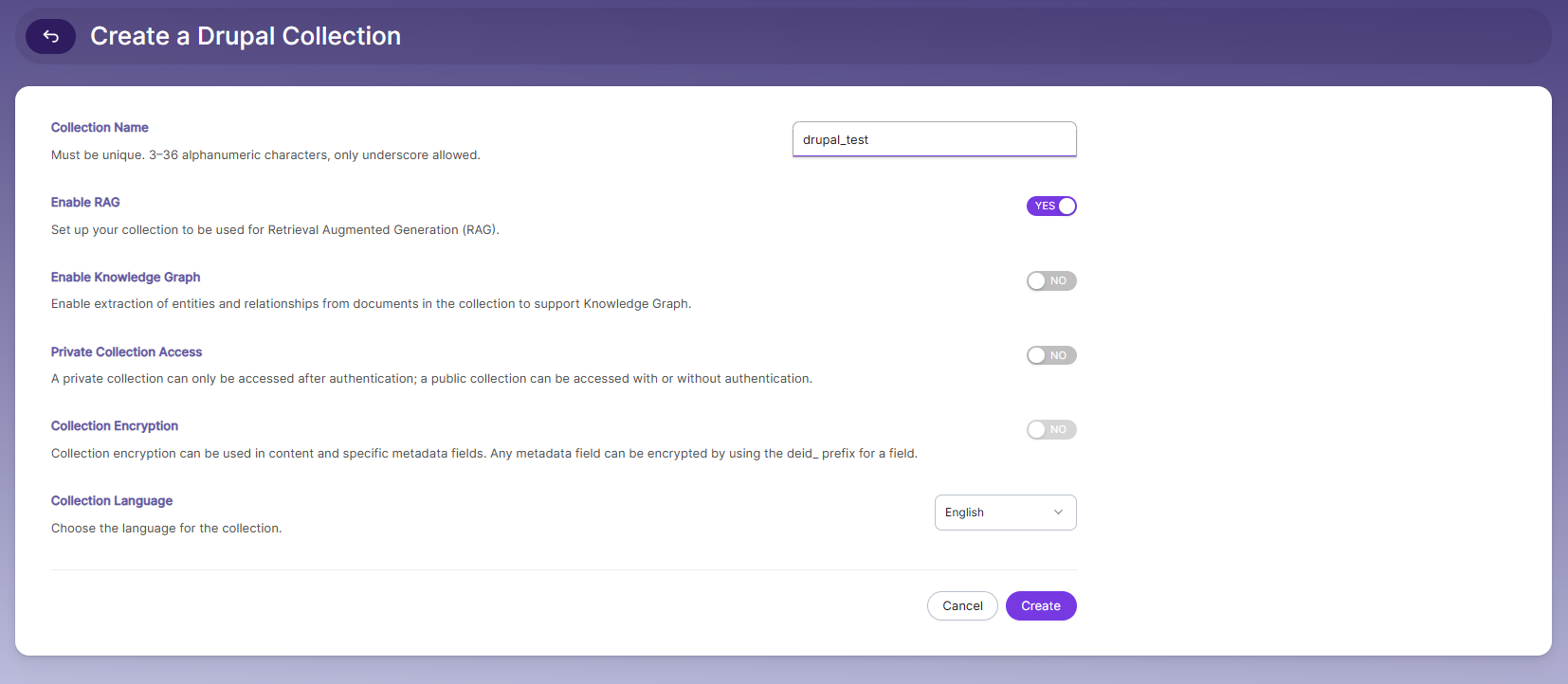
- Log in to the Admin Console, go to the Collections tab, and click Create a New Collection or the "+" icon.
Select Drupal Collection as the Collection Type. - Enter a unique Collection Name — must be 3–36 alphanumeric characters, with underscore as the only special character allowed (e.g., drupal_test).
- Enable RAG if you want this collection to be used for Retrieval Augmented Generation (ChatBot or Hybrid RAG search).
- Enable Knowledge Graph if you want entities and relationships extracted from the collection's documents.
- Choose Private Collection Access (ON = accessible only after authentication; OFF/public = accessible with or without authentication).
- Configure Collection Encryption if you want content/metadata fields encrypted (any field can be encrypted using the deid_ prefix).
- Select the Collection Language (default: English).
- Click Create. You'll then be taken to the Settings tab to configure authentication.
Configuring Drupal Settings
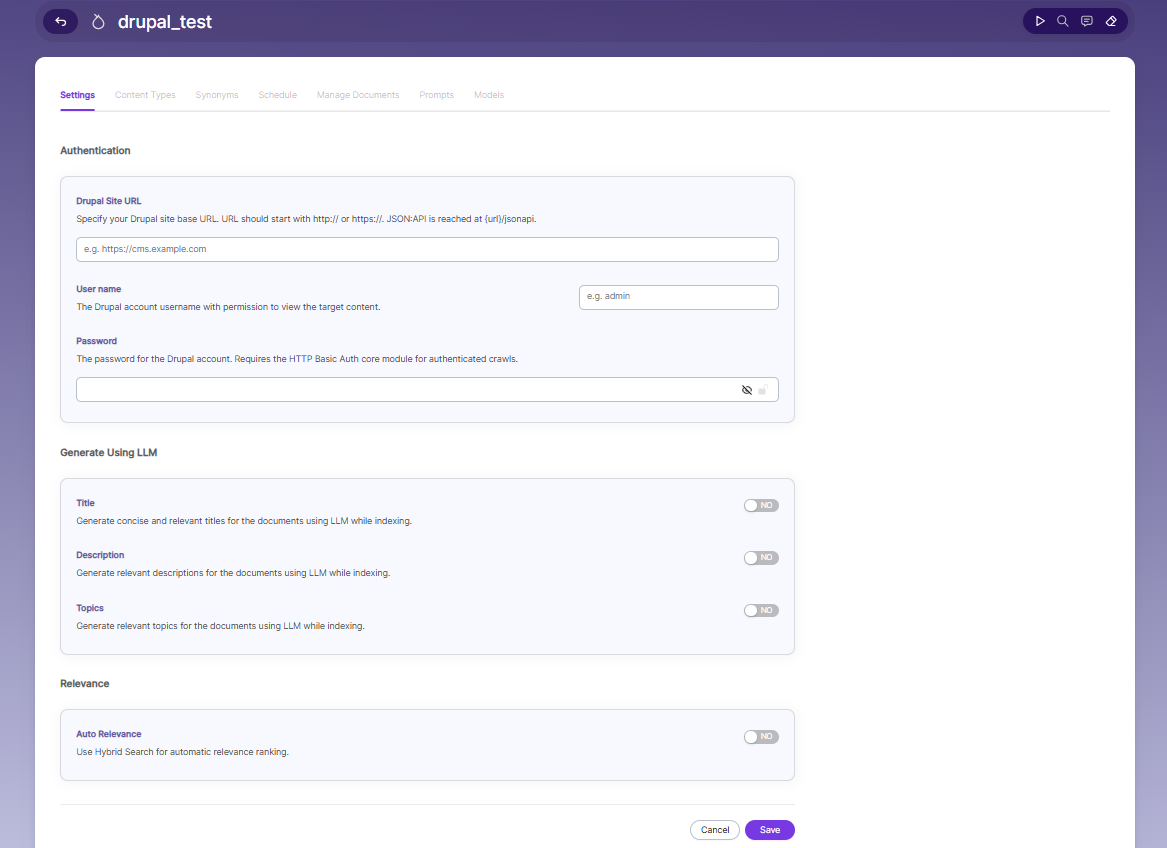
After creating the Drupal Collection, you're taken to the Settings tab, where you configure authentication and content enrichment options.
Authentication
This section connects SearchBlox to your Drupal site.
- Drupal Site URL — Specify your Drupal site's base URL. It should start with http:// or https://. SearchBlox reaches the JSON:API at {url}/jsonapi (e.g., https://cms.example.com).
- User Name — The Drupal account username that has permission to view the target content you want indexed (e.g., admin).
- Password — The password for that Drupal account. This requires the HTTP Basic Auth core module to be enabled on your Drupal site for authenticated crawls to work.
Generate Using LLM
These toggles let you use an LLM to auto-enrich documents during indexing:
- Title — Generates concise and relevant titles for the documents using LLM while indexing.
Description — Generates relevant descriptions for the documents using LLM while indexing. - Topics — Generates relevant topics for the documents using LLM while indexing.
All three are set to NO by default and can be turned on individually as needed.
Relevance
- Auto Relevance — Uses Hybrid Search for automatic relevance ranking of search results. Also off by default.
Saving
Once all fields are filled in, click Save to store the settings. This is required before you can move to the Content Types tab, where you authenticate against Drupal and select which content types to index. Click Cancel to discard changes and return without saving.
Content Types Tab
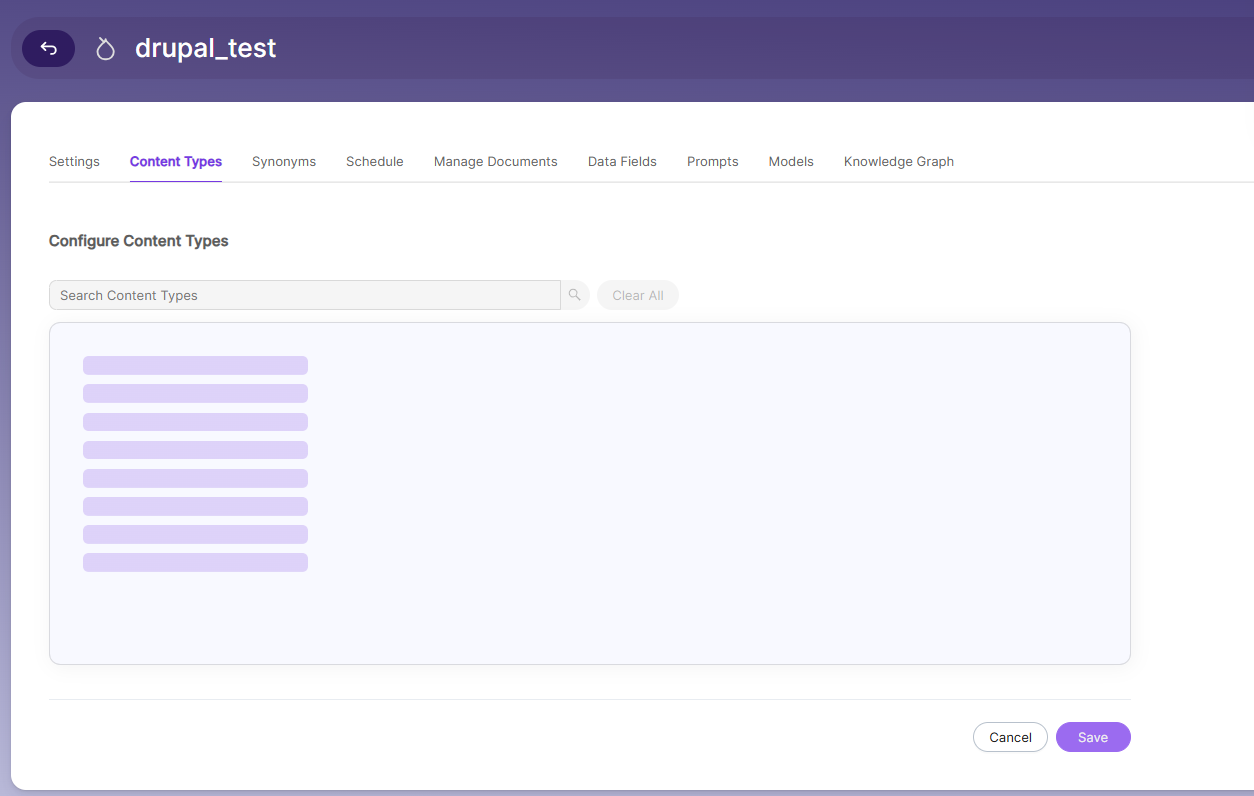
Once authentication in the Settings tab is successful, you're taken to the Content Types tab, where you choose which Drupal content types should be indexed into the collection.
- SearchBlox connects to your Drupal site's JSON:API and pulls back the list of available content types (e.g., Article, Basic Page, or any custom content types defined on your site). The grey bars in your screenshot are placeholder/loading skeletons — they'll populate with the actual content type names once the list loads.
Available actions:
- Search Content Types — Lets you filter the list to quickly find a specific content type by name, useful if your Drupal site has many types.
- Clear All — Deselects all currently selected content types in one click.
- Select the checkboxes/items for the content types you want SearchBlox to crawl and index (only content matching selected types will be pulled in — anything unselected is skipped during indexing).
Saving:
- Click Save to confirm your selections. This determines what gets indexed on the next crawl.
- Cancel discards any changes made on this tab.
After saving your content type selections, you'd typically move on to configuring Schedule (for automated re-indexing) and can then check indexed results under Manage Documents.
Synonyms
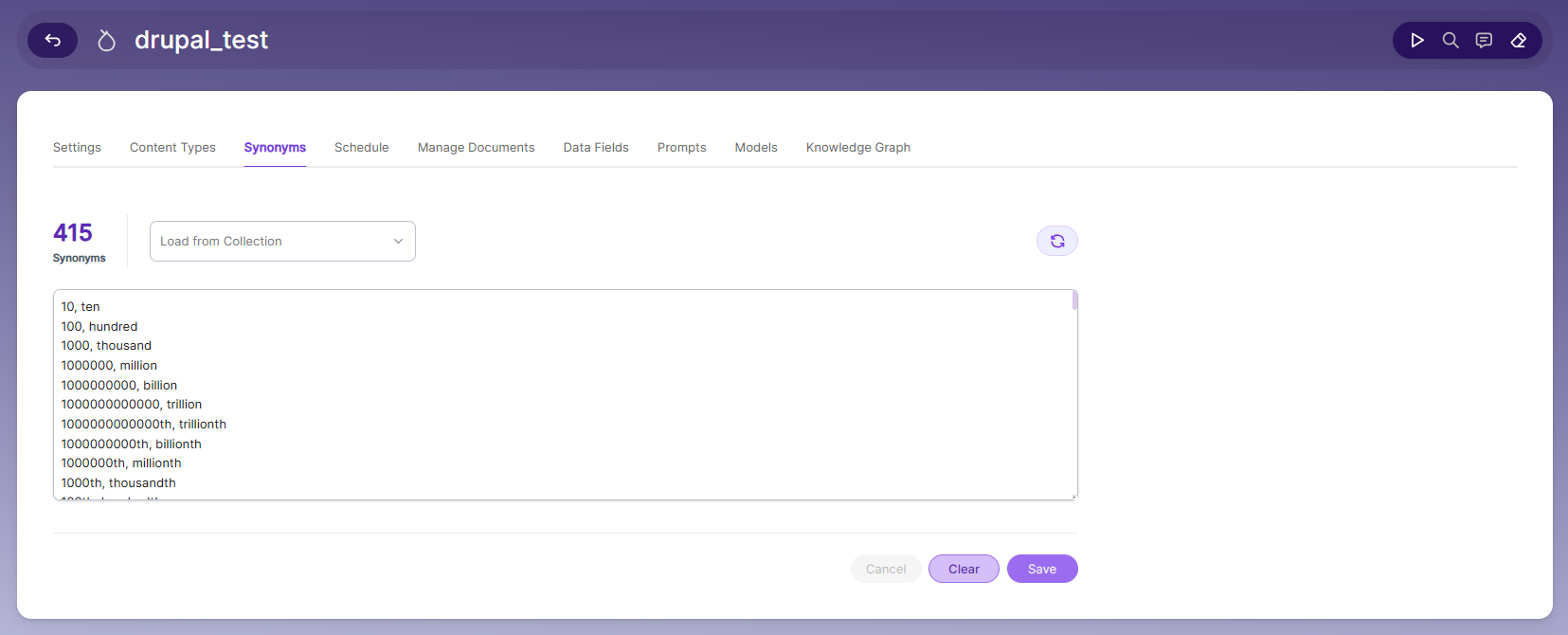
Synonyms help the search show relevant documents even when the exact search word is not used.
For example, if someone searches for “global,” the results can also include documents that use “world” or “international.”
We have an option to load Synonyms from the existing documents.
Stopwords
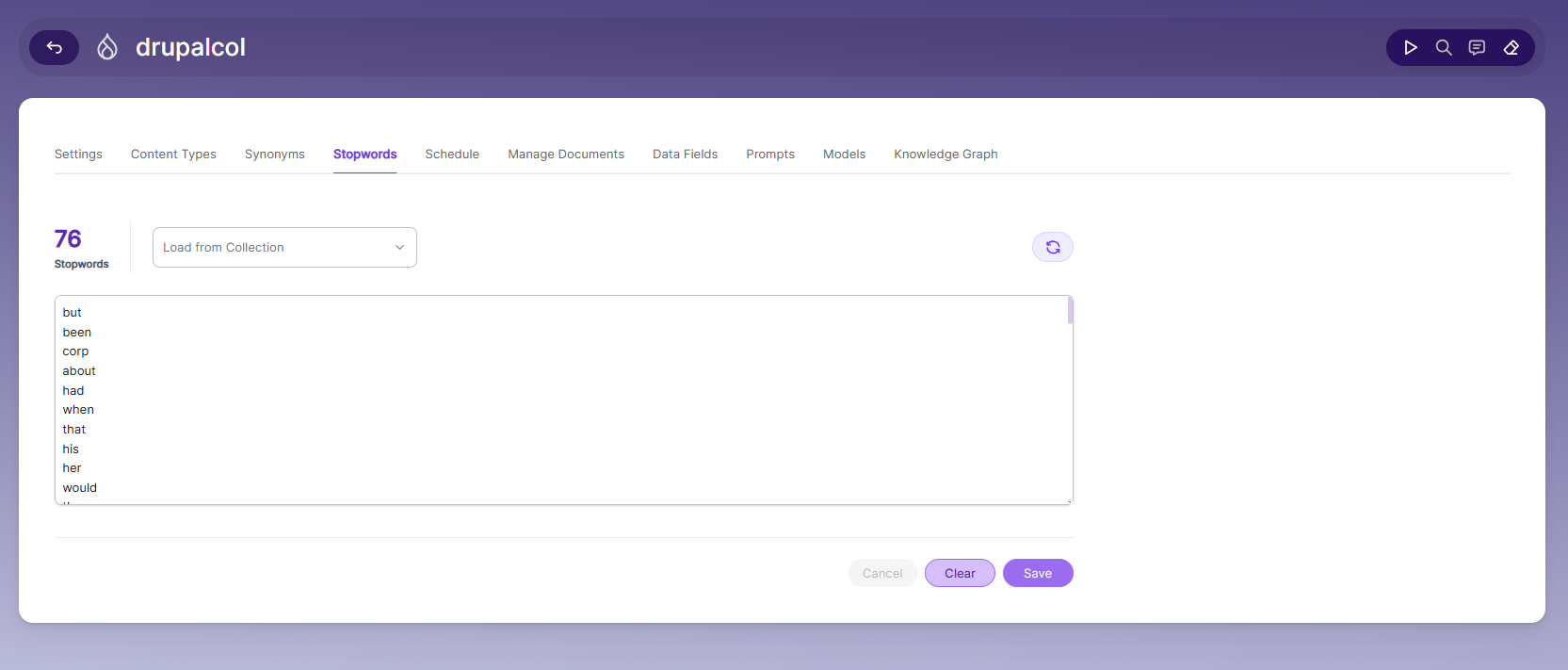
Stopwords are common, high-frequency words that carry minimal semantic value and are typically excluded during text processing, indexing, or search operations. Examples include articles (a, an, the), conjunctions (and, but, or), prepositions (in, on, about), and auxiliary verbs (is, was, would, had).
Purpose:
Reduce noise in search indexing and text analysis
Improve processing efficiency by excluding low-value tokens
Enhance search relevance by prioritizing meaningful keywords
Schedule and Index
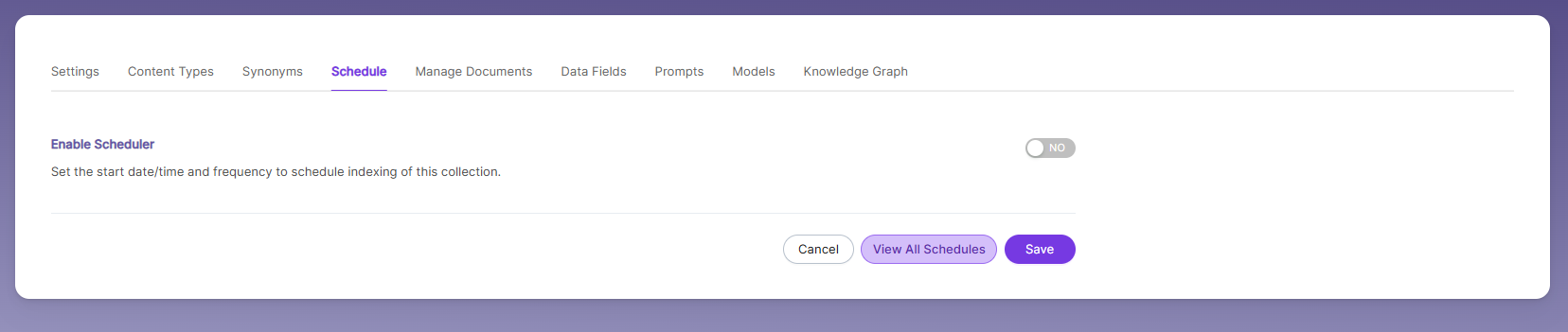
Sets how often and when indexing should start for the CSV collection based on the folder path. The supported schedule options in SearchBlox are:
- Once
- Hourly
- Daily
- Every 48 Hours
- Every 96 Hours
- Weekly
- Monthly
The following actions can be performed in a CSV collection.
| Activity | Description |
|---|---|
| Enable Scheduler for Indexing | Turn scheduling and choose the Start Date and Frequency. |
| Save | Saves the schedule settings for the collection. |
| View all Schedules | Opens the Schedules page to see all collection schedules. |
Manage Documents Tab
- Using Manage Documents tab we can do the following operations:
a. Filter
b. View content
c. View metadata
d. Refresh
e. Delete - To delete a file from your collection, enter the file path and click "Delete".
- To see the status of an indexed file, click "View Metadata".
Data Fields Tab
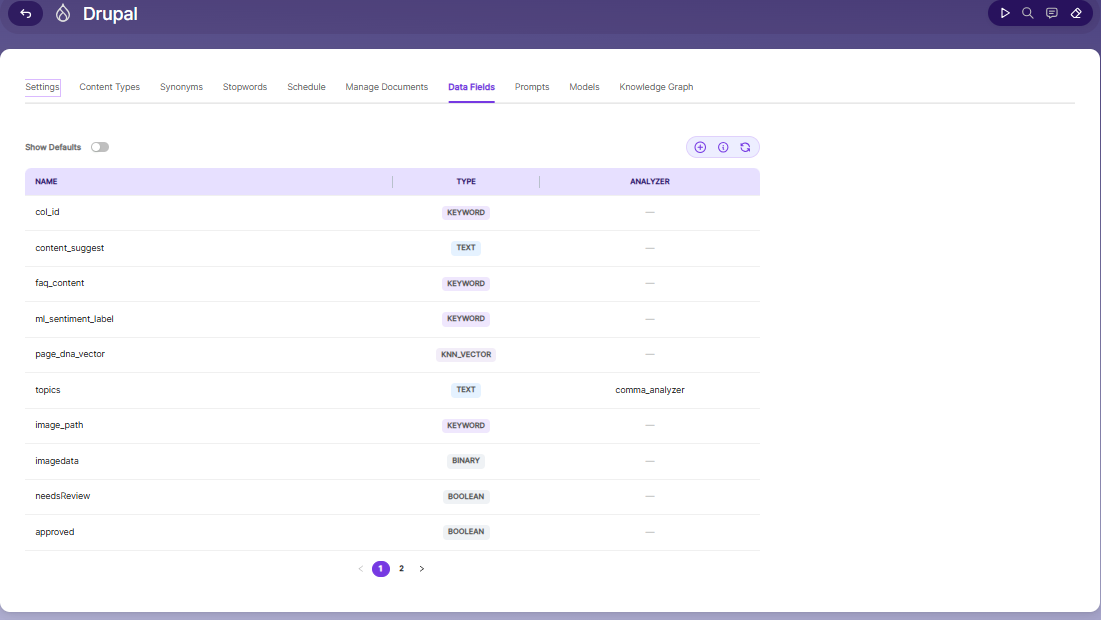
Using the Data Fields tab, you can create custom fields for search and view the default and configured fields for the collection.
- Toggle Show Defaults ON to display the collection's default system fields, in addition to any custom fields.
- Use the + icon to add a new custom Data Field.
- Use the info icon to view details about field configuration.
- Use the refresh icon to reload the fields list.
Each field is listed with the following columns:
| Column | Description |
|---|---|
| Name | The name of the data field (e.g., col_id, content_suggest, topics). |
| Type | The data type assigned to the field. |
| Analyzer | The text analyzer applied to the field, if any (e.g., comma_analyzer). Shown as — when no analyzer is applied. |
SearchBlox supports the following Data Field types:
| Type | Description |
|---|---|
| Keyword | Used for alphanumeric values such as IDs, tags, codes, or other exact-match fields (e.g., col_id, faq_content, image_path). |
| Text | Used for full-text search within custom field content (e.g., content_suggest, topics). |
| KNN_Vector | Used to store vector embeddings for semantic/similarity search (e.g., page_dna_vector). |
| Binary | Used to store binary data such as images or files (e.g., imagedata). |
| Boolean | Used for true/false values (e.g., needsReview, approved). |
| Number | Used for numeric values such as prices, quantities, ratings, or counts. |
| Date | Used for date values that can be searched, sorted, and filtered. |
Note: Once Data Fields are configured, the collection must be cleared and re-indexed for the changes to take effect.
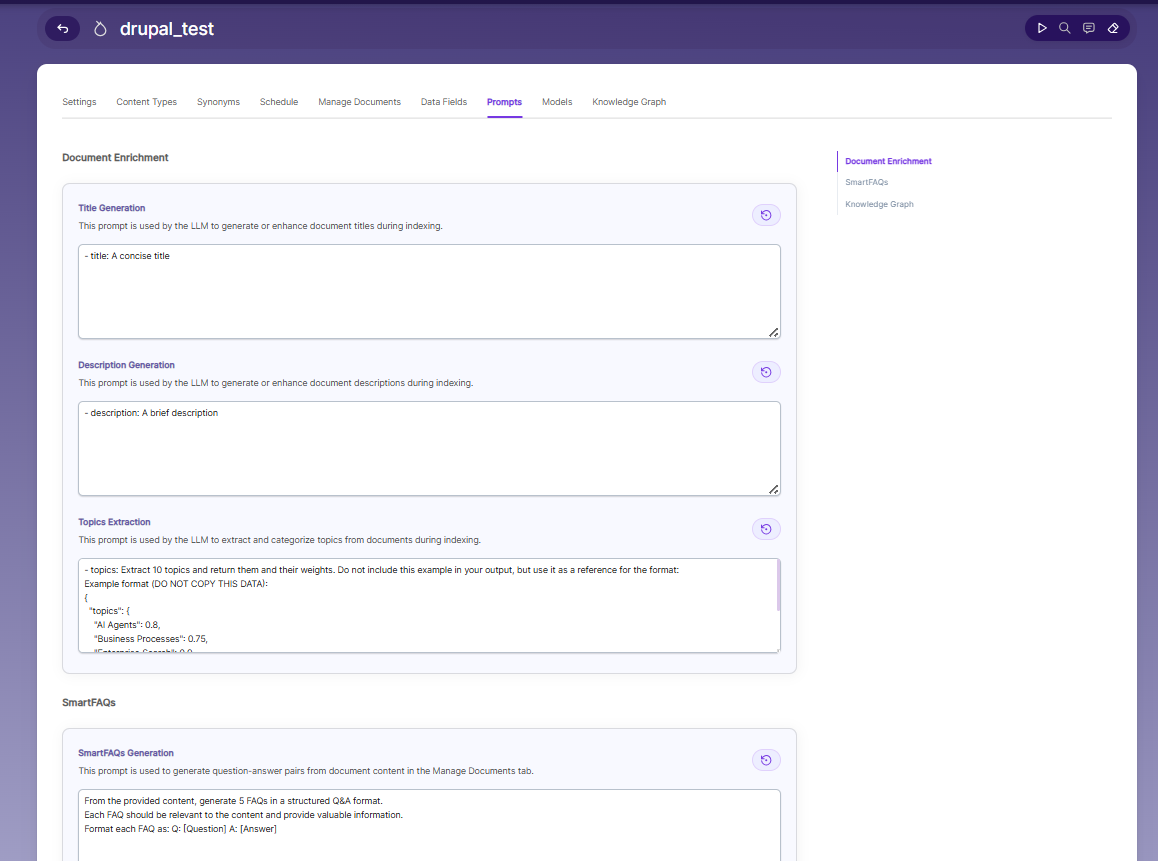
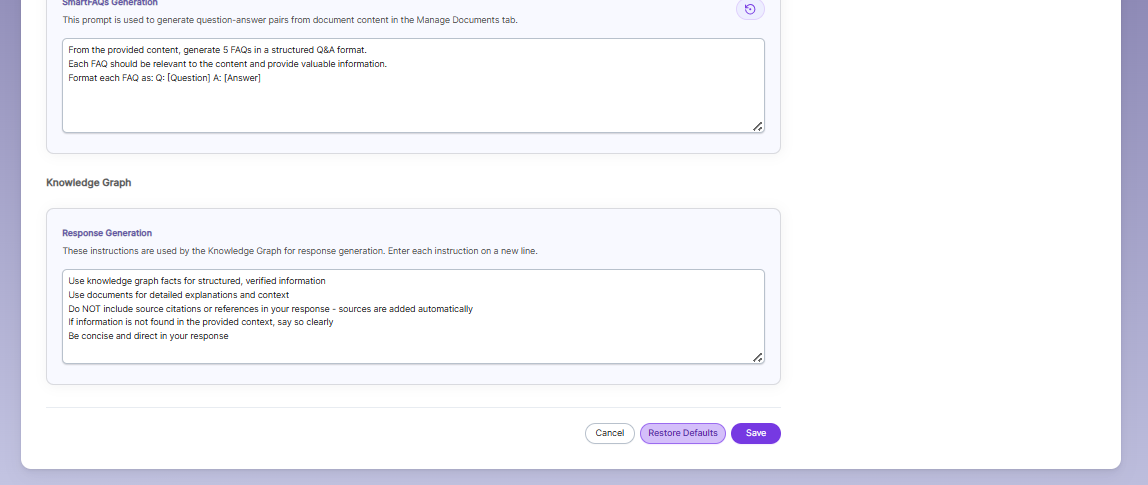
Prompts
- When LLM/RAG is enabled, you can edit AI-based prompts for Title, Description, Topic, Image Description, and Smart FAQs.
- You can customize these prompts anytime, and use Restore Default to reset them back to the original SearchBlox settings.
Models
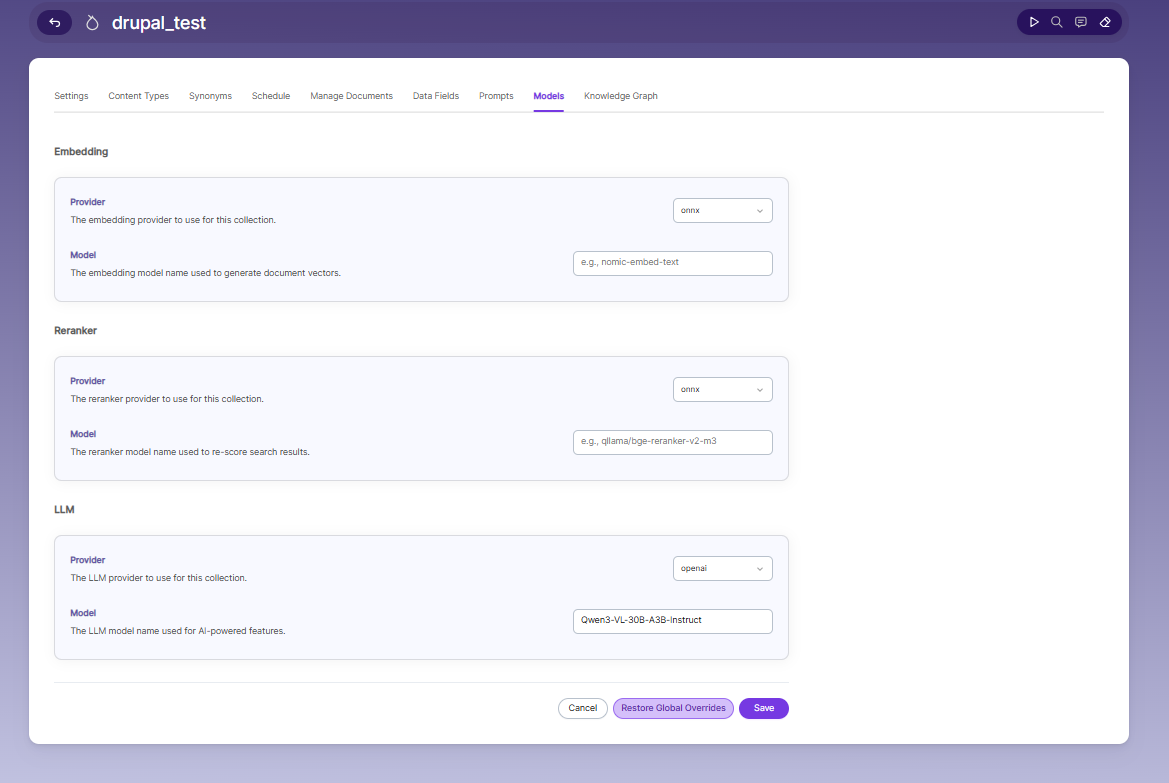
The Models section lets you override the global embedding, reranking, and LLM settings for this specific collection. Changes made here apply only to the current collection and do not affect other collections.
Embedding
Provider specifies the embedding provider used to generate vector representations of documents
Model defines the embedding model used to convert document content into vectors for semantic search
Reranker
Provider specifies the reranker provider used for improving search result relevance
Model defines the reranker model used to re-score and reorder search results based on relevance
LLM
Provider specifies the Large Language Model provider used for AI-powered features
Model defines the LLM used for tasks such as document enrichment, summaries, and SmartFAQs
Knowledge Graph
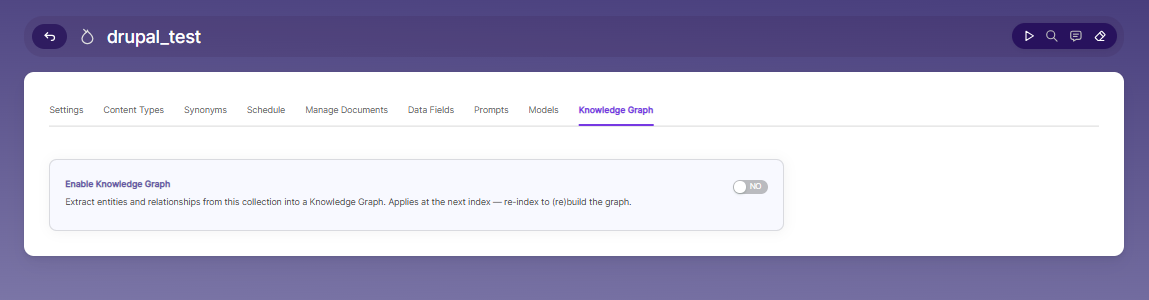
Enable Knowledge Graph — Turn ON to extract entities and relationships from this collection into a Knowledge Graph. This setting applies at the next index — re-index the collection to build or rebuild the graph.
Updated about 1 month ago