
CMIS Collection
A CMIS Collection connects SearchBlox to any repository that exposes a CMIS 1.0/1.1
interface — including Documentum, FileNet, OpenText, Nuxeo, Alfresco, and SharePoint-via-
CMIS — so that documents stored in that repository can be indexed and searched through
SearchBlox. Once set up, users can search CMIS repository content directly from your
SearchBlox search interface — without switching to the source repository separately.
Before You Begin:
• You will need the Repository URL of the CMIS endpoint (the Browser or AtomPub
binding URL exposed by your CMIS server).
• Know which Binding Type your repository uses — Browser (JSON) or AtomPub. Browser
binding is used if you're unsure.
• Have the Repository ID ready if your CMIS server hosts multiple repositories. If left
blank, SearchBlox will use the first repository returned by the server.
• Have a valid Username and Password with read access to the repository.
• Optionally, prepare a CMIS Query (CMIS SQL) if you want to index a specific subset of
documents. If not provided, SearchBlox indexes all documents using SELECT * FROM
cmis:document.
Creating a CMIS Collection
You can create a CMIS Collection by following these steps:
• Log in to the Admin Console, go to the Collections tab, and click Create or the “+” icon.
• Select CMIS Collection as the collection type.
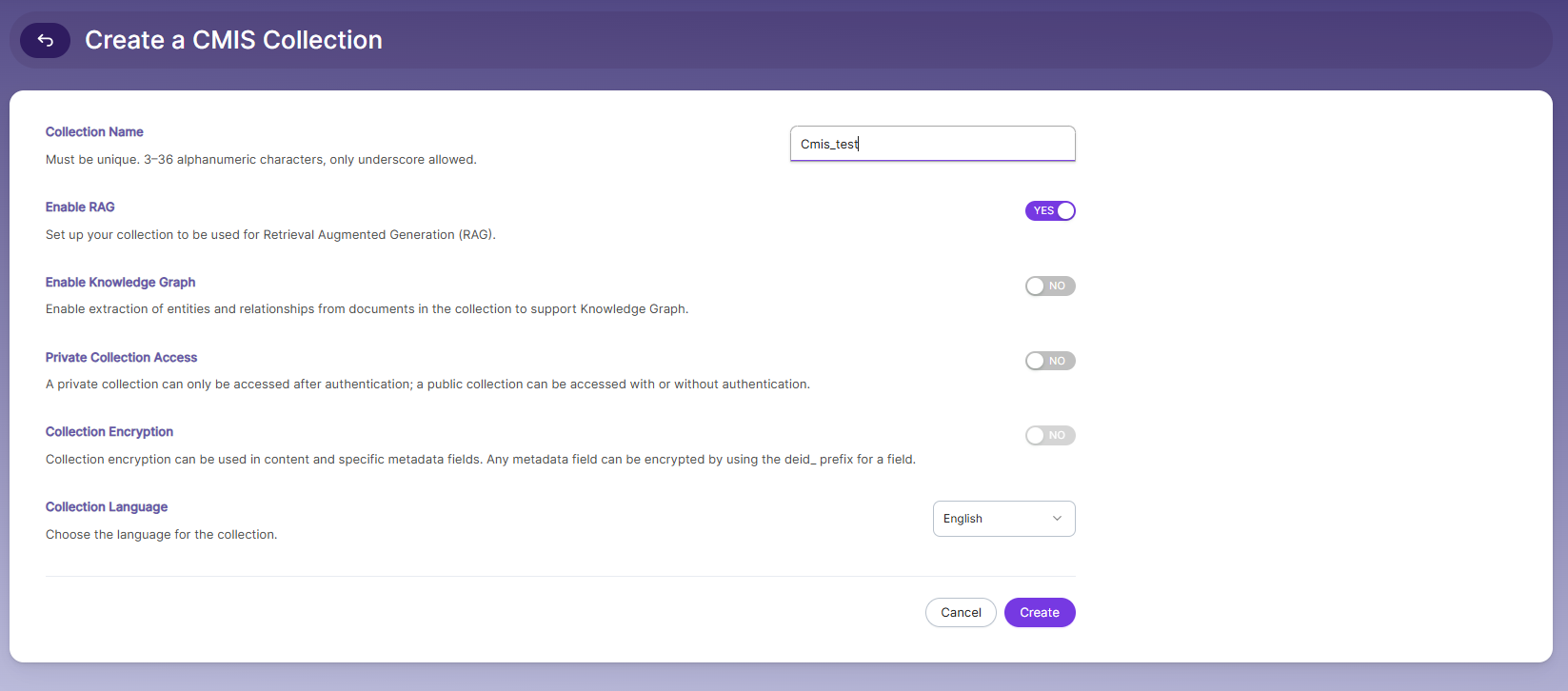
• Enter a unique name for the collection. The name must contain 3–36 alphanumeric
characters, and only underscores (_) are allowed.
• Enable or disable RAG (Retrieval Augmented Generation) depending on your
requirement. Enable it if the collection will be used for AI-powered search or chatbot
responses.
• Enable Knowledge Graph if you want SearchBlox to extract entities and relationships
from the documents in the collection.
• Choose whether the collection should be Private or Public. Enable Private Collection
Access to restrict the collection to authenticated users only.
• Configure Collection Encryption if you want to encrypt document content or specific
metadata fields.
• Select the Collection Language based on the language used in the documents. The
default language is English.
• Click Create to create the CMIS Collection.
• After the collection is created, you will be redirected to the CMIS Settings section to
configure the connection and access details.
CMIS Settings
The CMIS Settings section allows you to configure the connection between SearchBlox and
your CMIS repository. By providing the repository URL, binding type, and credentials,
SearchBlox can securely connect to the repository and crawl its documents for indexing.
Once configured, SearchBlox will run the configured CMIS query against the repository and
make the matching documents searchable within the platform. You can optionally scope the
query or target a specific repository ID to control what content is indexed.
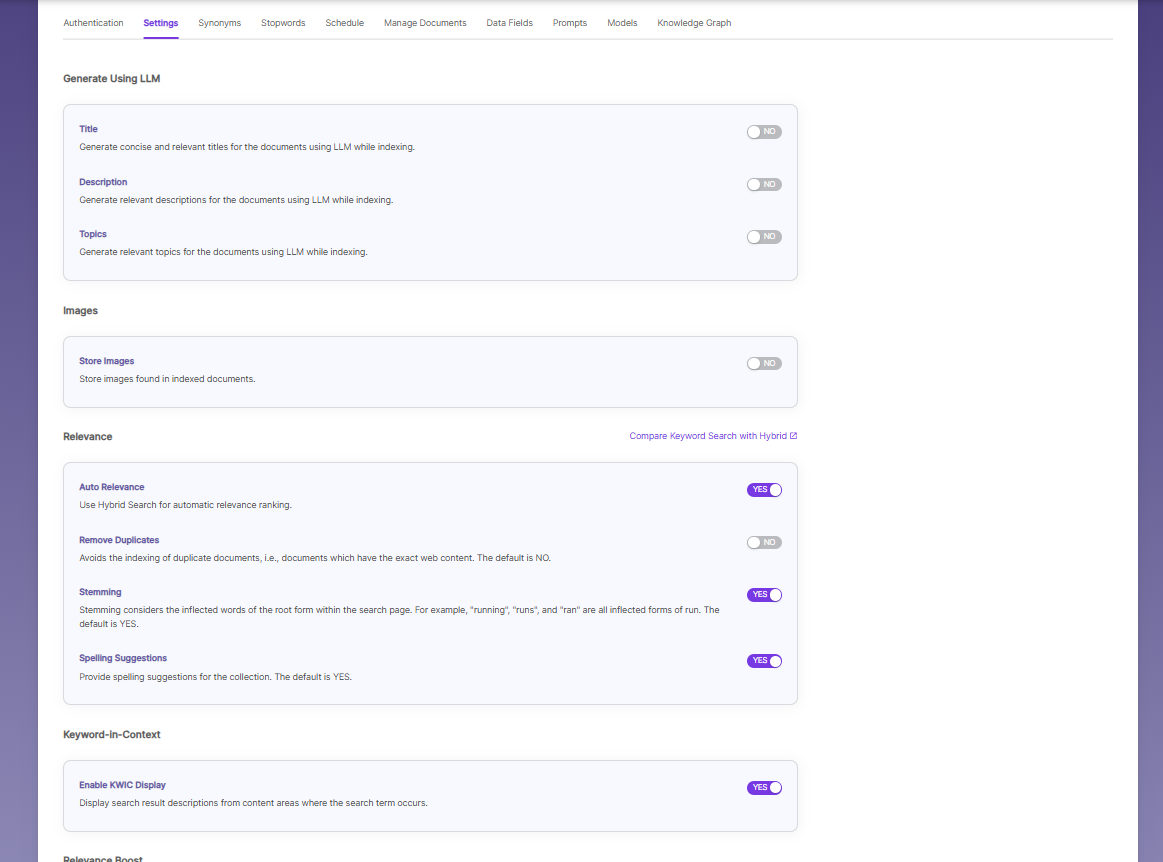
Generate Using LLM
These toggles let you use an LLM to auto-enrich documents during indexing:
Title — Generates concise and relevant titles for the documents using LLM while indexing.
Description — Generates relevant descriptions for the documents using LLM while indexing.
Topics — Generates relevant topics for the documents using LLM while indexing.
All three are set to NO by default and can be turned on individually as needed.
Relevance
Auto Relevance — Uses Hybrid Search for automatic relevance ranking of search results. Also off by default.
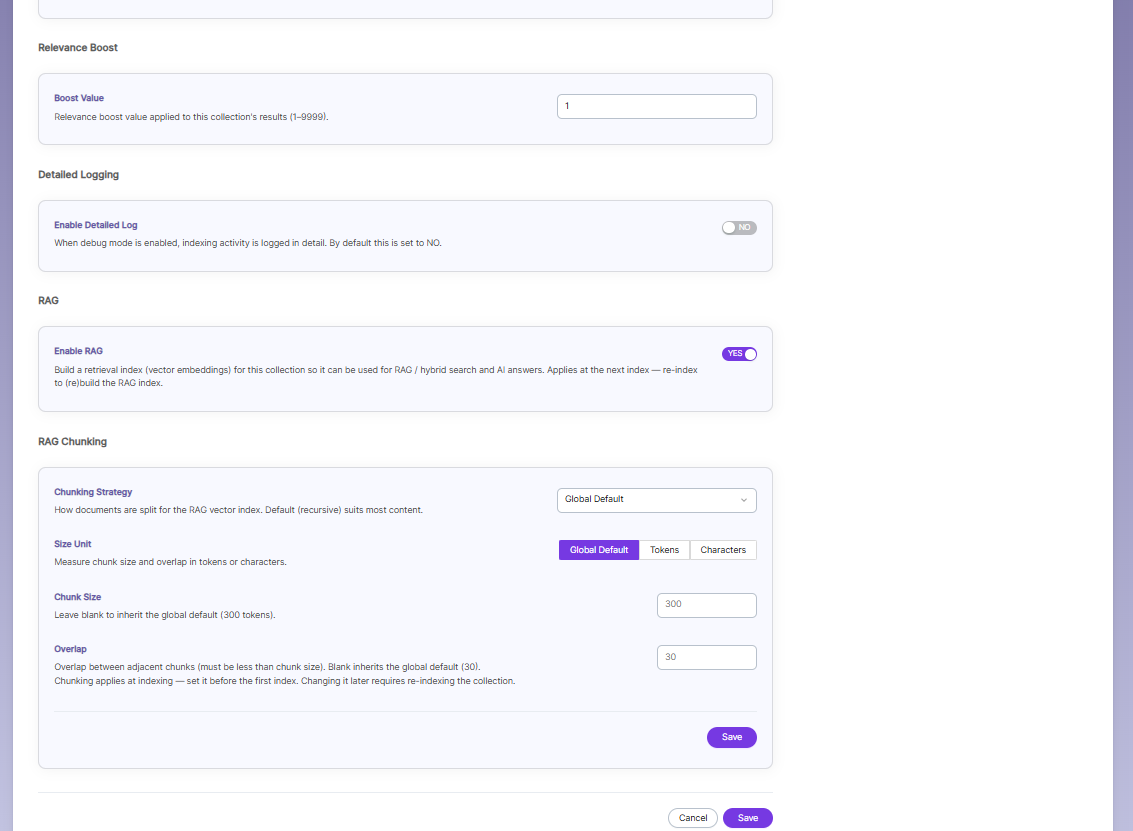
Detailed Logging
Enable Detailed Log — Turns on detailed indexing logs for debugging. Off (NO) by default.
RAG
Enable RAG — Builds a retrieval index (vector embeddings) for this collection so it can be used for RAG, hybrid search, and AI answers. Currently YES. Applies at the next index — you need to re-index to build/rebuild the RAG index.
RAG Chunking
Controls how documents are split into chunks for the RAG vector index:
Chunking Strategy — How documents are split (e.g., recursive). Set to Global Default, which suits most content.
Size Unit — Measure chunk size/overlap in Tokens or Characters. Currently Global Default.
Chunk Size — Size of each chunk; blank inherits the global default (300 tokens).
Overlap — Overlap between adjacent chunks, must be less than chunk size; blank inherits global default (30).
Chunking settings apply at indexing time — set them before the first index. Changing them later requires re-indexing the whole collection.
Each section has its own Save, plus overall Cancel/Save buttons at the bottom to apply all changes.
Saving
Once all fields are filled in, click Save to store the settings. This is required before you can move to the Content Types tab, where you authenticate against Drupal and select which content types to index. Click Cancel to discard changes and return without saving.
Configuring CMIS Settings
To configure CMIS for your collection, follow these steps:
-
Go to the CMIS Settings tab within the collection.
-
Enter the Repository URL. This is the Browser or AtomPub binding URL of your CMIS
server (for example, https://host/cmis/browser or https://host/cmis/atom). -
Select the Binding Type. Choose Browser (JSON binding) or AtomPub, matching what
your CMIS server supports. Defaults to Browser if not specified. -
Enter the Repository ID (Optional). Provide the repository ID if your CMIS server hosts
multiple repositories. If not specified, SearchBlox connects to the first repository
returned by the server. -
Enter the CMIS Query (Optional). Provide a CMIS SQL query to scope which documents
are indexed, for example SELECT FROM cmis:document WHERE INFOLDER('folder-id').
If not specified, SearchBlox uses the default query SELECT _ FROM cmis:document and
indexes all documents in the repository. -
Enter the Username. Provide a username with read access to the CMIS repository.
-
Enter the Password. Provide the password associated with the username. The password
is encrypted before it is stored. -
Click Save to store the configuration and enable SearchBlox to access and crawl your
CMIS repository. Use Test to verify the connection before saving — SearchBlox will run
the configured query and report how many documents matched.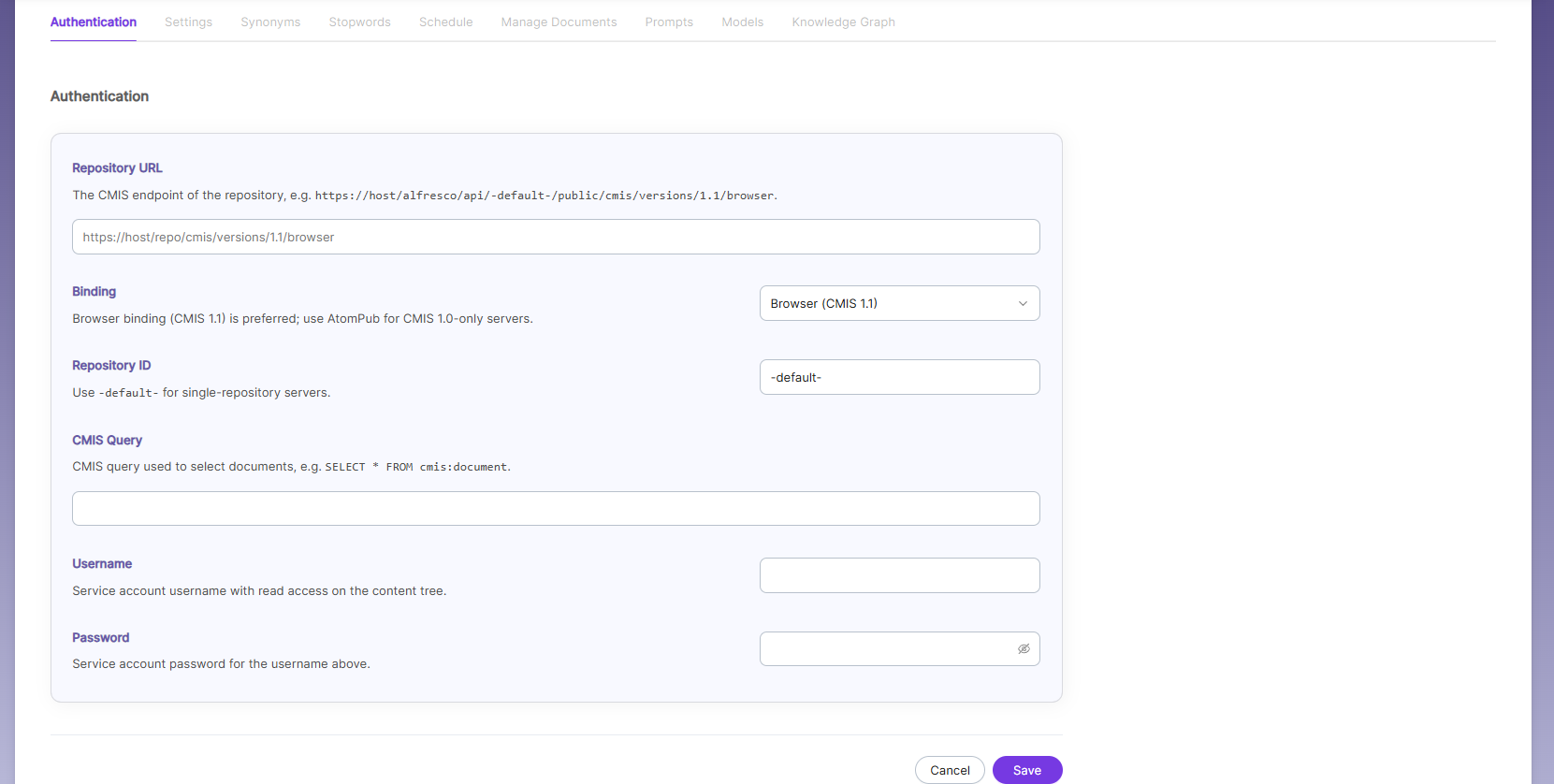
StopwordsStopwords are common, high-frequency words that carry minimal semantic value and are typically excluded during text processing, indexing, or search operations. Examples include articles (a, an, the), conjunctions (and, but, or), prepositions (in, on, about), and auxiliary verbs (is, was, would, had).
Purpose:
Reduce noise in search indexing and text analysis
Improve processing efficiency by excluding low-value tokens
Enhance search relevance by prioritizing meaningful keywordsExample:
Original: "The corporation had filed its report about the financial results."
After stopword removal: "corporation filed report financial results"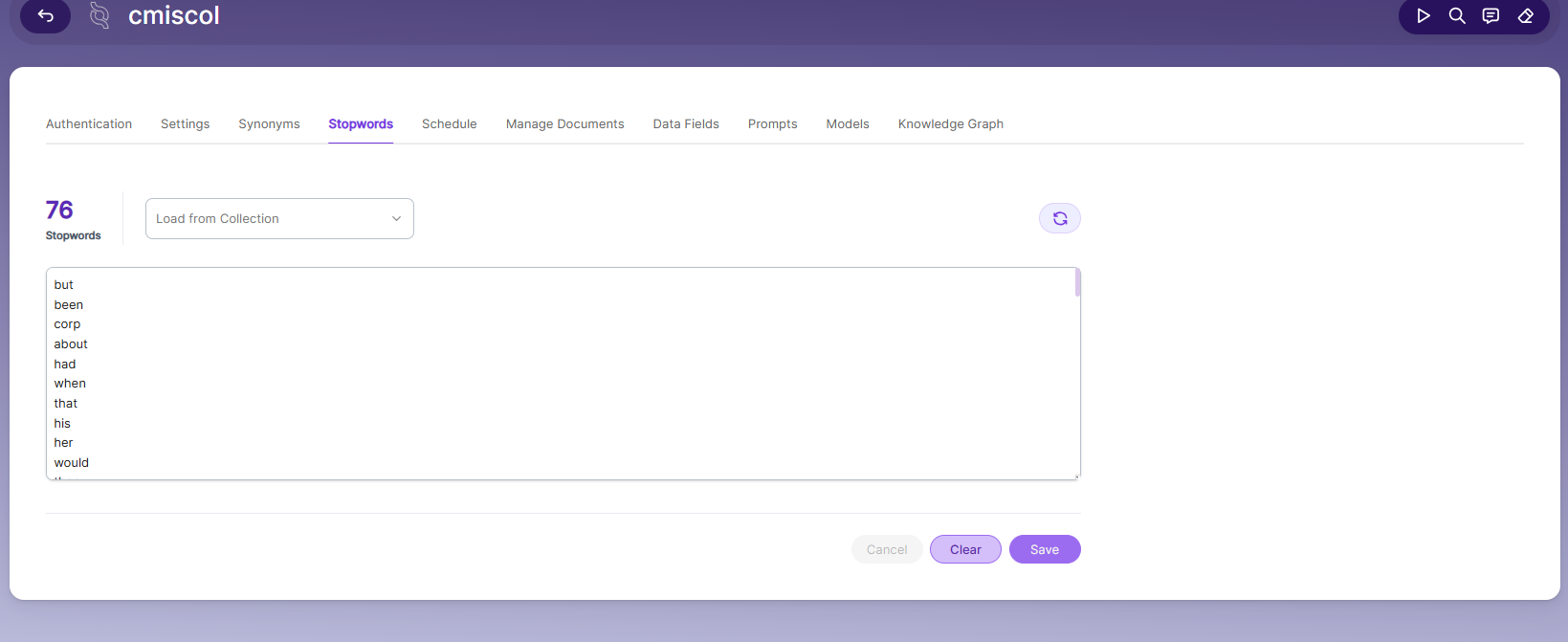
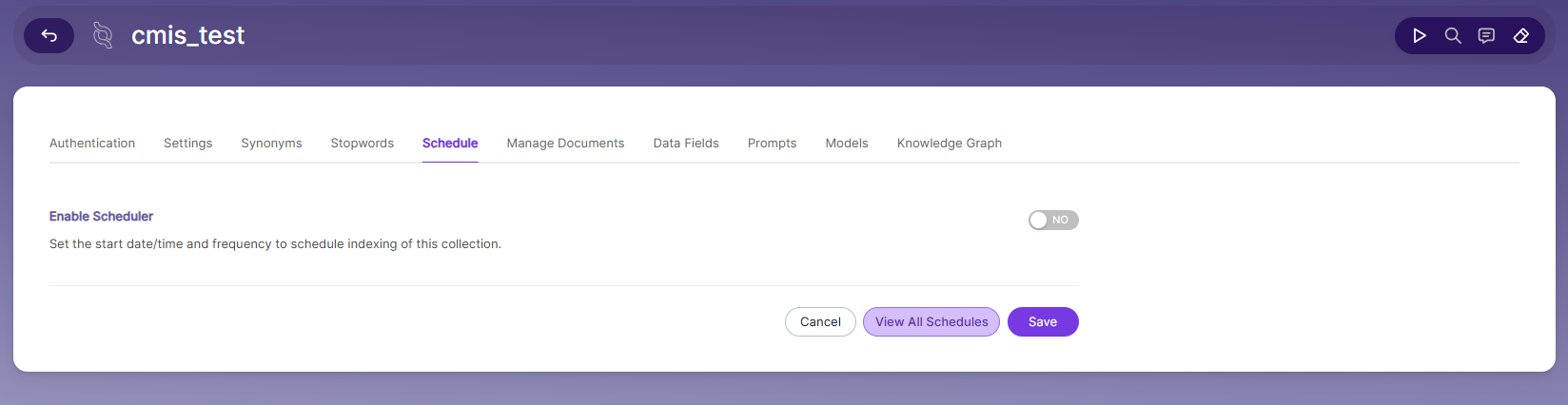
Schedule and IndexSets the frequency and the start date/time for indexing a collection. Schedule Frequency
supported in SearchBlox is as follows:
• Once
• Hourly
• Daily
• Every 48 Hours
• Every 96 Hours
• Weekly
• MonthlyThe following operation can be performed in CMIS collections
Activity Description Enable Scheduler for Indexing Once enabled, you can set the Start Date
and FrequencySchedule For each collection, indexing can be
scheduled based on the above options.View all Schedules Redirects to the Schedules section, where
all the Collection Schedules are listed
Manage Documents Tab
- Using Manage Documents tab we can do the following operations:
- Filter
- View content
- View metadata
- Refresh
- Delete
- To delete a file from your collection, enter the file path and click "Delete".
- To see the status of an indexed file, click "View Metadata".
Data Fields
• Using Data Fields tab we can create custom fields for search and we can see the Default
Data Fields with non-encrypted collection. SearchBlox supports 4 types of Data Fields as
listed below:
| Type | Description |
|---|---|
| Keyword | Used for alphanumeric values such as IDs, tags, codes, or other exact-match fields. |
| Number | Used for numeric values such as prices, quantities, ratings, or counts. |
| Date | Used for date values that can be searched, sorted, and filtered. |
| Text | Used for full-text search within custom field content. |
Note: Once the Data fields are configured, collection must be cleared and re-indexed to take
effect.
• To know more about Data Fields please refer to Data Fields Tab
(Data fields)
Prompts
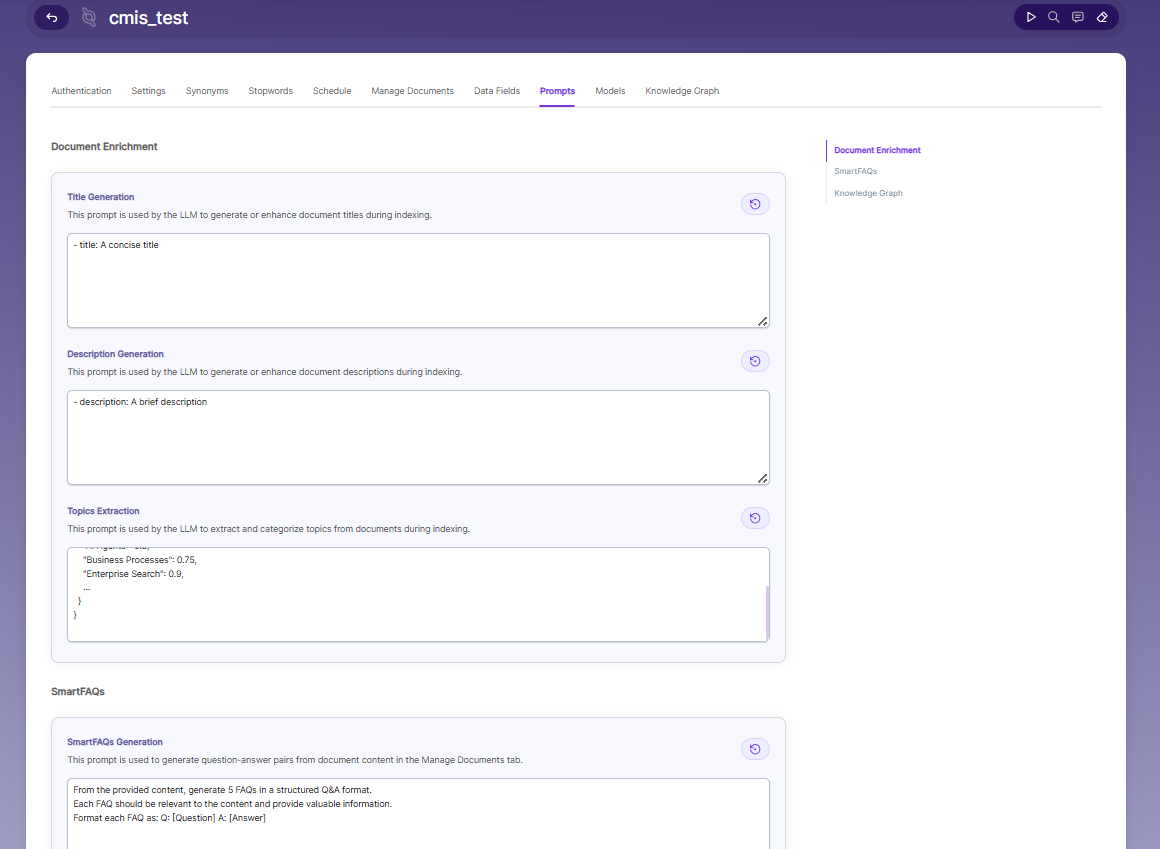
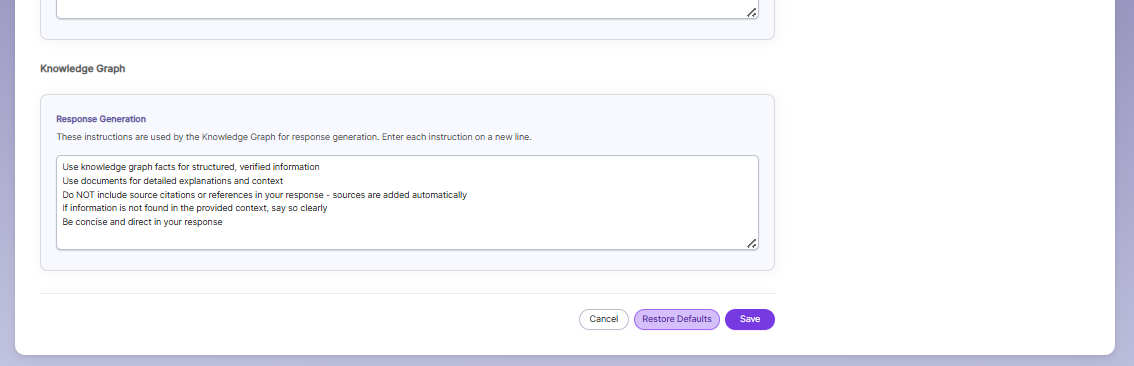
• When LLM/RAG is enabled, you can edit AI-based prompts for Title, Description, Topic,
Image Description, and Smart FAQs.
• You can customize these prompts anytime, and use Restore Default to reset them back
to the original SearchBlox settings.
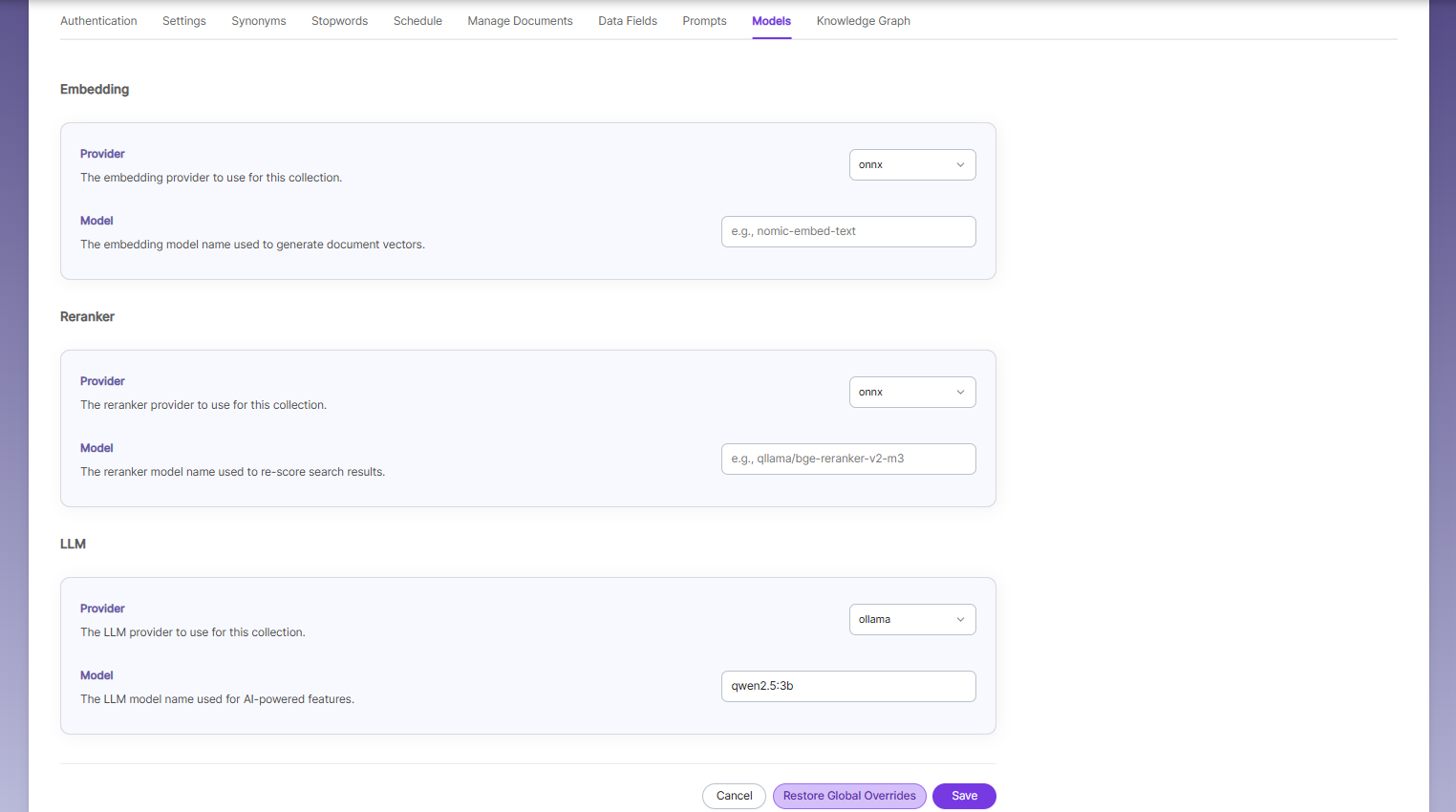
CMIS Collection Models
The Models page allows you to configure and override AI models used for embeddings,
reranking, and LLM-based features within the collection.
Embedding
• Provider specifies the embedding provider used to generate vector representations of
documents.
• Model defines the embedding model used to convert document content into vectors for
semantic search.
Reranker
• Provider specifies the reranker provider used for improving search result relevance.
• Model defines the reranker model used to re-score and reorder search results based on
relevance.
LLM
• Provider specifies the Large Language Model provider used for AI-powered features.
• Model defines the LLM used for tasks such as document enrichment, summaries, and
SmartFAQs.
• These settings override global configurations and apply only to the current collection.
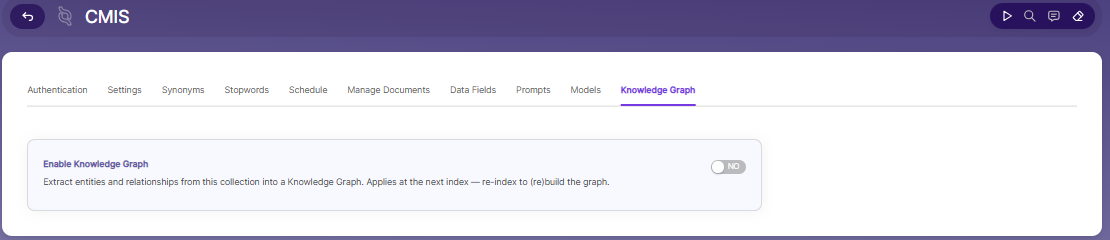
Knowledge Graph
- Enable Knowledge Graph — Turn ON to extract entities and relationships from this collection into a Knowledge Graph. This setting applies at the next index — re-index the collection to build or rebuild the graph.
Updated about 1 month ago