
Microsoft Entra ID
Microsoft Entra ID is a secure search method that authenticates users through your organization's Azure AD tenant using OIDC. Only authorized Microsoft Entra ID users can access the search page, providing a protected way to perform searches within SearchBlox.
Steps to Enable Secure Search for Microsoft Entra ID
To enable secure search using Microsoft Entra ID:
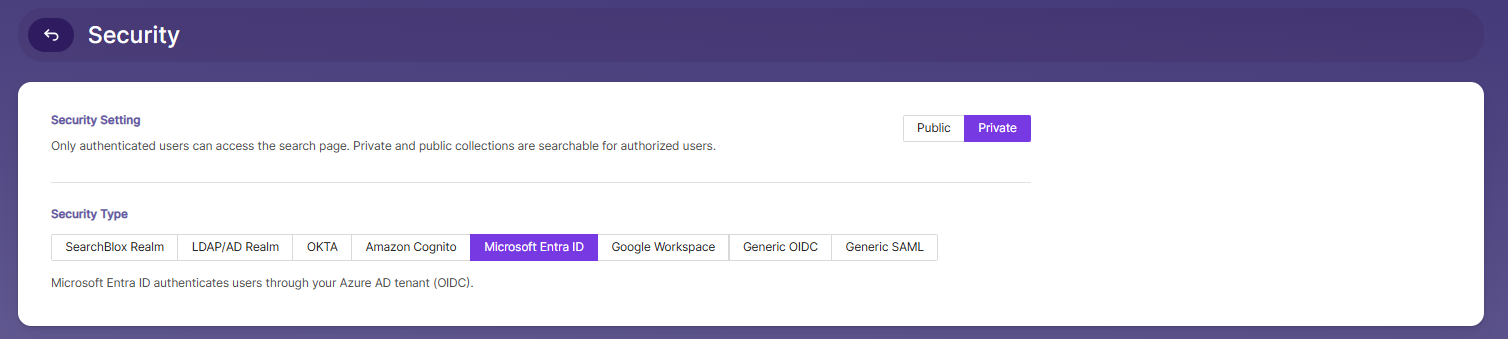
- Go to the Security tab in the Admin Search menu.
- Enable Private Security under Security Settings.
- Select Microsoft Entra ID as the Security Type.
Microsoft Entra ID authenticates users through your Azure AD tenant (OIDC).
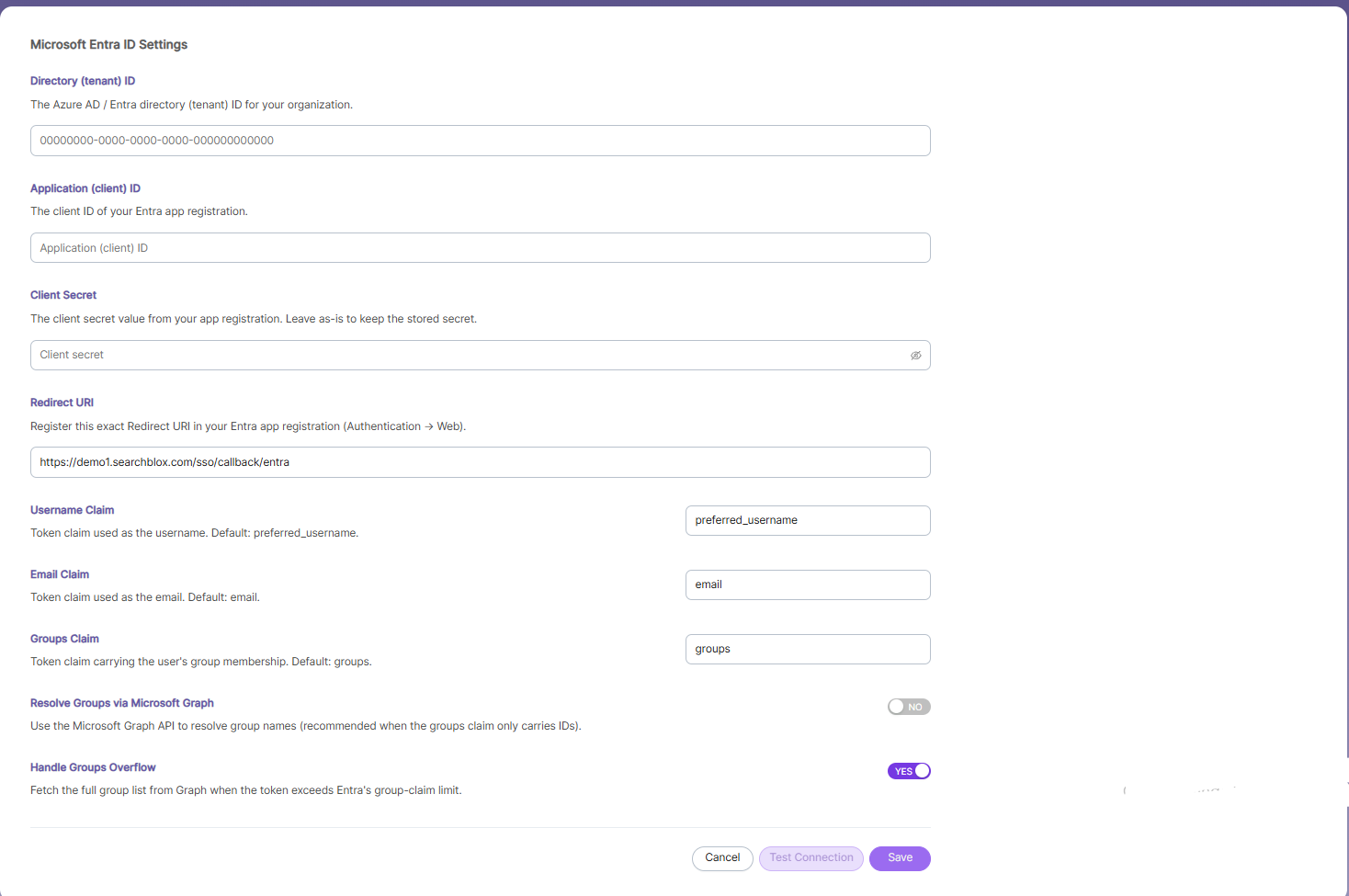
Microsoft Entra ID Settings
Enter the required Microsoft Entra ID configuration details in the available fields:
| Field | Description |
|---|---|
| Directory (tenant) ID | The Azure AD / Entra directory (tenant) ID for your organization (e.g., 00000000-0000-0000-0000-000000000000). |
| Application (client) ID | The client ID of your Entra app registration. |
| Client Secret | The client secret value from your app registration. Leave as-is to keep the currently stored secret. |
| Redirect URI | The redirect URI SearchBlox uses after authentication (e.g., https://demo1.searchblox.com/sso/callback/entra). Register this exact Redirect URI in your Entra app registration (Authentication → Web). |
| Username Claim | Token claim used as the username. Default: preferred_username. |
| Email Claim | Token claim used as the email. Default: email. |
| Groups Claim | Token claim carrying the user's group membership. Default: groups. |
| Resolve Groups via Microsoft Graph | Enable to use the Microsoft Graph API to resolve group names — recommended when the groups claim only carries IDs. |
| Handle Groups Overflow | Enable to fetch the full group list from Graph when the token exceeds Entra's group-claim limit. |
Once the required fields are configured:
- Click Test Connection to verify the configuration.
- Click Save to store the Microsoft Entra ID settings, or Cancel to discard changes.
Note: Ensure the Redirect URI shown in SearchBlox is registered exactly (including protocol and path) under Authentication → Web in your Entra app registration, or authentication redirects will fail.
Updated about 1 month ago
Did this page help you?