
Generic OIDC
Generic OIDC lets SearchBlox authenticate users through any identity provider that supports the OpenID Connect standard—such as Auth0, Keycloak, OneLogin, or Ping—rather than being limited to one specific named vendor. Instead of creating separate login credentials for SearchBlox, users log in with an account they already have, and the identity provider sends back verified information (like username, email, and group membership) that SearchBlox uses to grant access. To set it up, you typically provide a discovery URL (or manual endpoint details), a Client ID and Secret from your provider, and register a redirect URI so users are sent back to SearchBlox after logging in successfully.
Steps to Enable Secure Search for Generic OIDC
To enable secure search using Microsoft Entra ID:
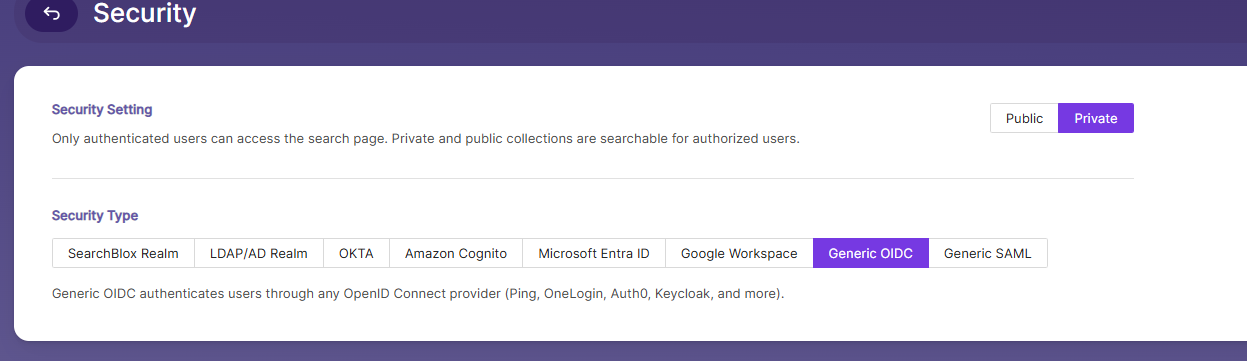
- Go to the Security tab in the Admin Search menu.
- Enable Private Security under Security Settings.
- Select Generic OIDC as the Security Type.
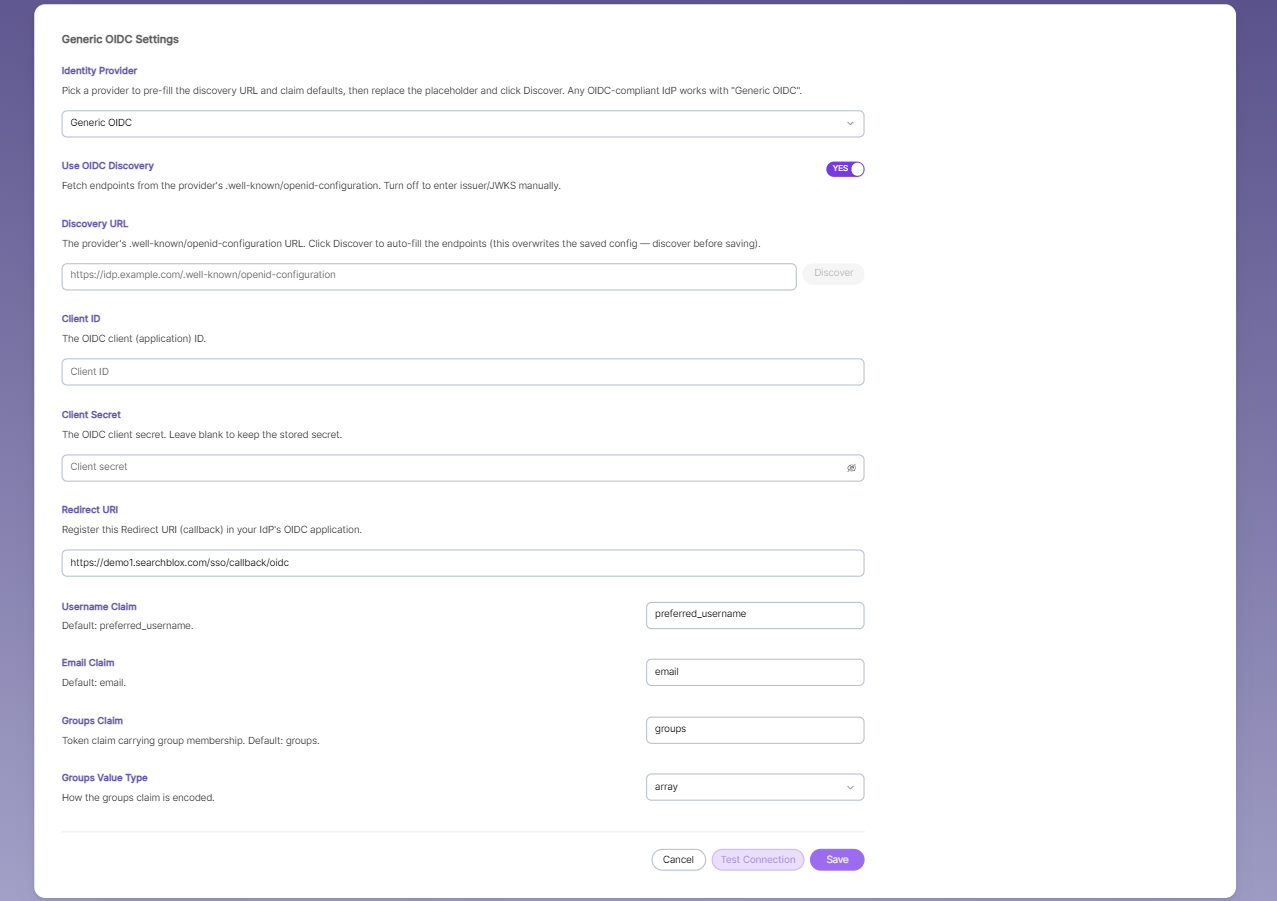
Generic OIDC Settings
- Identity Provider — Dropdown to pick your login provider. Since it's set to "Generic OIDC," you'll enter details manually instead of using a preset (Okta, Google, etc.).
- Use OIDC Discovery — YES — When turned on, you only need to give one URL, and SearchBlox automatically fetches all the technical connection details it needs. Turn it OFF only if you want to type everything in by hand.
- Discovery URL — The web address your identity provider gives you (usually ending in /.well-known/openid-configuration). Paste it here, then click Discover to auto-fill the rest.
- Client ID — A unique ID that identifies SearchBlox as an app registered with your identity provider. You get this from the provider's admin panel.
- Client Secret — A private password paired with the Client ID, used to confirm SearchBlox's identity. Also from your provider. Leave blank if you already saved one and don't want to change it.
- Redirect URI — Already filled in: https://demo1.searchblox.com/sso/callback/oidc. This is where users get sent back after logging in successfully. You must copy this and add it to your identity provider's allowed redirect list, or login won't work.
- Username Claim — Tells SearchBlox which field in the login response holds the username. Default: preferred_username.
- Email Claim — Tells SearchBlox which field holds the user's email. Default: email.
- Groups Claim — Tells SearchBlox which field holds the user's group memberships (used to control access). Default: groups.
- Groups Value Type — How that group info is formatted — array means a list, e.g. ["sales", "admin"].
You get the Discovery URL, Client ID, and Client Secret from your identity provider, paste them in, register the Redirect URI back on the provider's side, then click Test Connection and Save.
Updated about 1 month ago