
MongoDB Collection
Creating MongoDB Collection
A MongoDB collection can be created using the following steps:
- After logging in to the Admin Console, select the Collections tab and click on Create a New
Collection or "+" icon. - Choose MongoDB Collection as Collection Type
- Enter a unique name for your collection (for example, MongoDB).
- Choose Private/Public Collection Access and Collection Encryption as per the requirements.
- Click Save to create the collection.
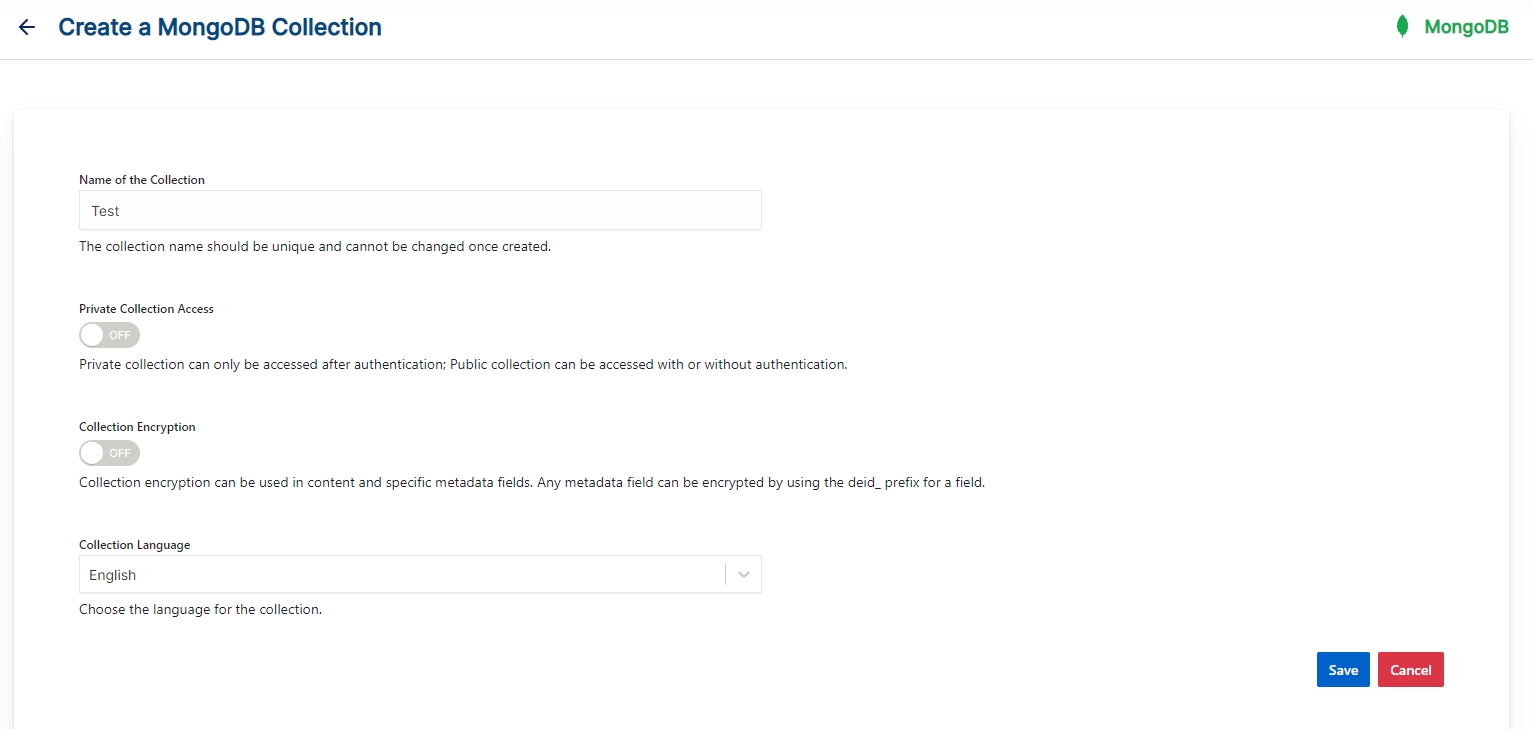
- Once the MongoDB collection is created you will be taken to the MongoDB tab
MongoDB Collection Settings
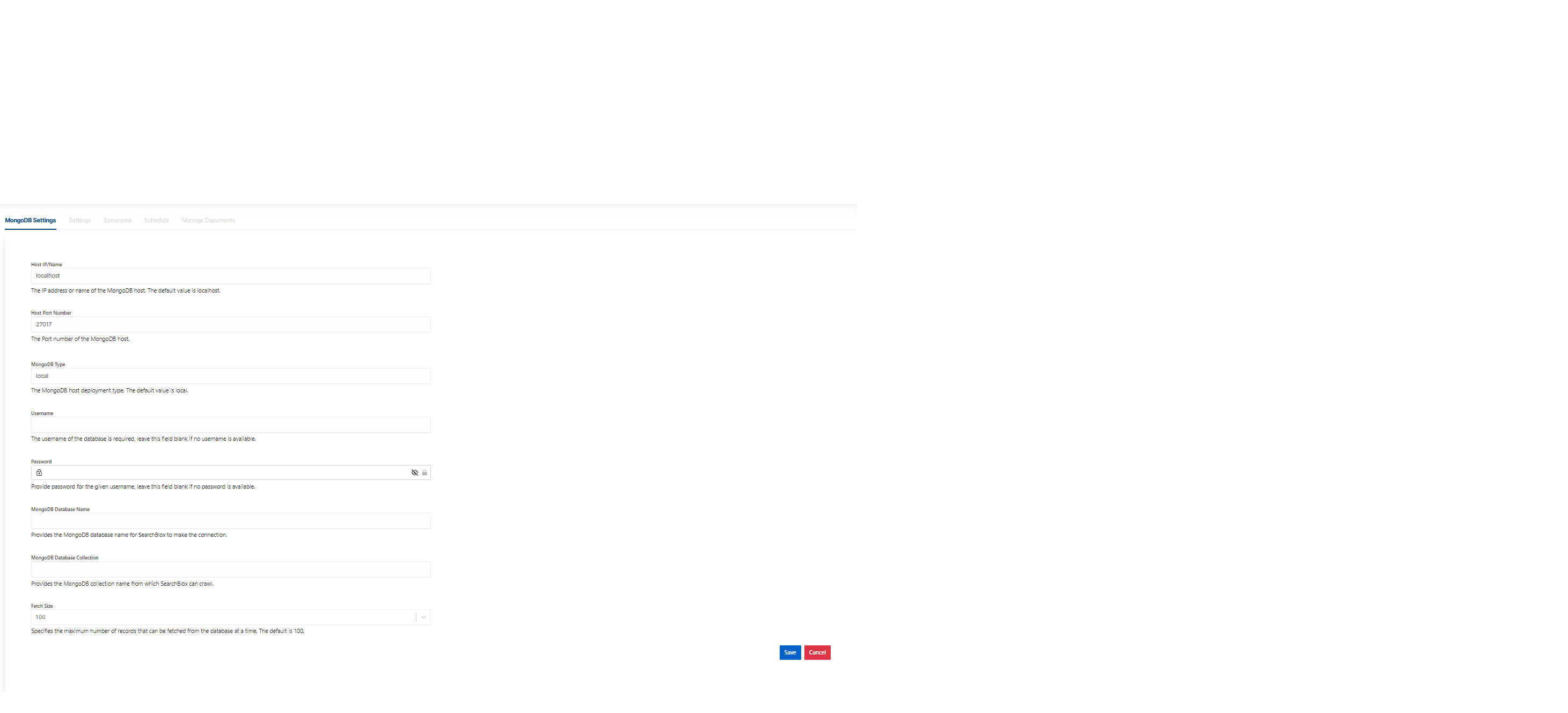
- MongoDB settings values must be set explicitly for MongoDB collections.
- The mandatory settings for MongoDB collection are
- Host Name
- Port Number
- MongoDB Type
- MongDB Database Name
- MongoDB Database Collection
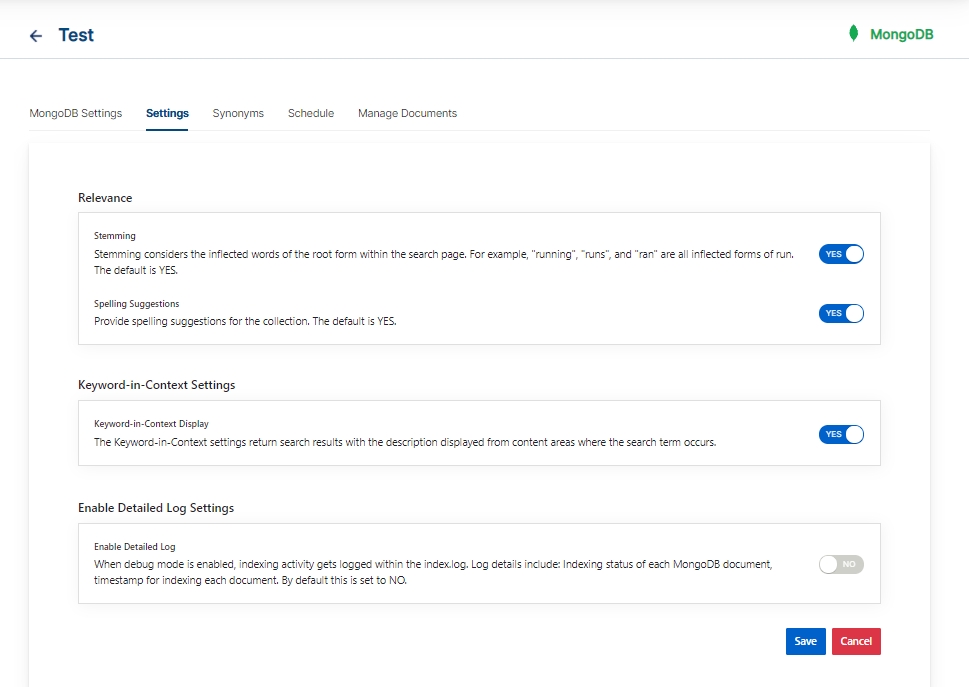
- SearchBlox also comes pre-configured with few parameters when a new MongoDB collection is created which can be modified as required.
- The following table has the list of settings available in MongoDB collection
Field Description Host Name IP address or name of the MongoDB host (default value is localhost). Port Number Port number of MongoDB. MongoDB Type Default value is local. User Name User name in MongoDB (leave the username and password fields empty if no username is available). Password Password used in MongoDB. MongoDB Database Name Database name to be indexed. MongoDB Database Collection Collection to be indexed. Fetch Size Specifies the maximum number of records that can be fetched from the database at a time. The default is 100. Relevance - Stemming Stemming considers the inflected words of the root form within the search page. For example, "running", "runs", and "ran" are all inflected forms of run. The default is YES. Relevance - Spelling Suggestions Provide spelling suggestions for the collection. The default is YES. Keyword-in-Context Display The keyword-in-context returns search results with the description displayed from content areas where the search term occurs. Enable Detailed Log Settings When debug mode is enabled, indexing activity gets logged in detail within the index.log.
Log details include : Indexing status of each URL along with timestamp, URL indexing status along with timestamp, status code and time taken for indexing. By default this is set to NO.Enable Content API Provides the ability to crawl the document content with special characters included.
Schedule and Index
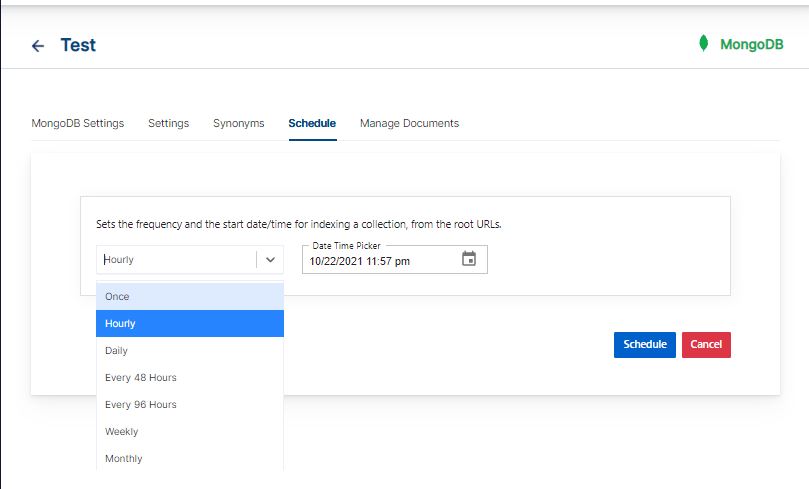
Sets the frequency and the start date/time for indexing a collection. Schedule Frequency supported in SearchBlox is as follows:
- Once
- Hourly
- Daily
- Every 48 Hours
- Every 96 Hours
- Weekly
- Monthly
The following operations can be performed in a MongoDB collection:
| Activity | Description |
|---|---|
| Schedule | For each collection, indexing can be scheduled based on the above options. |
Data Fields Tab
Using Data Fields tab we can create custom fields for search and we can see the Default Data Fields with non-encrypted collection. SearchBlox supports 4 types of Data Fields as listed below:
Keyword
Number
Date
Text
- Once the Data fields are configured, collection must be cleared and re-indexed to take effect.
To know more about Data Fields please refer to Data Fields Tab
Best Practices
- Please cross-check the steps to set up MongoDB in our documentation with your MongoDB admin for successful indexing of collection
- Specify the correct and relevant settings of MongoDB in the MongoDB collection settings
- If you have multiple collections, always schedule the activity to prevent more than 2-3 collections indexing at the same time.
Updated 8 days ago
What’s Next
Did this page help you?